Ultimate Guide: Everything you need to know about Discord Embeds
An EMBED is a special feature that lets you wrap your text and pictures inside a clean, structured info card. While Discord usually creates those for links, you can actually build and send these completely on your own.
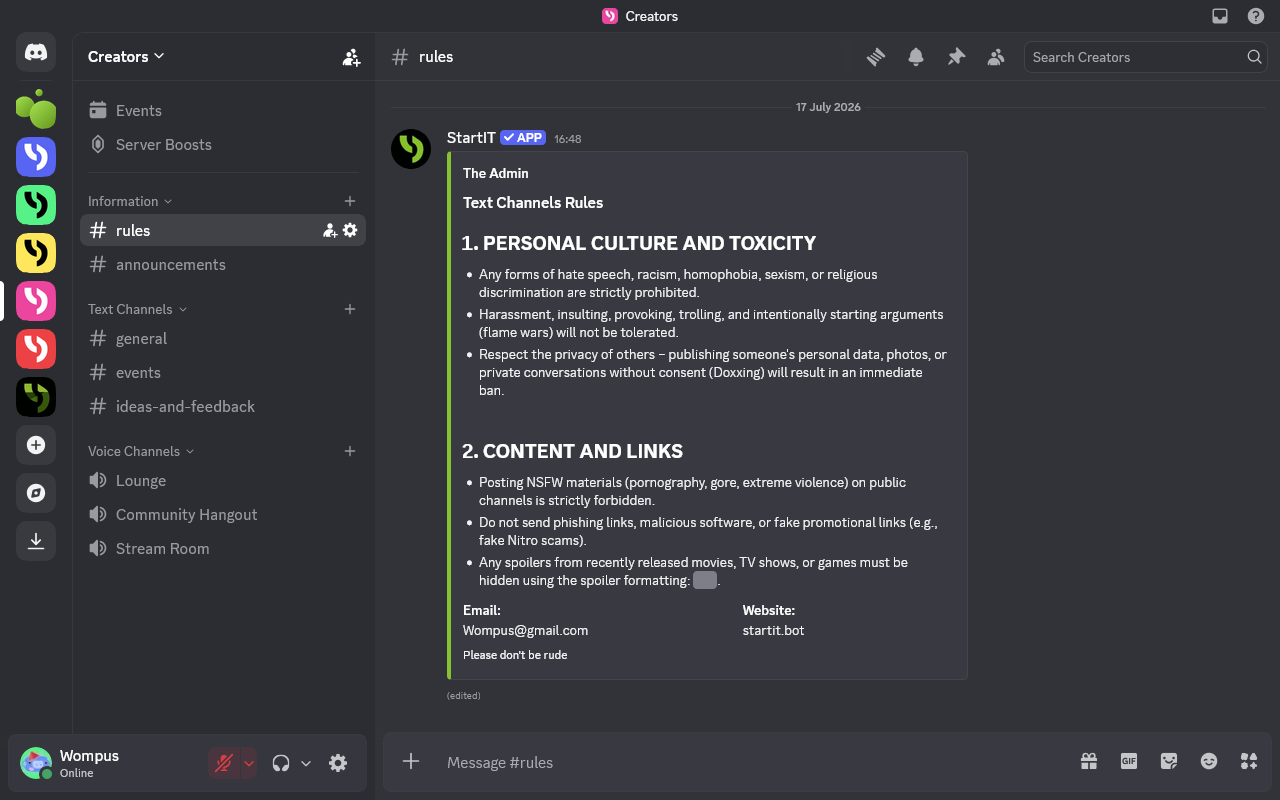
When you message someone on Discord, you usually just send plain text.
So what is the Embed anyway?
An EMBED is a special feature that lets you wrap your text and pictures inside a clean, structured info card. If you have ever sent a link on Discord and noticed a little info box automatically pop up underneath your message, you have already seen one. While Discord usually creates those for links, you can actually build and send these cards completely on your own without any links, which is perfect for making your announcements and rules look organized and neat.
A quick side note
While embeds have been around since the beginning and are great to know, they are actually starting to get replaced by something called Capsules (tech folks might know them as Components V2). It's a massive upgrade to how Discord messages work.
Since some bots use embeds and others are moving to Capsules, knowing both gives you a massive advantage, so we highly recommend checking out our Discord Capsules and Components v2 Guide; it's honestly a total game-changer.
First, add tool to create Embeds
To write embeds you need Discord bot with a clean dashboard. If you don't use StartIT yet, go to startit.bot website, add it to the server.
Embed Visualization
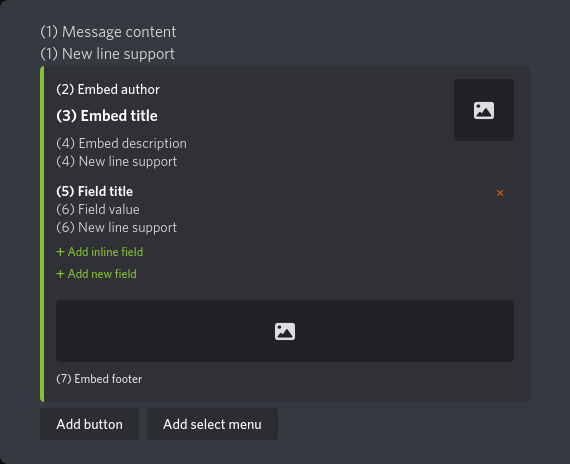
Which fields are required?
You must use either the Embed Title (3) or the Embed Description (4) as your starting point. You can fill both if you want. All other sections (like the author and footer) are completely optional.
However, if you do click "+ Add new field", just make sure to fill out both the Title (5) and Value (6). Leaving one of them completely blank will just prevent the card from saving or displaying correctly.
Base Information
These sections go at the very top of your embed card.
- Optional Author Name (2) — Shows who sent or created the content (usually at the very top).
- Limit: 256 characters.
- You can't hit Enter to start a new paragraph.
- Does not support text styling.
- Embed Title (3) — The main headline of your embed. Keep it short and catchy.
- Limit: 256 characters.
- You can't hit Enter to start a new paragraph.
- Partially supports Discord formatting: Underline (__text__) and Italic (*text*) only.
Main Content
This is the core of your embed message.
- Embed Description (4)
- Limit: 4,096 characters.
- You can hit Enter to start a new paragraph.
- Fully supports all standard Discord formatting: bold, italics, code blocks, hyperlinks, headers etc..
- Additional Fields (5,6) — Optional Additional Fields.
- They become available by clicking either "+ Add new field" or "+ Add inline field".
- This is better explained later in this article.
The Footer
The final piece at the very bottom of the card.
- Optional Embed Footer (7) — Small text at the very bottom of the embed, perfect for dates, credits, or extra notes.
- Limit: 2,048 characters.
- You can hit Enter to start a new paragraph.
- Does not support text styling (bold, italic etc.).
Expanding with Fields (5, 6)
Regardless of the layout, the Field Title (5) is always styled with a brighter, whiter font color compared to the dimmer text in the Description (4) and Field Value (6). This makes each paragraph headline stand out clearly.
Normal Fields
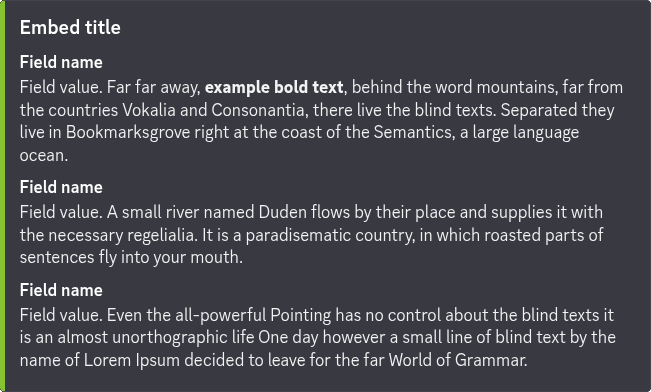
By default, standard fields stack vertically on top of each other. Each new field starts on a brand-new line, stretching across the full width of the embed card. Use this layout if your field text is long or if you want a clean, top-to-bottom reading order.
Inline Fields
When you click "+ Add inline field", Discord allows multiple fields to sit side-by-side on the exact same row.
Up to 3 inline fields can fit horizontally on a single row (or less if you are viewing Discord on a smaller screen/mobile device). If you add a 4th inline field, it will automatically wrap down to start a new row.
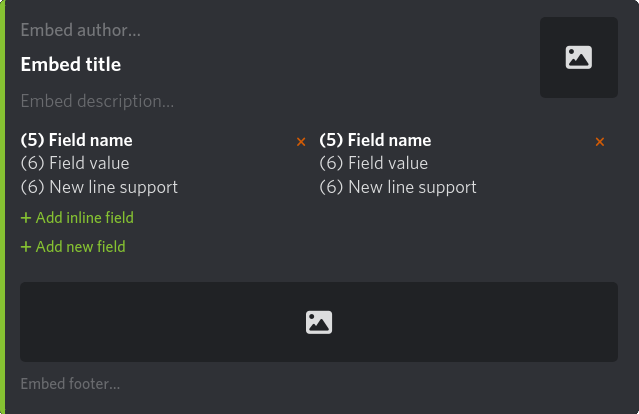
Field Content
- Field Title / Name (5) — This acts as the bold headline for your sub-section (up to 256 characters). Because it is a short headline, you cannot press Enter to start a new line here.
- Field Value (6) — This is the main text paragraph under your sub-section headline (up to 1,024 characters). It fully supports pressing Enter to start new lines and paragraphs.
If you add a field, you must fill both: a Field Title (5) and a Field Value (6)!
While fields are great for expanding your message, keep an eye on your overall length. Discord has a strict limit of 6,000 total characters per card. This 6,000 limit adds up absolutely everything together: the main description, all your extra fields, the title, the author name, and the footer text. If the entire card combined goes over 6,000, Discord won't let the bot send it.
Further Reading
Mastered the basics of embeds? Discord has introduced an upgraded system called Capsules (Components v2) that offers even more modern layouts for your announcements.
 StartIT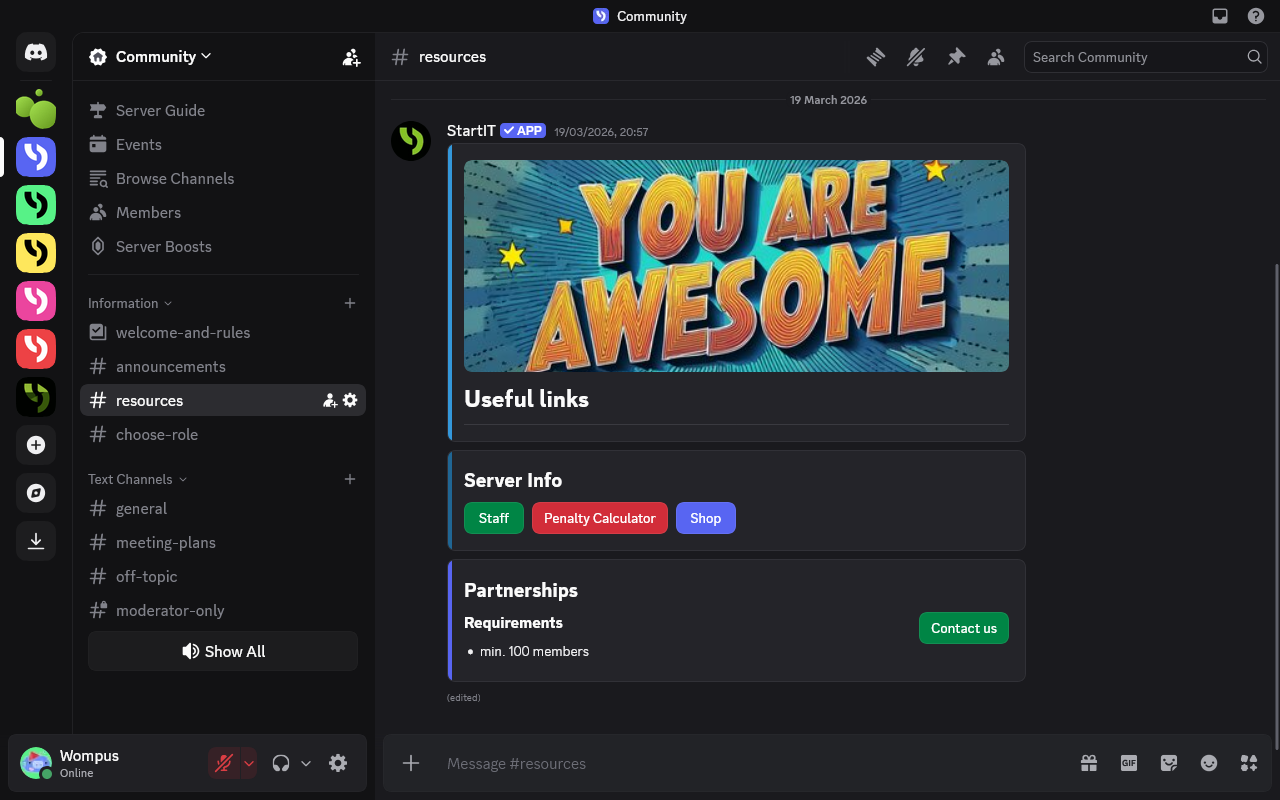
Troubleshooting
Can I change the color of the vertical bar on the side of the embed?
Yes! Every embed card has a slim color strip running down its left edge. On the StartIT dashboard, simply click directly on that vertical bar in the preview window, and a color picker will pop up allowing you to choose any color you like.
Can regular members send embeds?
Usually, no. Discord only allows bots to create these structured cards. If a regular member posts a website link (like a YouTube video, a news article, or a Twitter post), Discord will automatically generate a mini info box underneath their text. But to actually build and design custom embed cards yourself, you still need to use a bot like StartIT.
Can I save my embeds to use later?
It depends on exactly what you want to do:
- Save a draft to send later: If you want to design your embed card now but aren't ready for anyone to see it, just click save without selecting a Discord channel. When you are ready to publish it, just pick your channel and save again to push it live.
- Edit a live message down the road: If you want to send a message now and tweak the text later, that is already the default behavior in the Embeds plugin.
- Schedule it for a specific date or time: If you want to automate your announcements to go out on a specific schedule or interval, you can use the Scheduled Messages plugin. (Note: This is currently a premium feature, but we occasionally make premium tools free, so check your dashboard to see if it’s available to you!)
- Trigger it via buttons or menus: If you want to design a message specifically to pop up when a user clicks an option or button, head over to the Automations tab and build it inside the Message Templates section instead.
Can I edit an embed after I have already sent it to a channel?
Yes. If you are using the Embeds plugin, clicking "Save Changes" (or pressing Ctrl+S) will instantly update your existing message inside Discord.
Note: Discord restricts how fast and how many times you can edit a single message. If you notice your changes aren't updating because you've edited too much, you can easily reset it: change the target channel in the plugin dashboard, save it, change it back to your original channel, and save again. The bot will simply send a fresh, updated copy of your message.
Can I add buttons or dropdown menus to my embeds?
It depends on where you are building it:
- In the Embeds Plugin: Yes, you can add them directly.
- In Automations: Yes, but you must create a "Message Template" first, and then choose the "Reply with a message template" option instead of the standard "Reply with a message" option (which doesn't support them).
- In other plugins: Look for an "Add button" option. If it isn't there, that specific section doesn't support them.
All buttons are fully customizable using simple building blocks. For example, you can set up a button that whispers a hidden message only to the person who clicked it. This is perfect for sharing extra details without cluttering your channel with a massive wall of text.