Create Your Own Unique Commands on Discord in 40 Seconds (no coding required)
It is frustrating when you can't find a bot that actually does what you want. This guide walks you through a simple, visual way to build missing features yourself. Turn your ideas into working tools for your server.
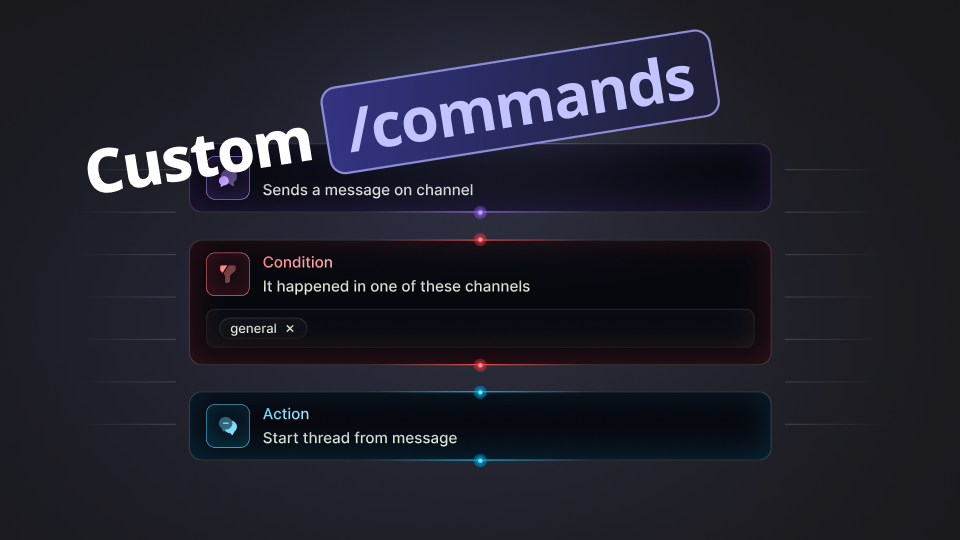
Most Discord bots come with a set of pre-installed commands. While useful, these generic tools don’t always fit the unique vibe or specific needs of every community. Does this mean you need to learn how to write complex code to build your own bot? Absolutely not!
We will show you how to quickly, easily, and completely for free create your own unique commands using a simple "building block" system. Let’s dive in!
Add StartIT to Your Discord Server
Head over to the website: Visit https://startit.bot/ and log in using your Discord account.


Invite the Bot: Select the server you want to enhance.
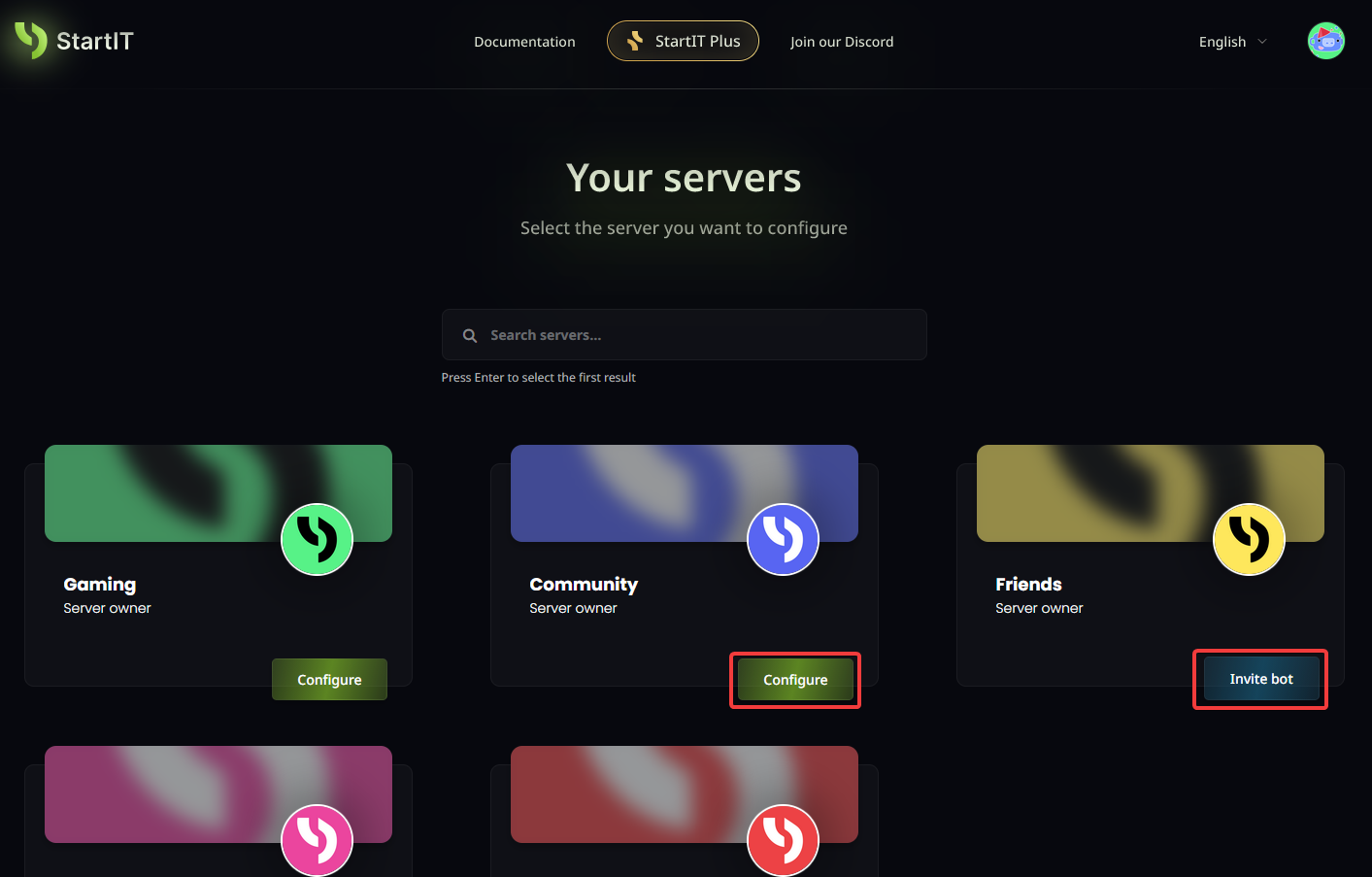
Note: You must have Administrator permissions for the server to appear in the selection list.
Configure the Automations Plugin
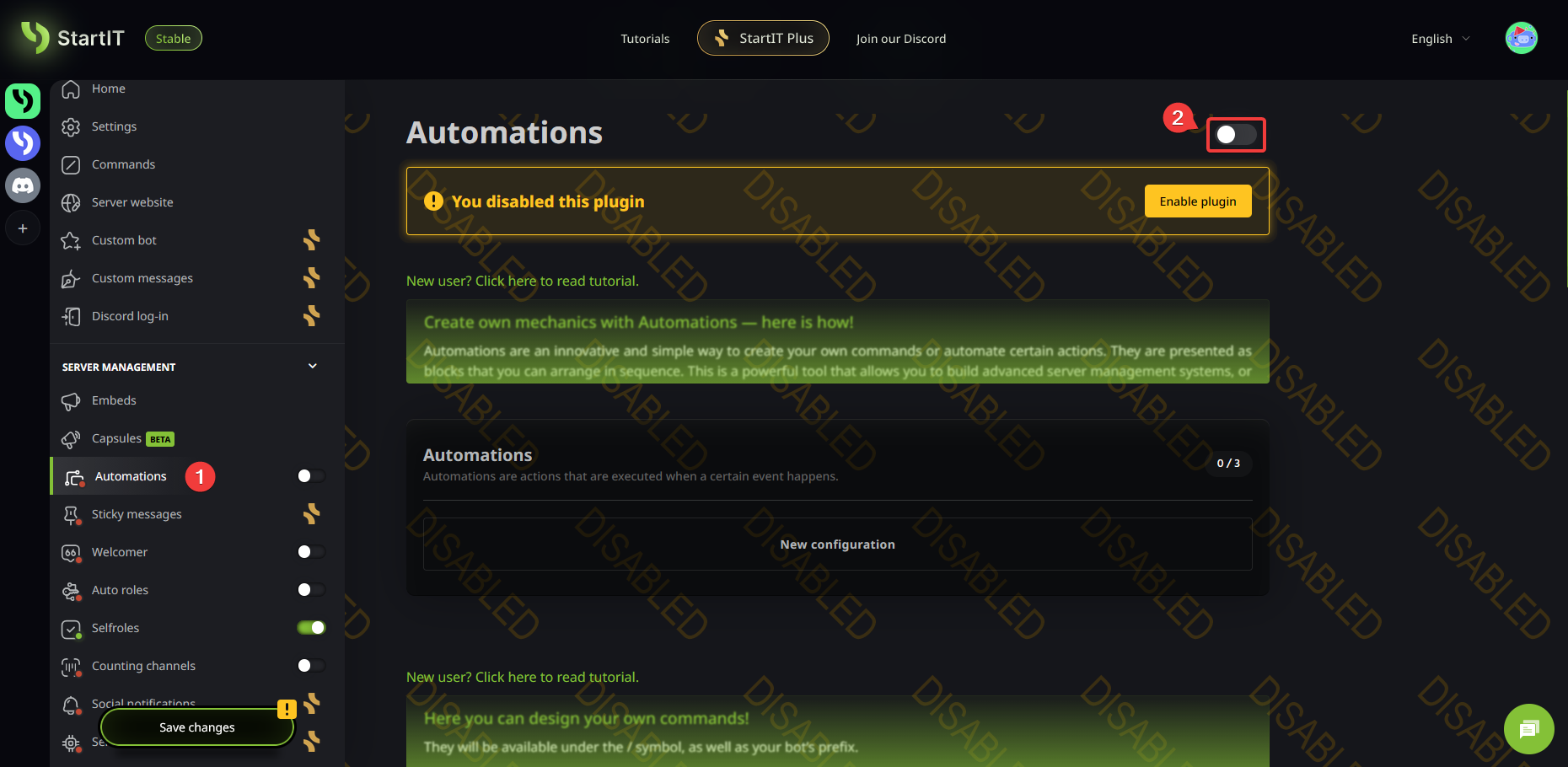
Head over to the dashboard, find the Automations plugin (1), and switch it on (2). This is the brain of your custom features.
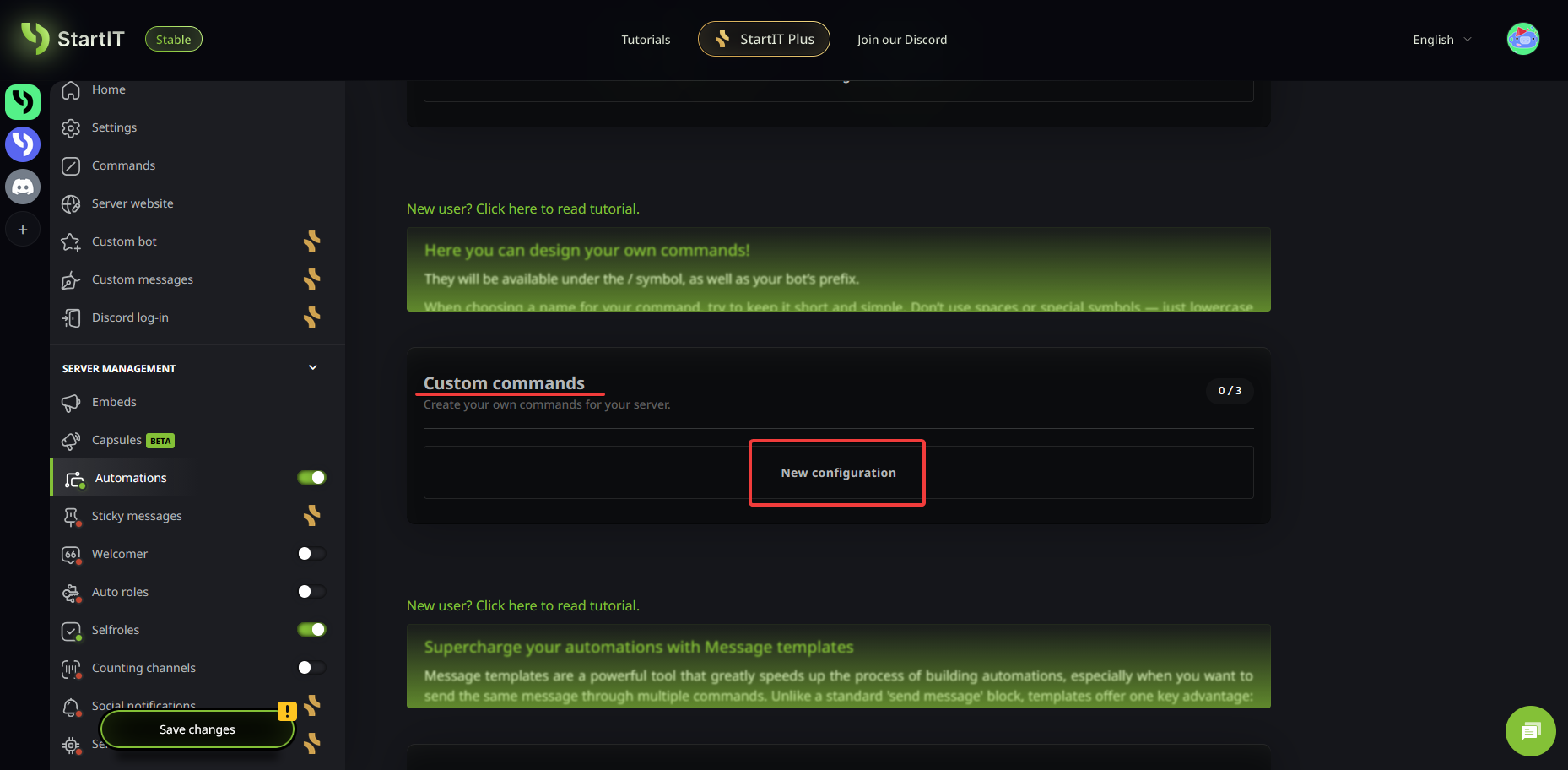
Now, scroll down until you find the Custom commands section. Click on New configuration to start building.
Naming Your Command
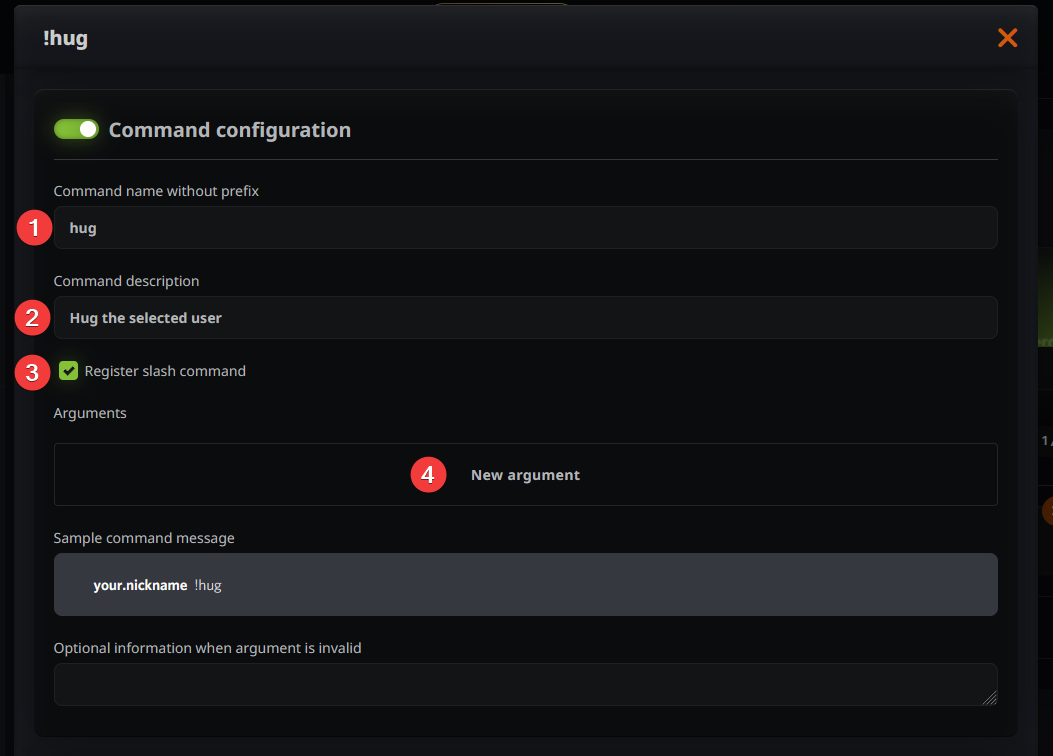
Now it’s time to give your command a name. Keep it short and simple; ideally one word (1). Next, add a brief description so your members know what it does (2).
It is very important to check the box for Register slash command (3). This ensures that when someone types / on your server, your command pops up in the menu. For those who want more variety, you can add "Arguments" (4), which act like "extra details" for your command. We will explain those in a moment!
Adding Extra Details (Arguments)
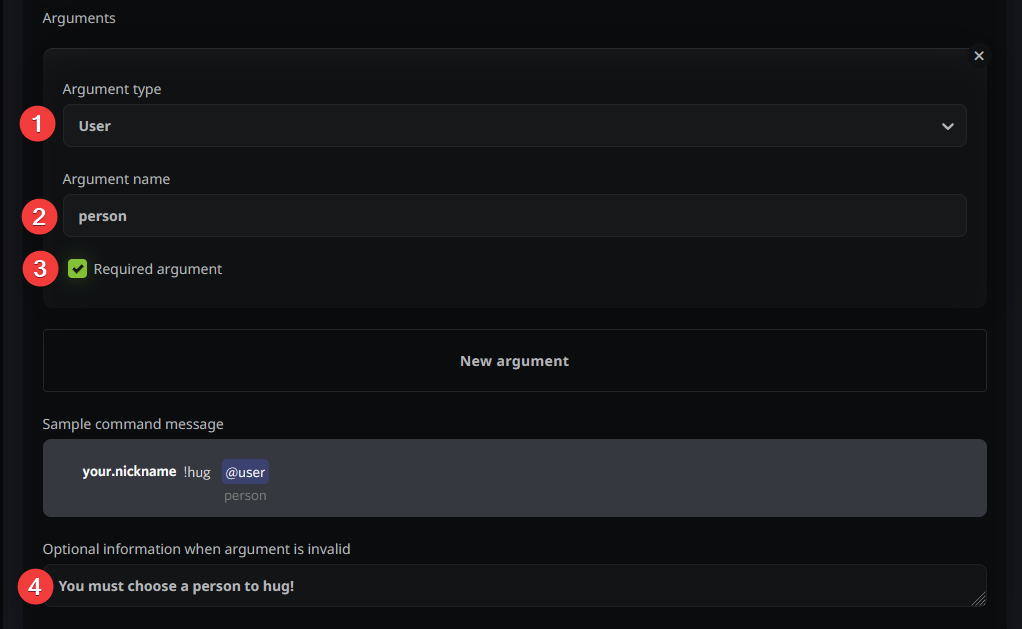
Optional: You can assign "arguments" to a command. Think of these as "fill-in-the-blank" spots for your users. There are five types: text, numbers, a specific user, a channel, or currency (if you use our Economy system).
For our example, we’ll create a "Hug" command. To do this, we need to tell the bot who to hug. Click New argument and select User (1). Give this spot a name that users will see while typing (2); for example, "person". In our case, this is a "required" field (3), meaning the command won't work unless a user is picked. You can also set a "fallback message" (4) that appears if someone forgets to mention a user or makes a mistake.
Setting the Rules (Requirements)
Next, you need to decide the conditions under which the command can be used. Click the "plus" icon and explore the options! You can set multiple rules that must all be met for the command to trigger.
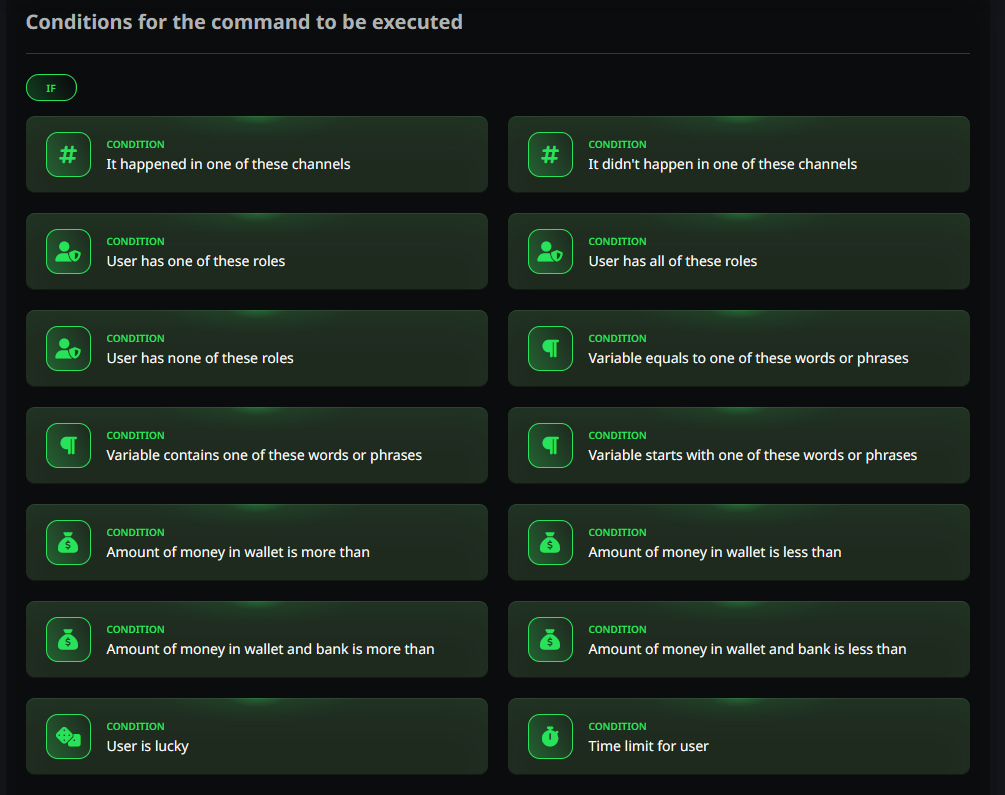
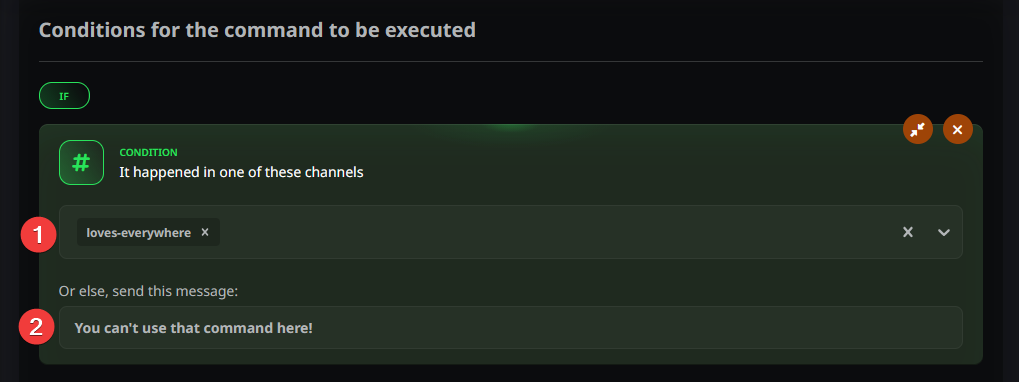
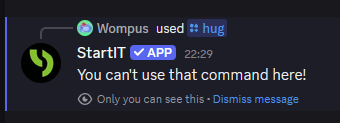
For this guide, we want our command to work only in one specific chat room (channel). We choose the It happened in one of these channels tile and select our preferred channel (1). We also add a small notification (2) to let users know if they are trying to use the command in the wrong place.
Defining the Action
Now for the fun part: what does the command actually do? The possibilities here are almost endless, and you can stack several actions together!
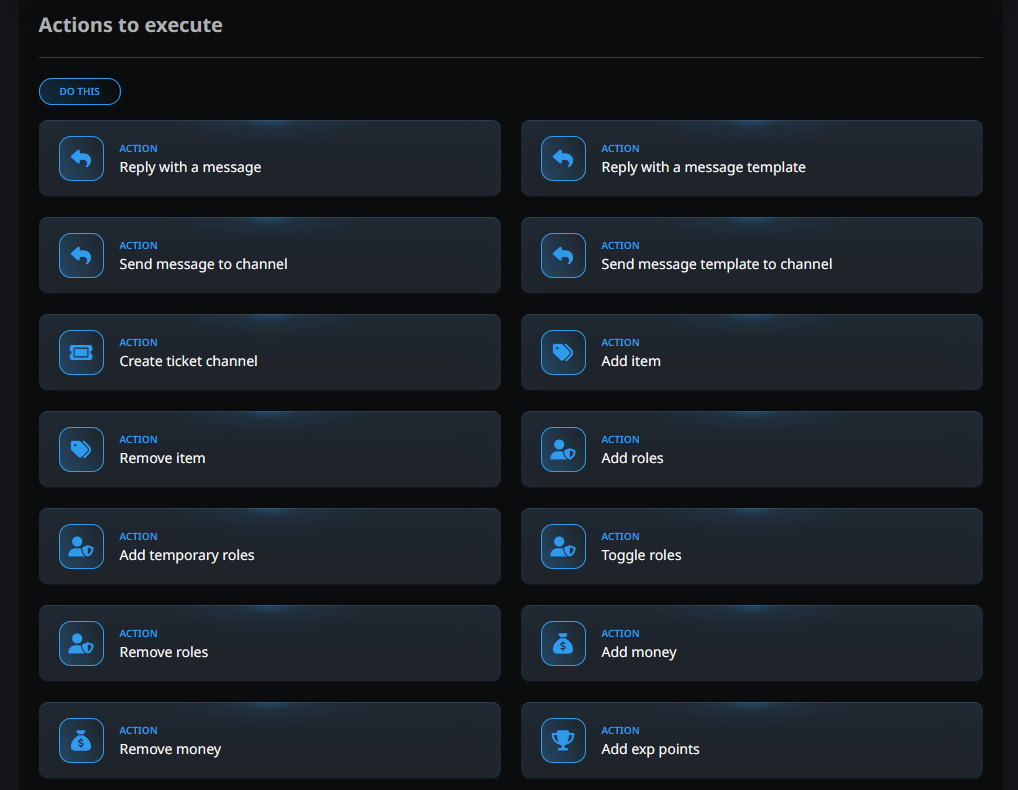
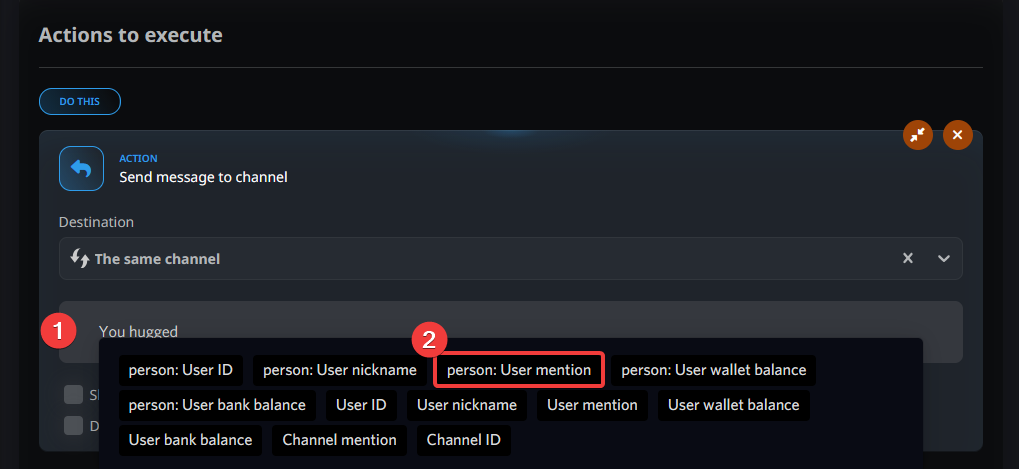
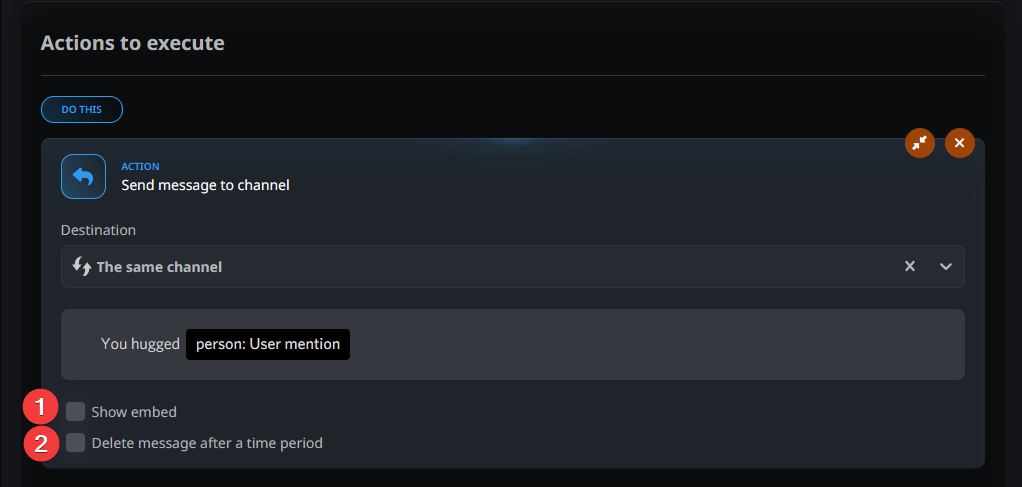
We want the bot to post a message saying we’ve hugged someone. Select the Send message to channel tile and type your text (1). When you click the text box, the bot will show you "magic tags" (variables) you can use. We’ll use the person: User mention tag (2) so the bot automatically names the person being hugged.
You also have the option to turn your message into an Embed (1). This puts your text inside a stylish, colored frame and allows you to add images. You can also set the message to Auto-delete (2) after a certain amount of time to keep your chat clean.
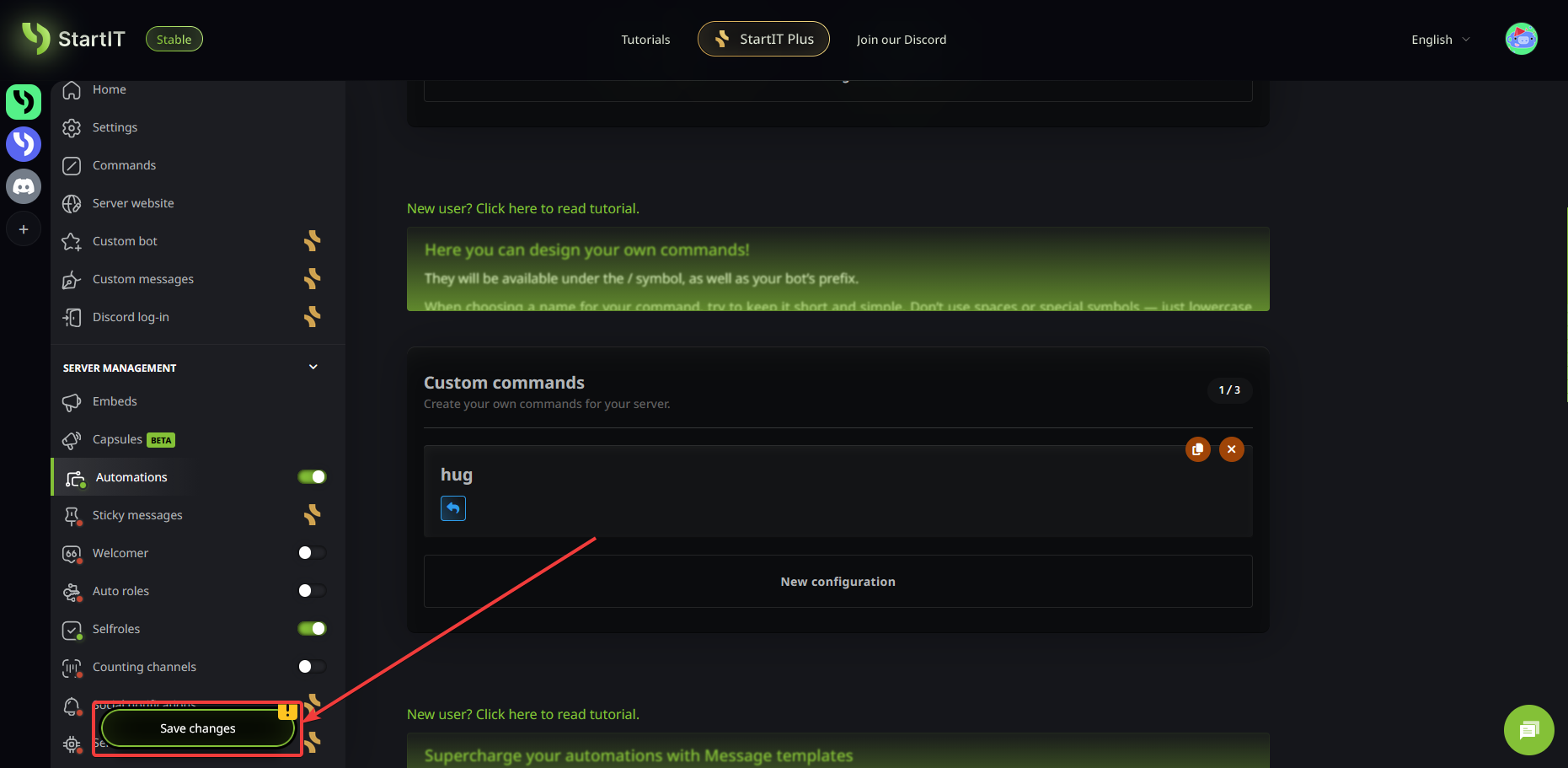
Save changes
Don’t forget to save your changes!
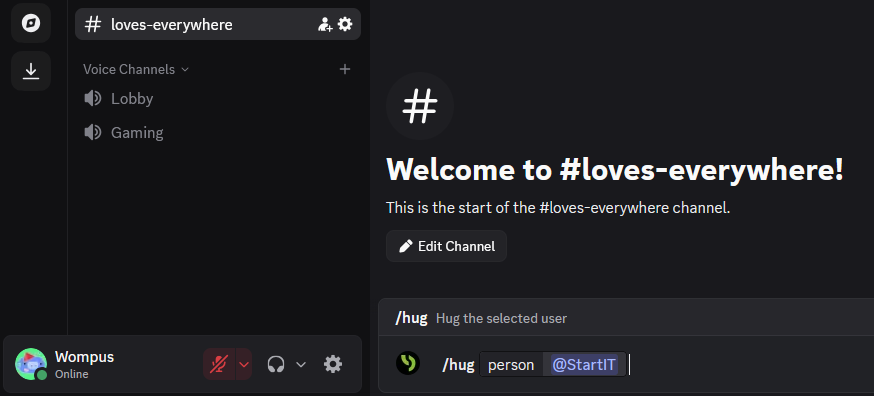
Testing
Time to see your creation in action!
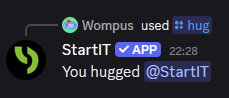
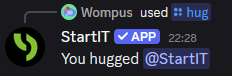
It works perfectly!
Now, let's try using the command in a forbidden channel. The bot replies that we can't use it there; just as we planned.
Congratulations! You’ve just built your first unique bot command. Keep experimenting and build the server of your dreams without ever touching a line of code.
Troubleshooting & FAQ
Can I change the command name later?
Yes! You can edit the name at any time. However, remember that if you change it, your community will need to start using the new name immediately, and the old one will stop working.
I saved my command, but it doesn't appear when I type /.
Double-check if you enabled the Register slash command option. If you did, just wait a moment; Discord sometimes takes a few minutes to update its list of commands.
In case of any doubt don't worry to contact StartIT Support.
How many actions can one command have?
You can stack multiple actions! For example, one command can simultaneously give a user a special "Role," send a colorful message to the chat, and even send a private DM to the person who used it.
What is the difference between Send message and Reply with a message?
- Send message: The bot posts a message in the channel that everyone can see.
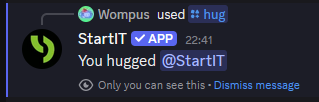
- Reply with a message: These are "private" responses (ephemeral messages) that only the person who used the command can see.
The bot replies with "StartIT is thinking..."
This happens when the bot doesn't know what to say because no "Return Action" was set. Make sure that under Actions to execute, you have included one of these blocks:
- Reply with a message/message template
- Send message/message template to channel
Can I hide a command if I don't need it at this moment?
Yes, absolutely! You don't have to delete your hard work if you want to take a break from a specific command.
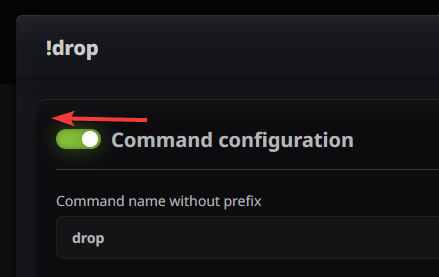
At the very top of your command configuration, you will find an On/Off switch. If you set this to the disabled state, the bot will act as if the command doesn't exist.
The best part? All your settings and "building blocks" are saved! This is perfect for commands you only want to use on special occasions, like a "Holiday Hug" or a limited-time contest. You can simply flip the switch back to "On" whenever you're ready to use it again.
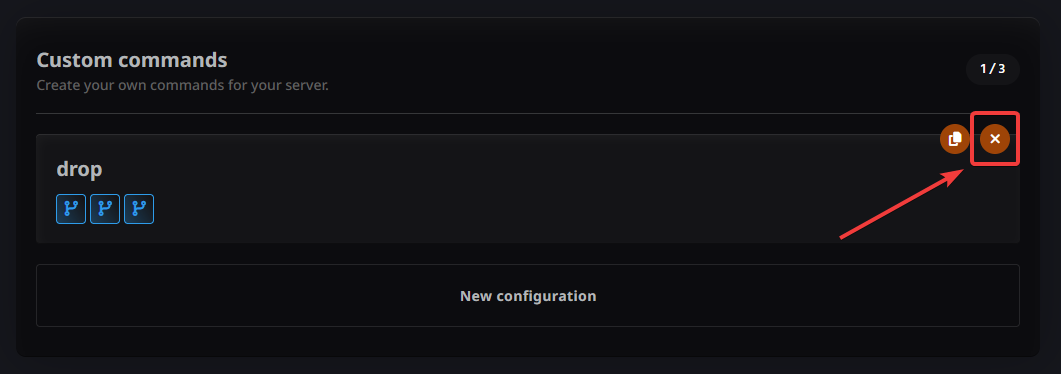
To permanently delete command. Just close settings, find the command you want to delete and click the "x" button next to its name. It will disappear from Discord almost instantly after saving configuration.
Can my command be triggered by just typing it in chat, without using the "/" menu?
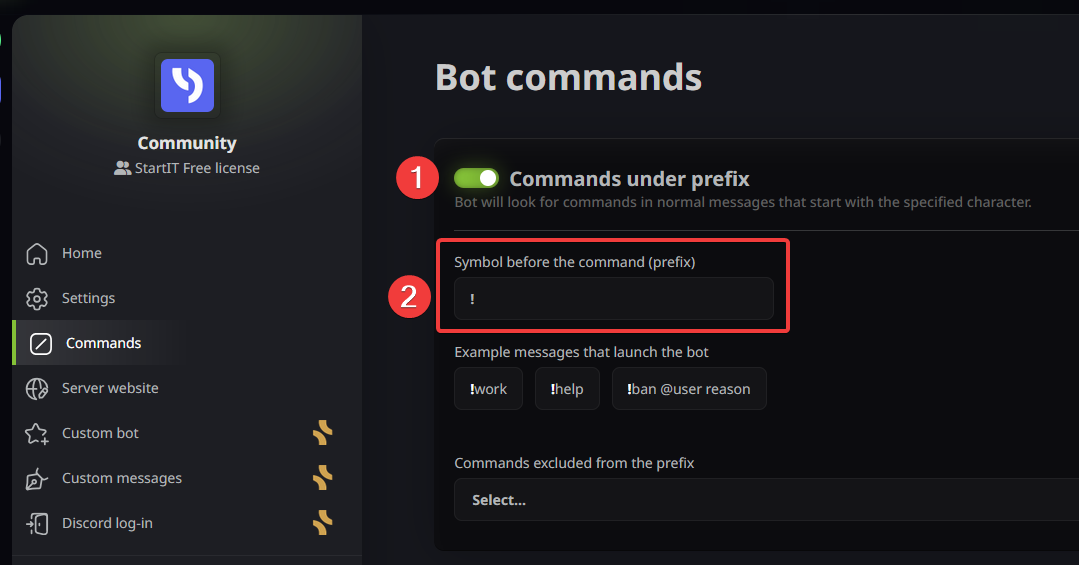
Yes! By default, every command you create is also available as a "text command." This means instead of using the menu, you can simply type an exclamation mark followed by your command name (for example: !hug).
If you want to customize how this works, head over to the Commands tab. From there, you can:
- Turn it off completely: Just toggle the switch (1) if you only want to use slash commands.
- Change the symbol: If you prefer a different symbol (like
$or?), you can type it into the field (2).
Important Note: Do not type the full command name in this box. This field is strictly for the symbol (the "prefix") that comes before the command.