Stop the Leave-and-Rejoin Loophole: How to Fix Role Evasion on Discord
If someone can clear a mute just by leaving and rejoining, your rules are basically optional. Stop letting users treat the "Leave" button like a reset switch; here is the simplest way to close that loophole for good.
We’ve all been there. You finally catch a troublemaker, issue a "Muted" role to cool things down, and... they leave the server. Two minutes later, they’re back, their name is white, and they’re typing in #general like nothing happened.
This is the Leave-and-Rejoin loophole, and it’s one of the biggest headaches for Discord moderators. By default, Discord doesn’t "remember" who had what role once they exit the server. To the system, they are a brand-new guest every time.
Fortunately, there’s a simple, automated way to slam this door shut forever.
Consistency is the backbone of a healthy community. If your penalties can be cleared by simply clicking "Leave Server," your rules lose their authority.
Solution for losing roles
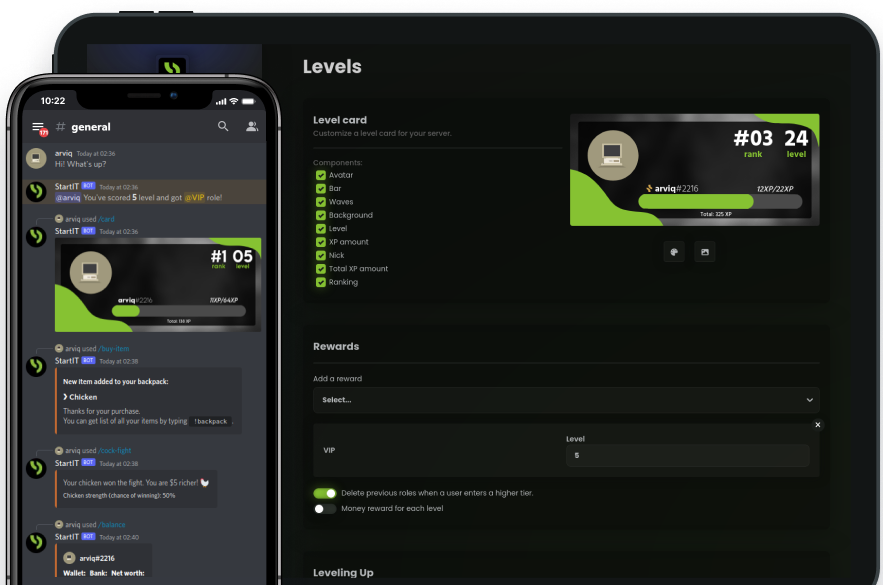
The StartIT bot features a powerful "Sticky Roles" system called Restoring Roles. It keeps a database of every user’s roles and reapplies them the second they step back into your server. No more manual checking of logs, no more "oops, I forgot he was muted."
Add StartIT to Your Discord Server
Head over to the website: Visit https://startit.bot/ and log in using your Discord account.


Invite the Bot: Select the server you want to enhance.
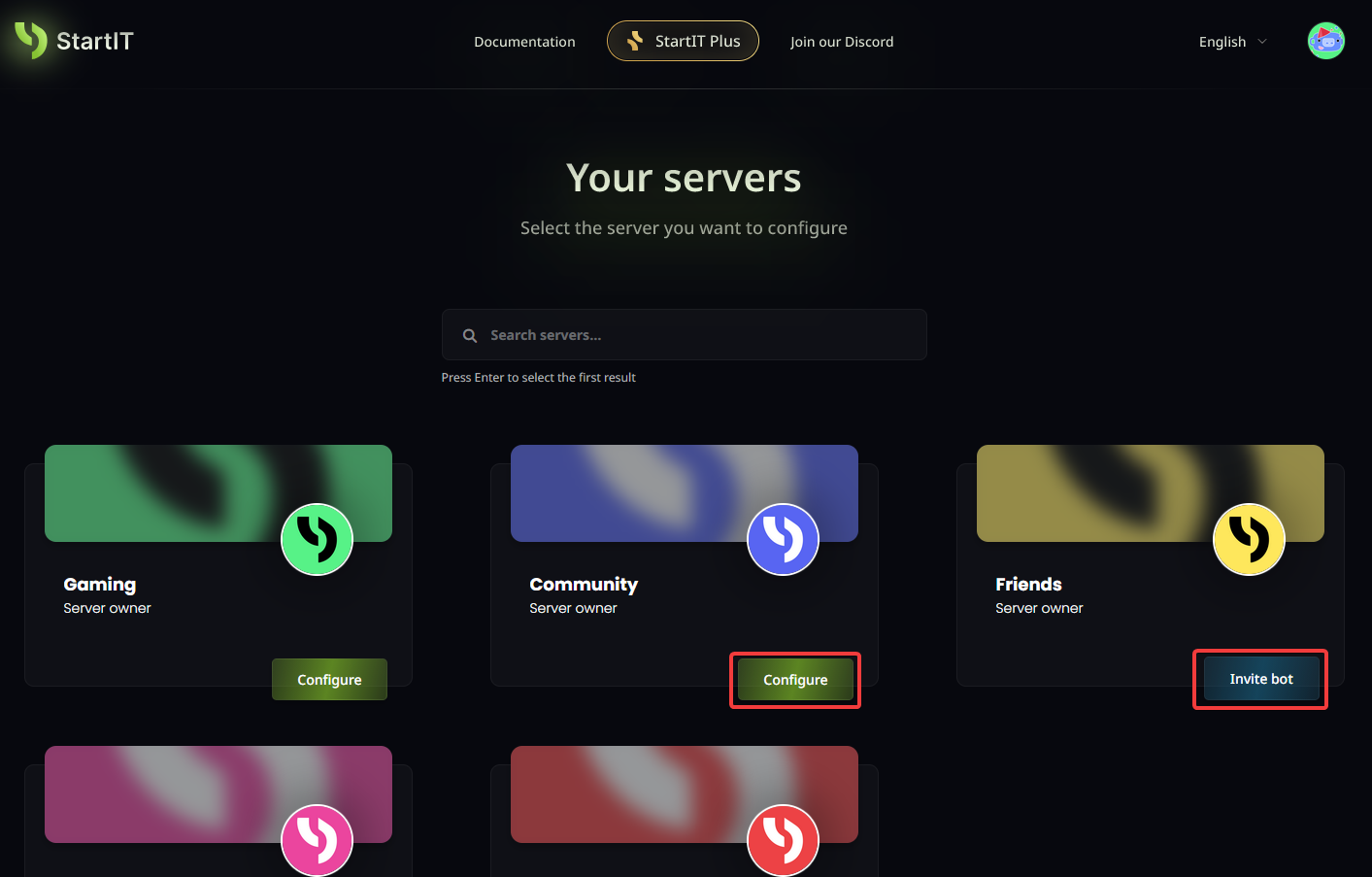
Note: You must have Administrator permissions for the server to appear in the selection list.
Enable Restoring Roles
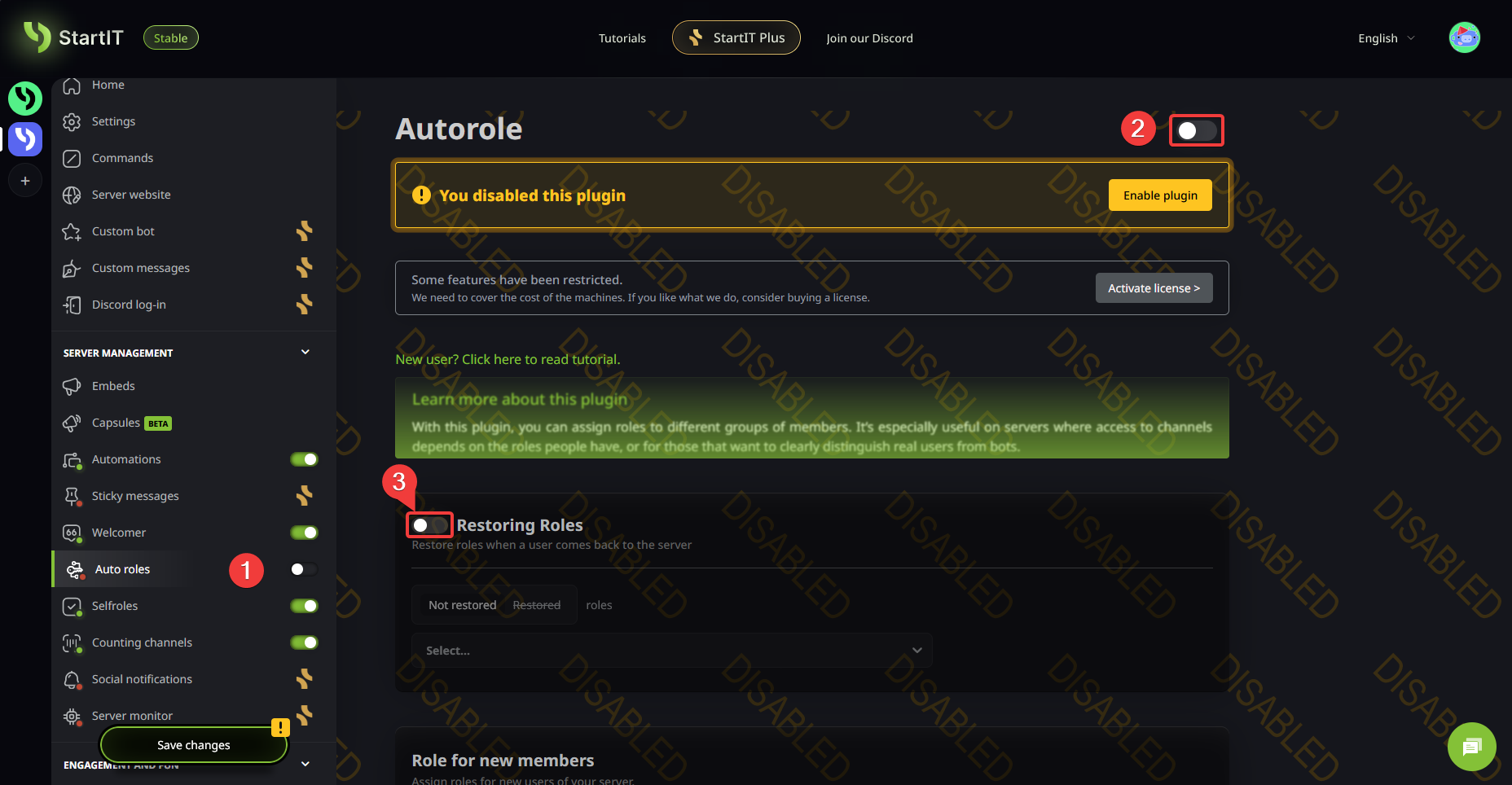
- Navigate to Auto Roles: On the left-hand sidebar, find the module management. (1)
- Enable Auto Roles: Find switch on the top of the screen and switch it. (2)
- Enable the Feature: Locate the "Restoring Roles" section and flip the toggle to green. (3)
Which Mode Should You Use?
This is where people often get confused, but it’s actually very simple once you look at it this way. Click the Not restored / Restored labels in the dashboard to toggle your strategy.
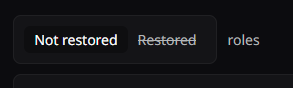
- Not restored (The "Everything Except" Mode): Best if you want users to keep everything (levels, colors, access) but want to exclude a few specific things—like a "New Member" role or a "Temporary Guest" badge.
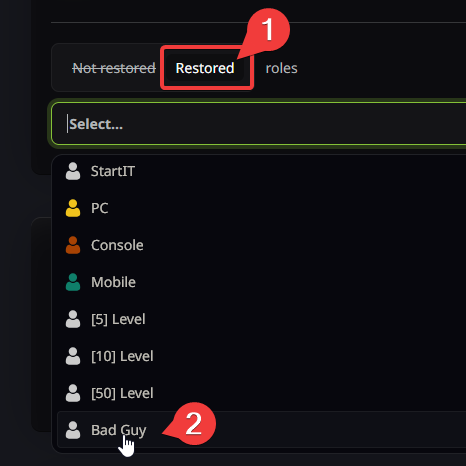
- Restored (The "Only These" Mode): Best if you don't care about their old cosmetic roles, but you want to make sure penalties stick no matter what.
☢️ If you select Restored (Only These) but don't add any roles to the list, the bot will not restore anything. It will assume you want to restore nothing.
Which Roles Should You Keep?
Not every role is worth saving. Here’s a breakdown of how to manage your list like a pro:
Roles You SHOULD Restore (The "Must-Haves")
These are your moderation anchors. If these aren't restored, your mod team is working for nothing.
- Muted / Silenced: The most common role people try to dodge.
- Warned (Level 1/2/3): If you use roles to track warnings.
- Probation / Jailed: Any role that restricts access to specific channels.
- Verified: If your server has a manual verification process, you don’t want people skipping the queue by re-joining.
Roles You Might NOT Want to Restore
- New Member / Unverified: If they re-join, they should be treated as new so they have to agree to rules again.
- Level Roles (Optional): Some owners prefer users to "earn" their spot back if they decide to leave.
- Event Roles: Roles from a Christmas or Summer event that has already ended.
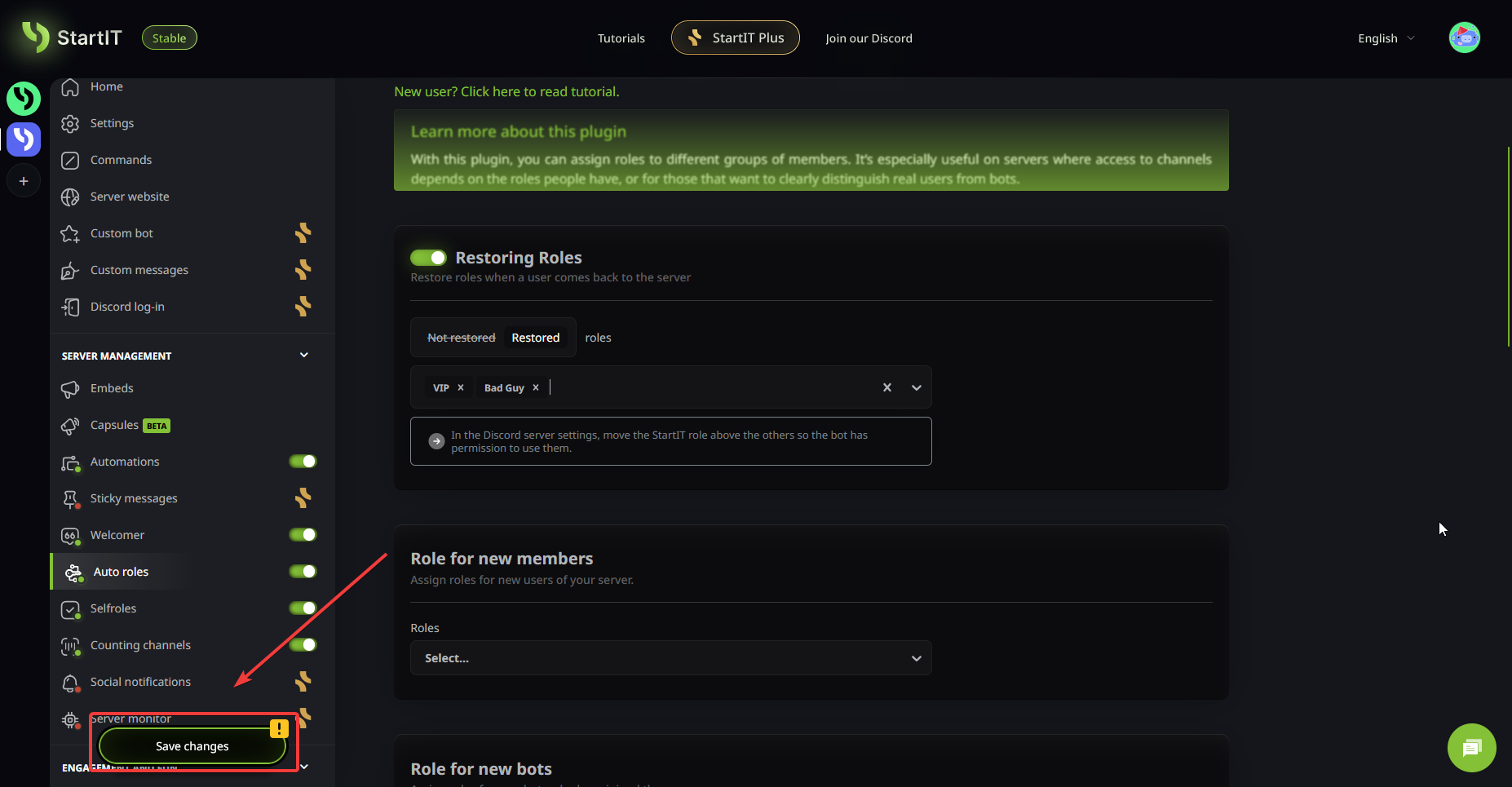
Save changes!
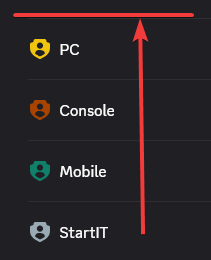
⚠️ Ensure the StartIT bot's role is above the roles you want it to give back. Discord won't let a bot give a role that is "higher" than itself!
Ready to secure your server? Stop letting trolls dictate the rules.
Questions and answers
What is Discord role evasion?
It is a tactic where users leave and immediately rejoin a server to automatically clear penalty roles, such as "Muted" or "Jailed."
How do I make Discord roles stay after someone leaves?
You need to enable "Sticky Roles." Using the StartIT bot, you can use the Restoring Roles feature to automatically re-apply roles when a user returns.
Does Discord have a native "Sticky Roles" feature?
No. Discord does not natively remember roles for departed members. You must use a third-party bot like StartIT to manage this.
How do I stop users from bypassing a mute by re-joining?
Enable Restoring Roles in the StartIT dashboard, set the mode to "Restored," and add your "Muted" role to the list.
Why is the bot not restoring roles on my server?
Ensure the StartIT bot role is positioned higher than the roles you want it to manage in your Discord Server Settings hierarchy.
Can I choose which roles are not restored?
Yes. By using the "Not restored" mode in StartIT, you can list specific roles (like "New Member") that you want the bot to ignore.
Is role restoration automatic?
Yes. Once configured in the Auto roles tab, the bot detects a returning user and reapplies their previous roles within seconds.