New message type now available on Discord! Make your server stand out with Components V2
Stop cluttering your Discord server with messy walls of text that everyone ignores. Discover how to use modular components to turn your announcements and info-hubs into a clean, professional interface that makes your community feel premium from the moment someone joins.
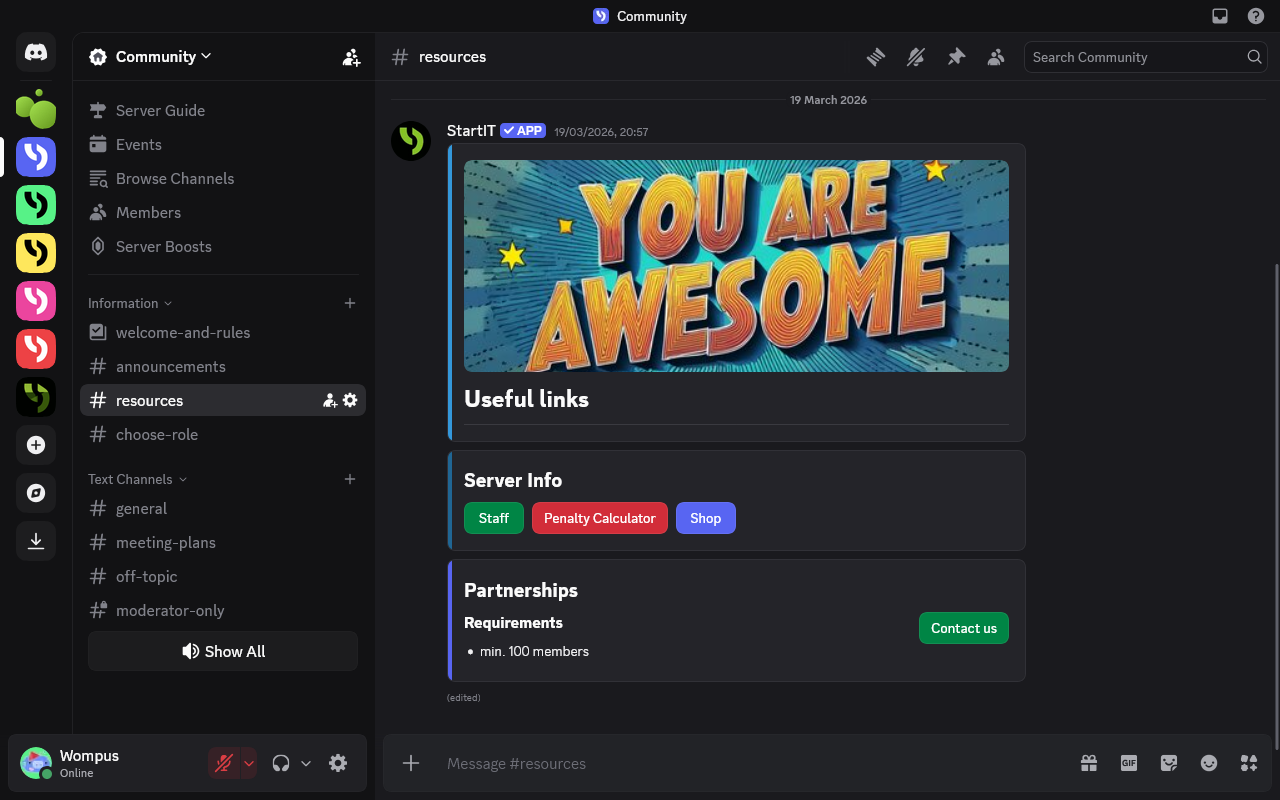
Have you ever wandered onto a professional Discord server and marveled at the messages sent by bots? They don’t look like standard text; they feature elegant frames, sleek dividers between paragraphs, and images perfectly embedded within or alongside the content. You might have thought this required advanced programming skills, but here’s a secret: you can bring that same level of sophistication to your own server with ease.
Introducing Components V2, also known as Capsules. This powerful tool is designed to transform your server's communication from cluttered text into a visually stunning experience. Let’s dive into how it works and how you can start using it today!
Unlock new messages with a bot
Componets V2 messages are not available using standard Discord UI, you have to create them through the bot. It's simple!
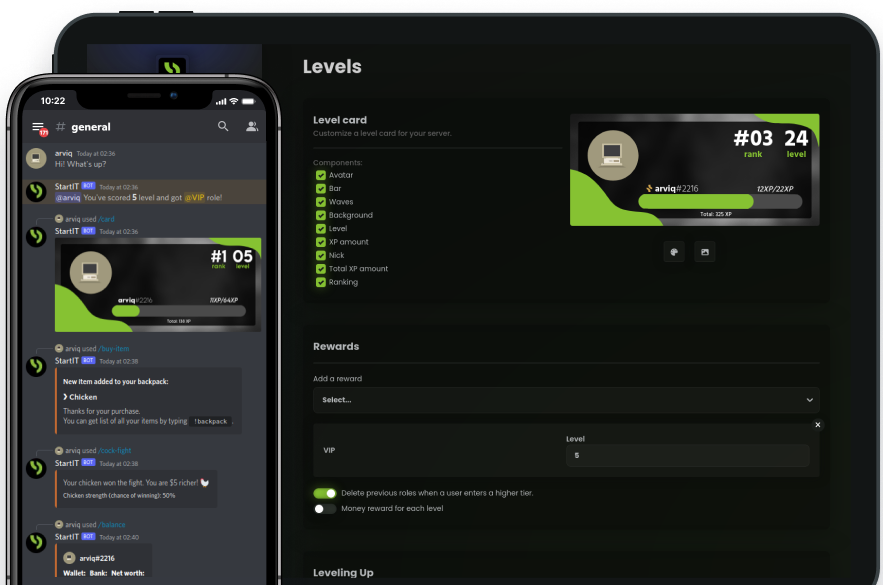
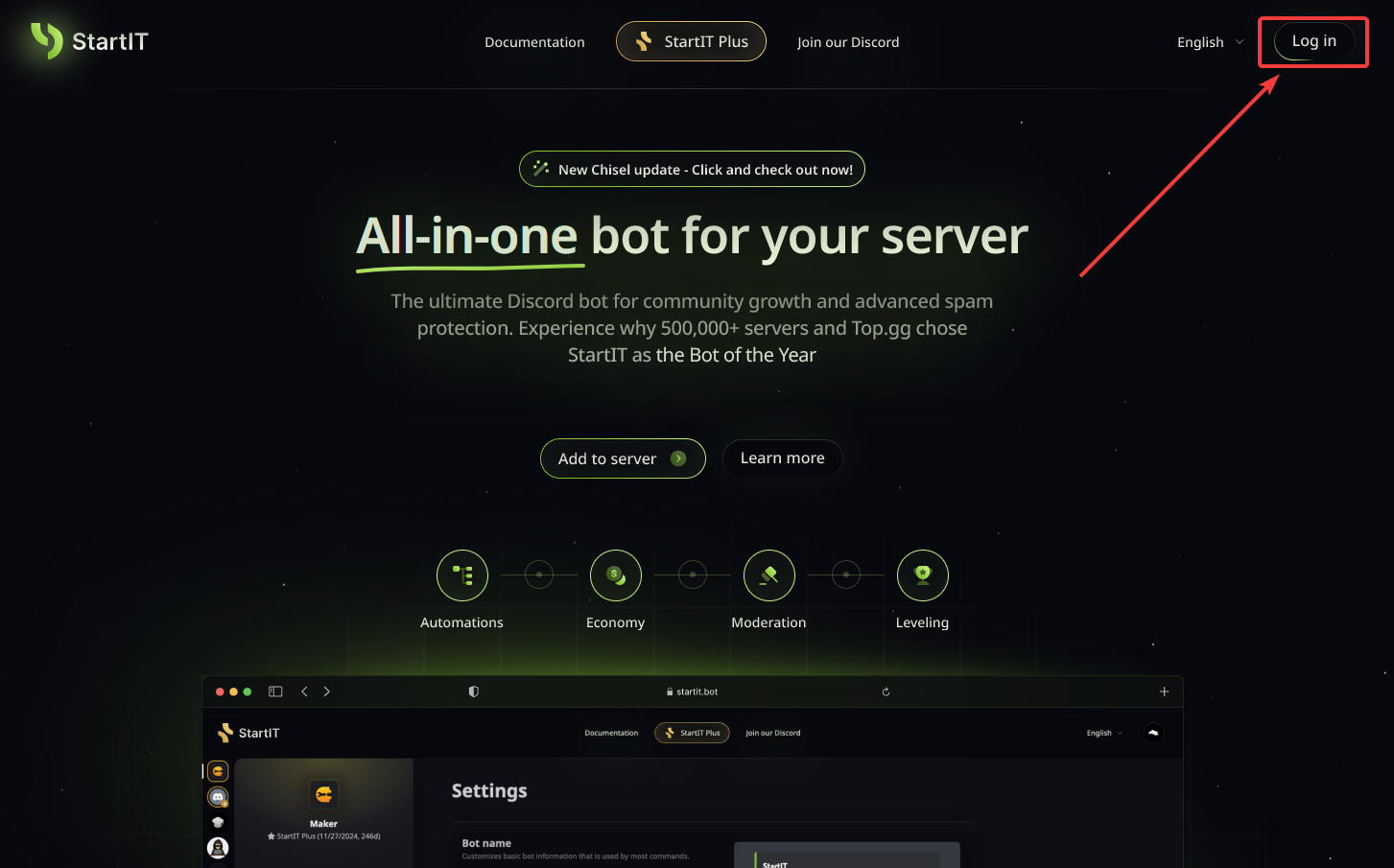
Head over to the website: Visit https://startit.bot/ and log in using your Discord account.

Invite the Bot: Select the server you want to enhance.
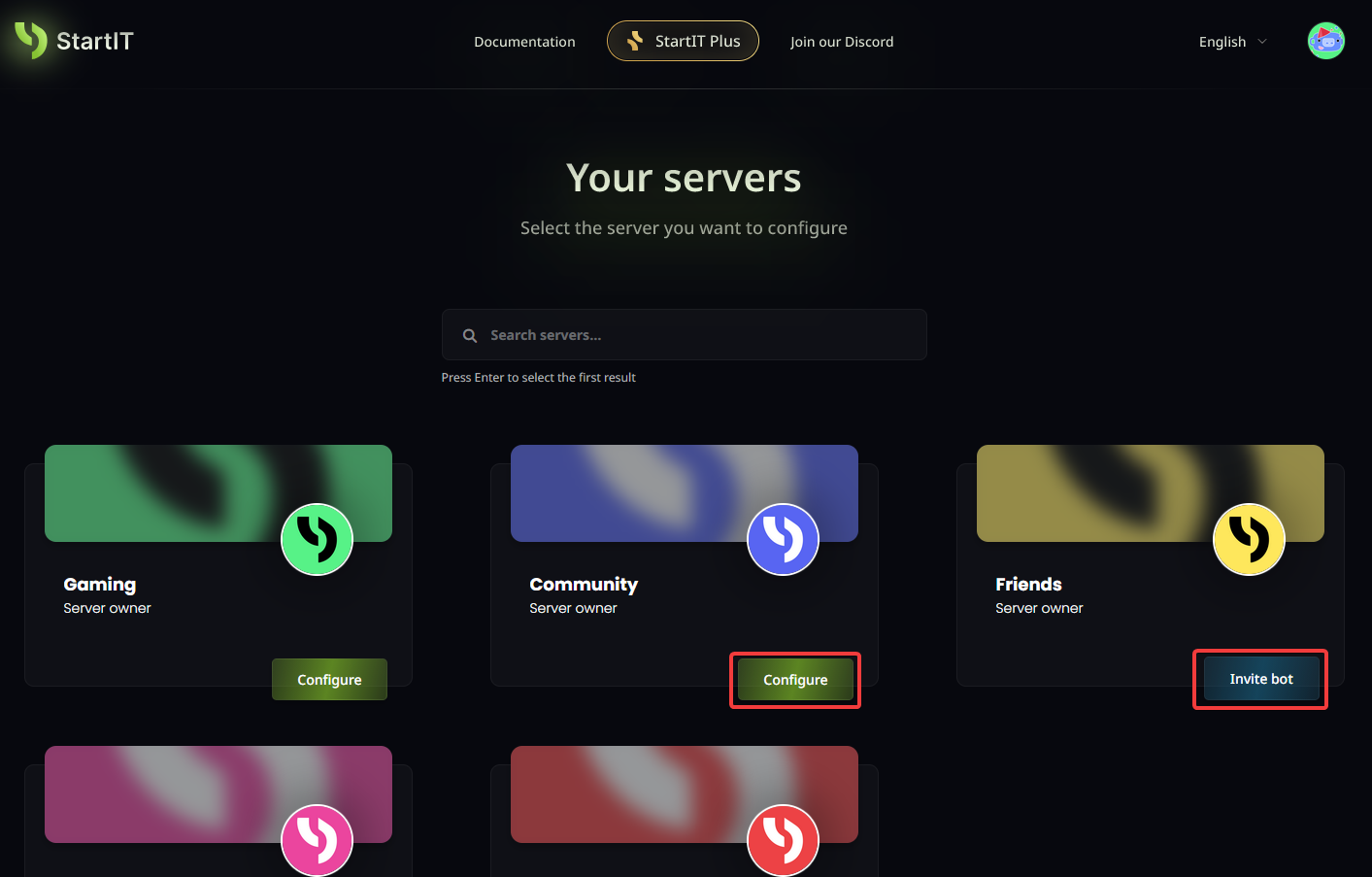
Note: You must have Administrator permissions for the server to appear in the selection list.
Create your first message
Once the bot is ready, navigate to the "Capsules" tab in the dashboard. In "Saved capsule hubs", your messages are permanently stored. You can return to modify them at any time and all changes you make will be synchronized with a the Discord server.
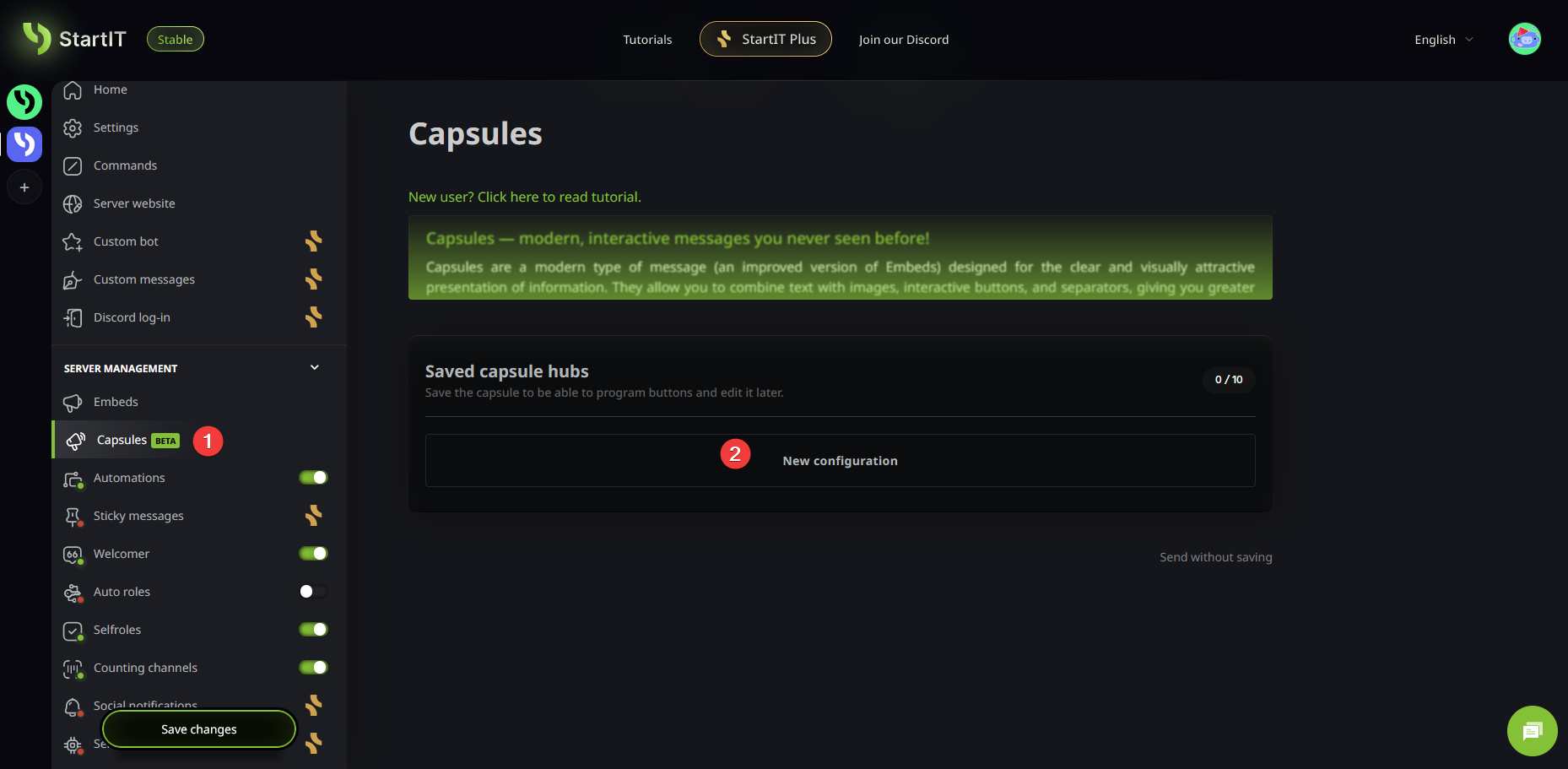
Step 1: Create new configuration
When you select the "New configuration" option under the Saved capsule hubs, a setup window will appear. First, give your Capsule a name (1)—this is for your internal organization only and won't be seen by users. Next, select the target channel where the message should appear (2).
Below these settings, you have a blank canvas to design your masterpiece.
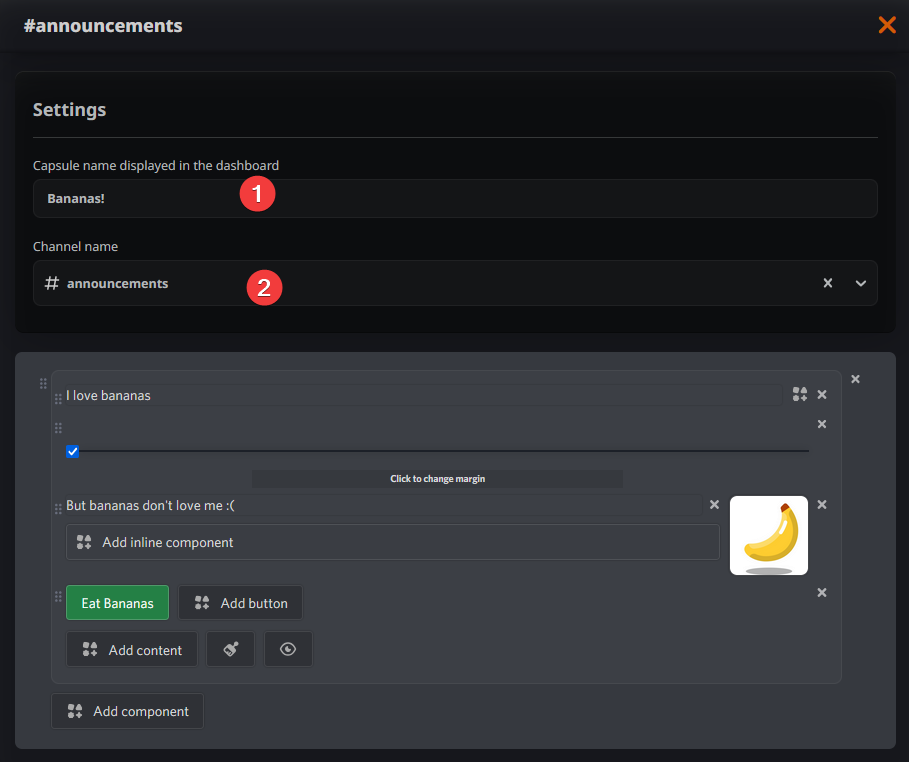
Step 2: Designing with Components
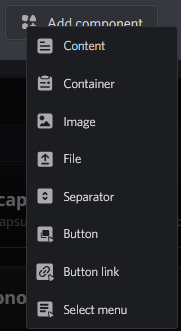
Capsules offer an incredible range of customization. When you click "Add component," a menu appears with various building blocks for your message.
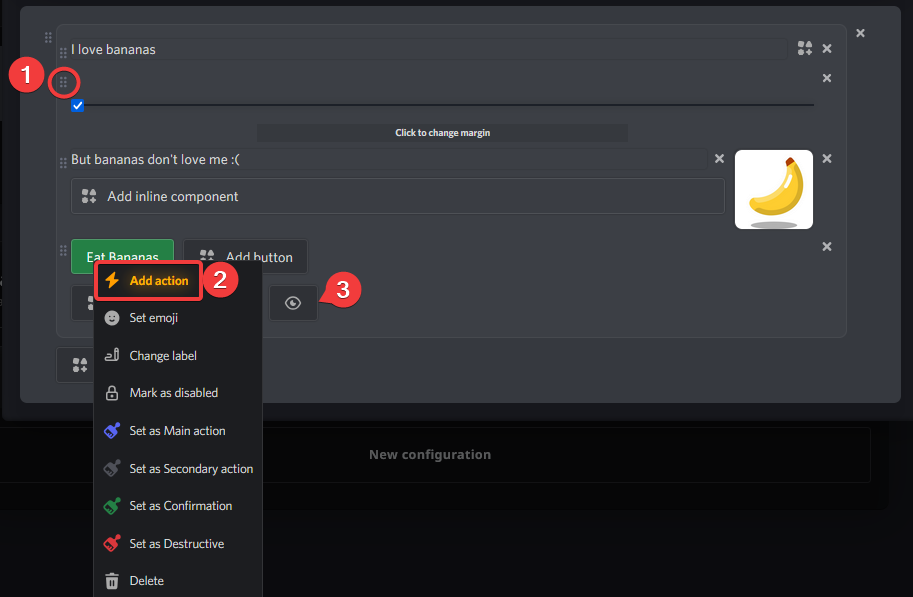
Creating your message feels a bit like playing with LEGO bricks. These components can be moved and rearranged with almost total freedom. You can:
- Change their position to perfect the flow (1).
- Add special interactive actions to buttons (2).
- Convert specific sections into spoilers to hide surprises or sensitive info (3).
Step 3: Saving your changes
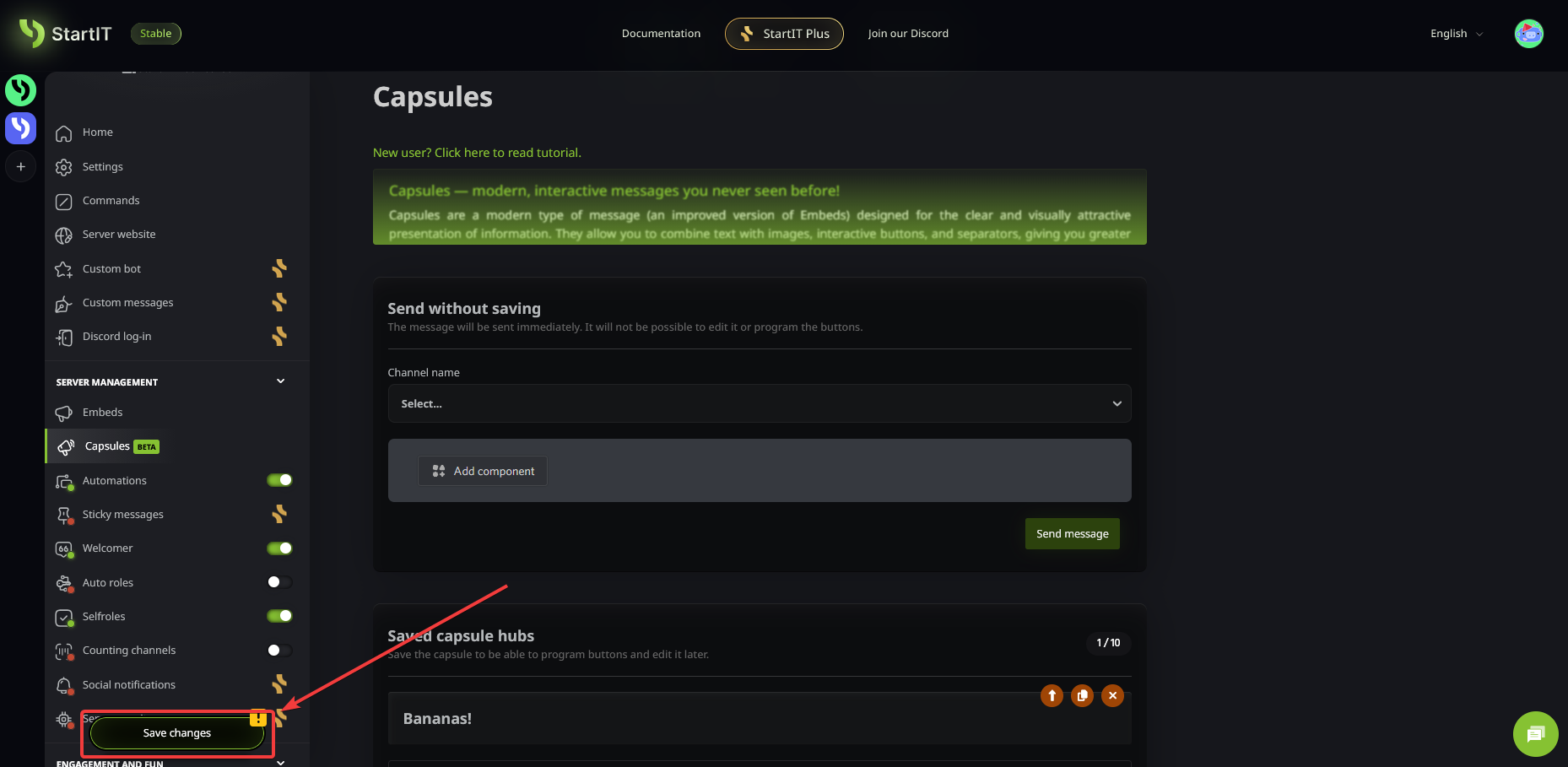
Crucial Step: Do not forget to save your changes! Your Capsules will only be deployed to the Discord channel once you hit the save button.
Once saved, your beautiful, structured message will appear instantly in the chosen channel:
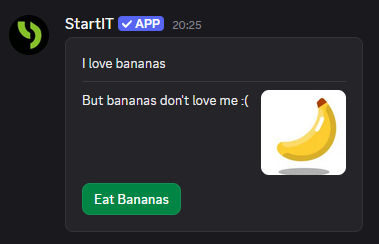
With Components V2, your server's first impression will be one of professionalism and order. Start building your Capsules today and watch your community engagement grow!
Inspiration Gallery
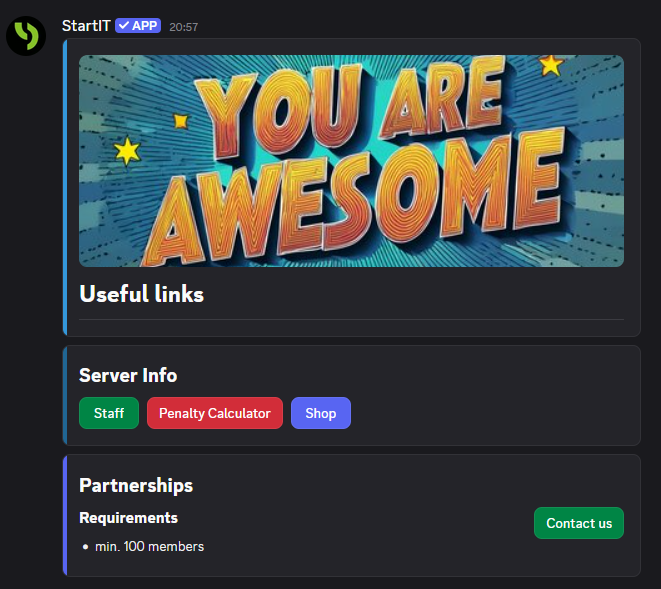
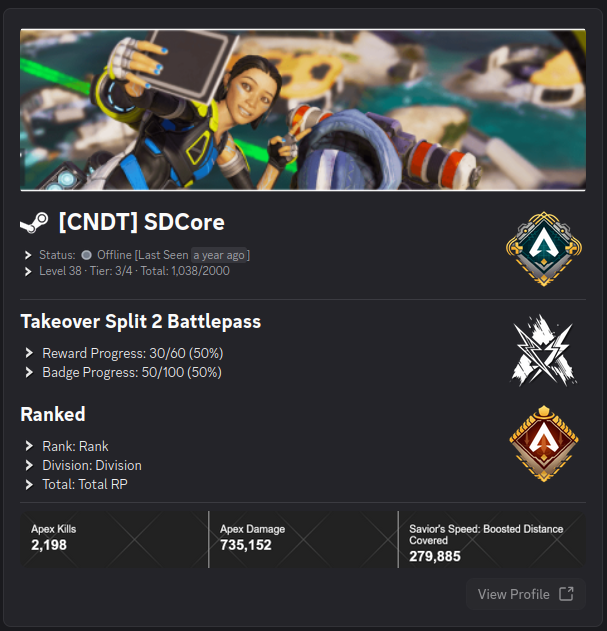
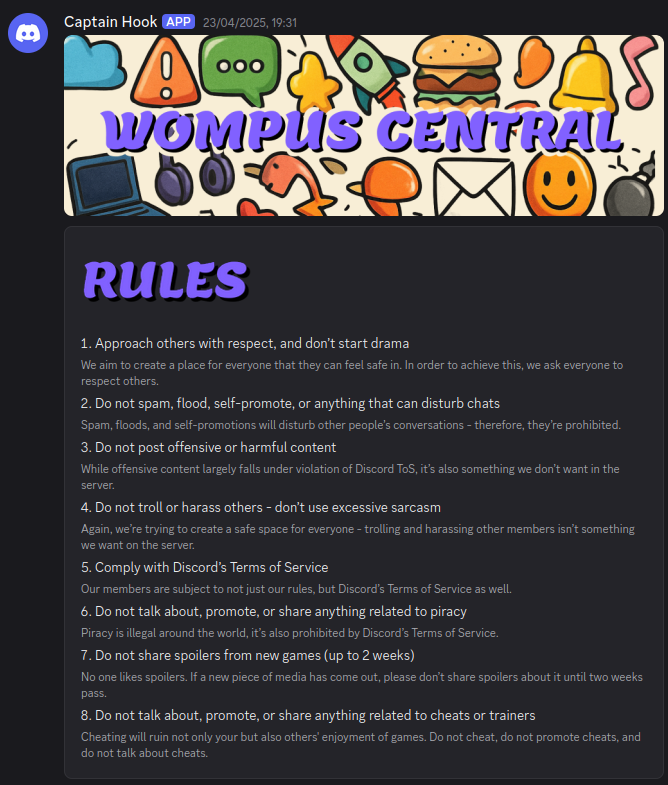
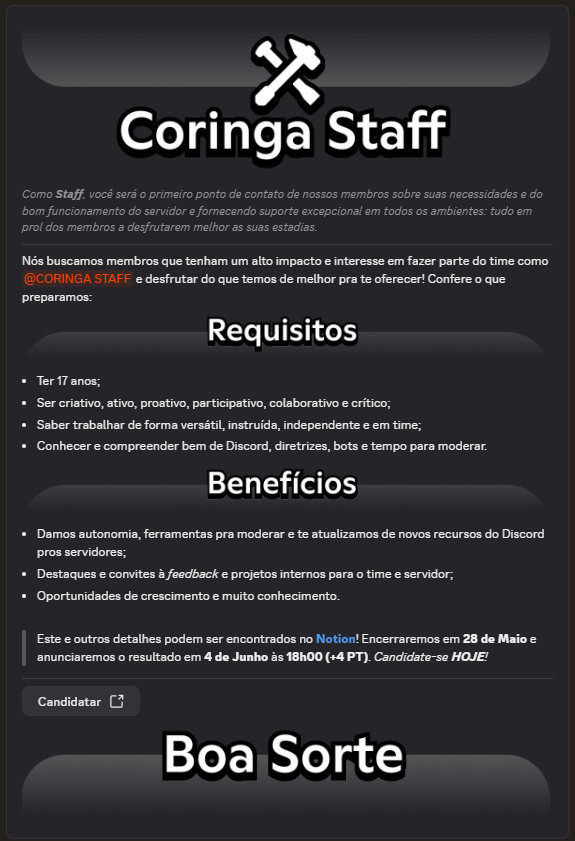
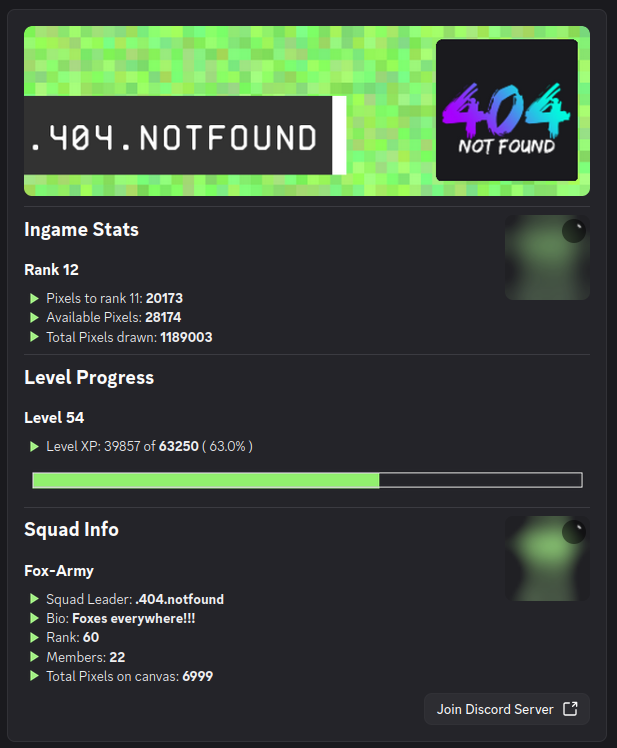
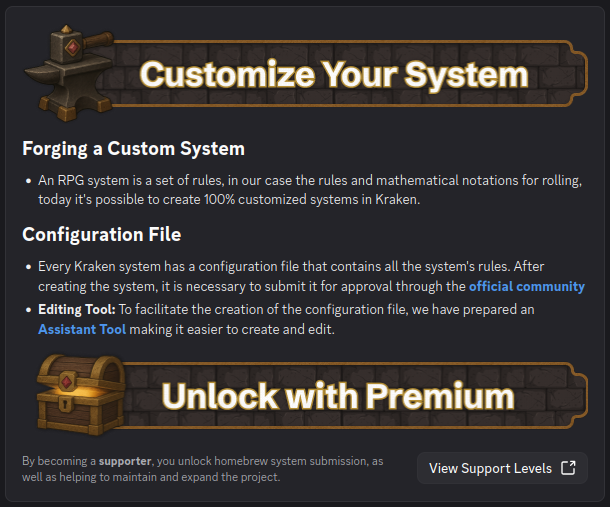
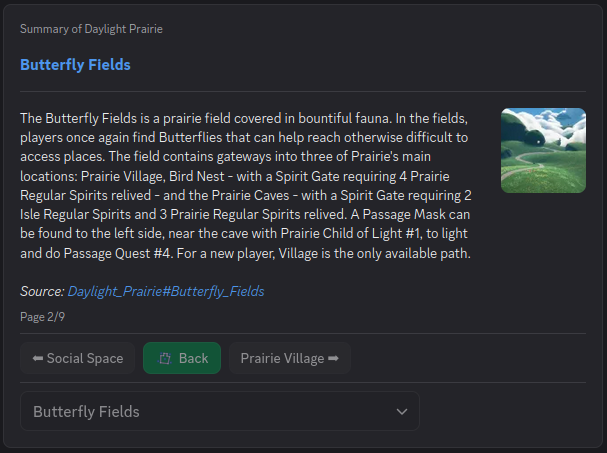
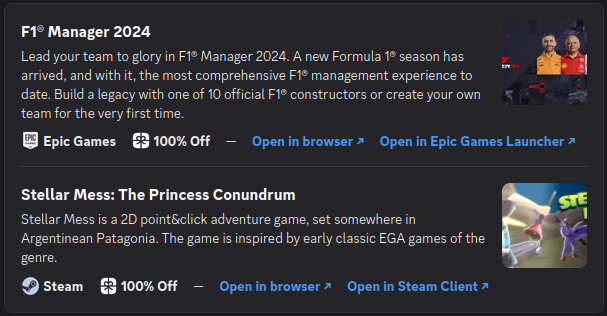
Curious about what’s possible? Take a look at these unique and eye-catching layouts created using these features:

Troubleshooting Common Issues
The message didn't appear in the channel
- Check your Save: Double-check that you actually clicked the save button after your final edit.
- Permissions: Ensure the bot has the "View Channel" and "Send Messages" permissions for that specific channel. If it can't see the room, it can't post the art.
I can't save the Capsule (Red error message at the bottom)
- Discord Limits: Like everything on the platform, Capsules must adhere to Discord’s technical constraints.
- The Cause: Usually, the error message will specify the issue. Most often, it’s a result of exceeding the character limit (typically 6,000 characters for an embed) or having too many individual components.
- The Fix: Try shortening the text or removing a few buttons. If the information is essential, consider splitting the Capsule into two separate messages.