How to Set Up Welcome & Goodbye Messages on Discord
First impressions are everything. Welcome messages are more than just a "hello". Every great community has them, and yours shouldn't be the exception! In this quick guide, we’ll show you how to easily set up welcome and goodbye messages.
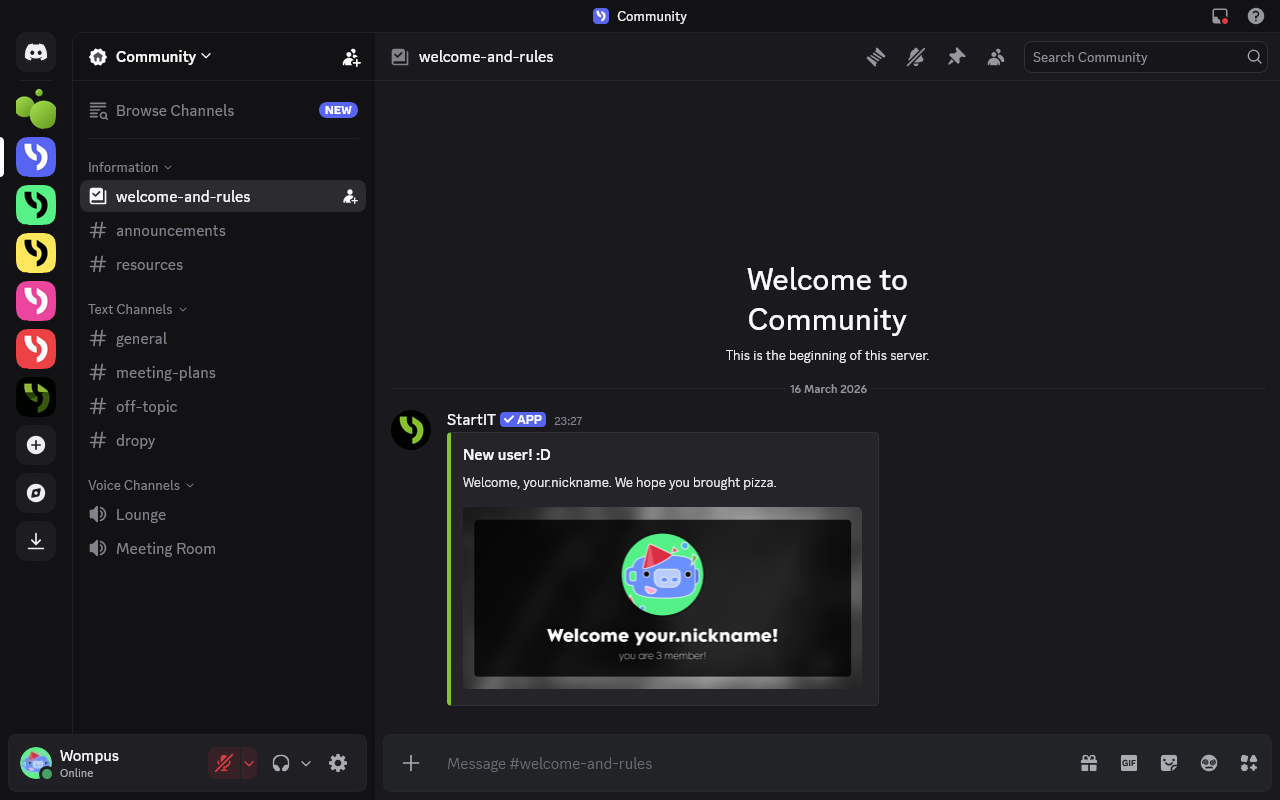
First impressions are everything. Welcome messages are more than just a "hello"—they are a warm greeting that makes new members feel at home. They also serve as a perfect "onboarding" tool, giving newcomers quick tips on how to verify themselves or where to find the rules.
Every great community has them, and yours shouldn't be the exception! In this quick guide, we’ll show you how to easily set up professional welcome and goodbye messages using the StartIT bot.
Step 1: Add StartIT to Your Discord Server
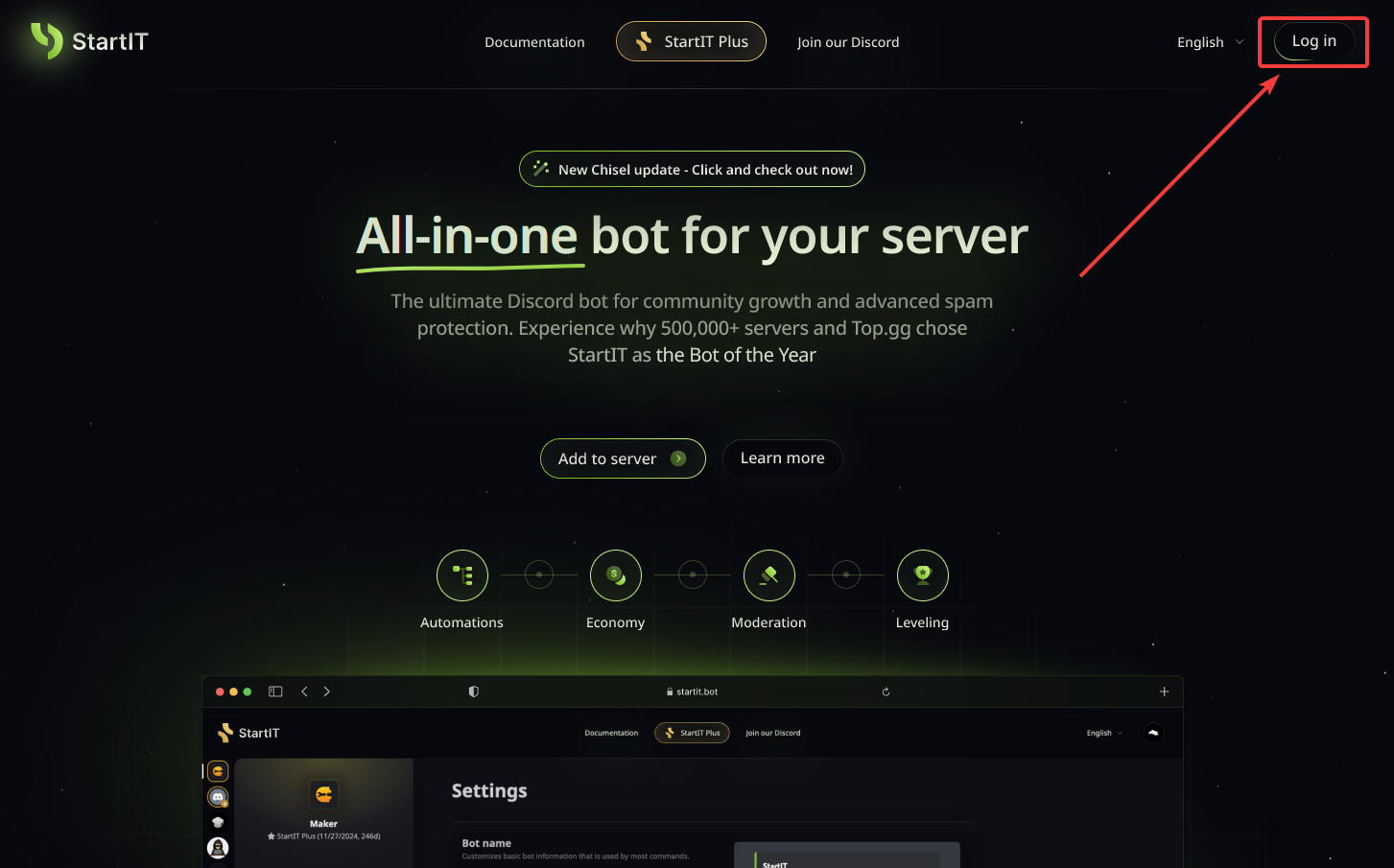
Head over to the website: Visit https://startit.bot/ and log in using your Discord account.

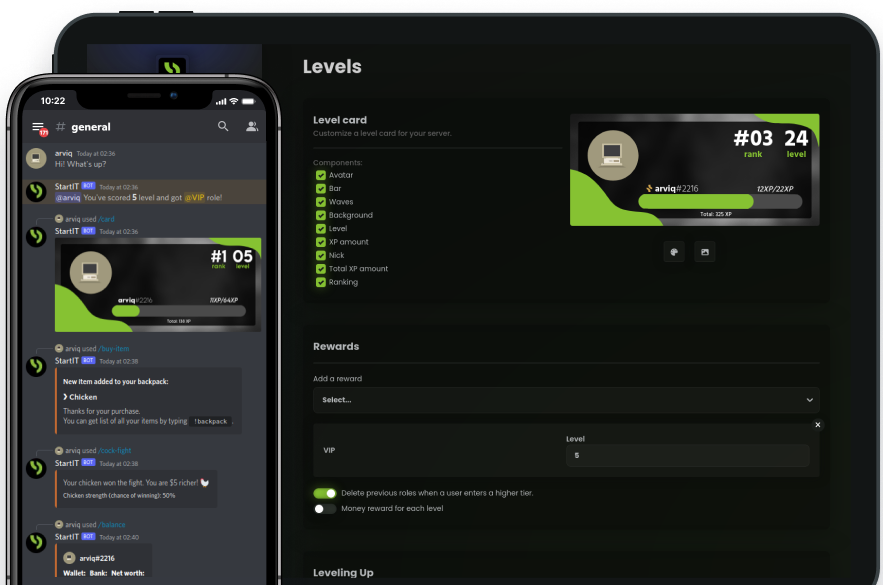
Invite the Bot: Select the server you want to enhance.
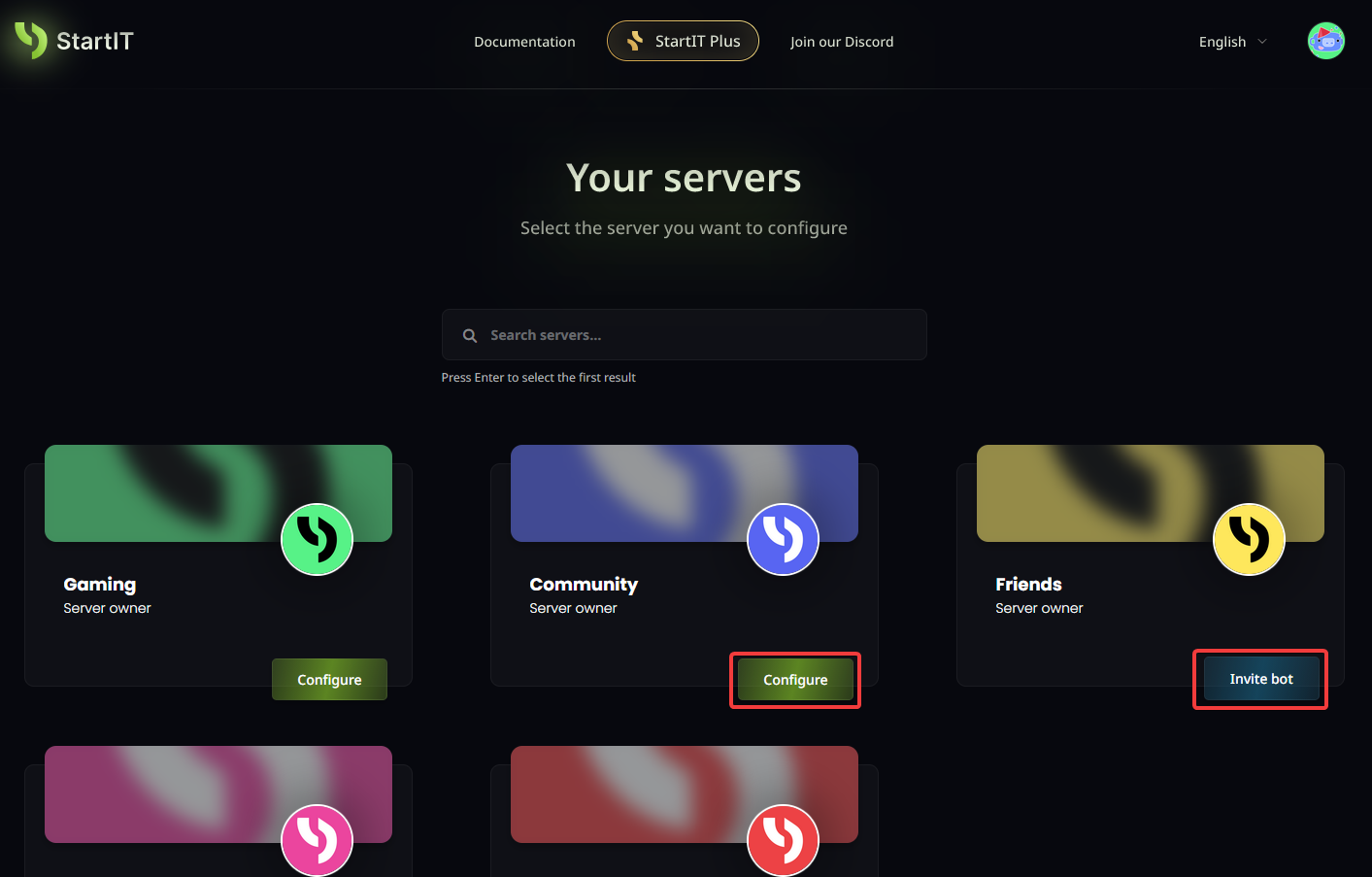
Note: You must have Administrator permissions for the server to appear in the selection list.
Step 2: Configure the Welcome Plugin
Once the bot is on your server, follow these steps to get your greetings up and running:
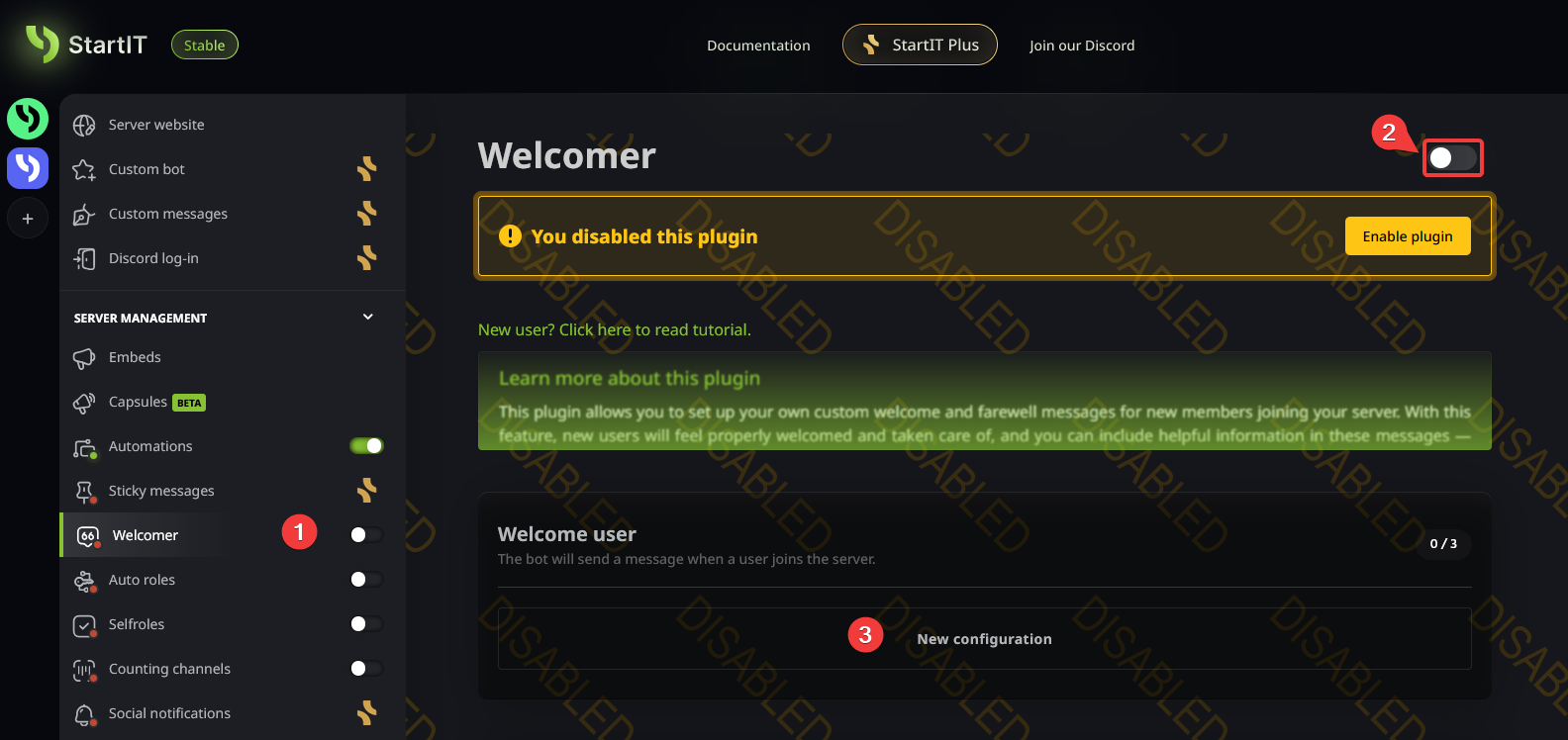
Open the Plugin: Navigate to the "Welcomer" plugin, enable it, and click on "New configuration"
Choose Your Channel: Select the specific text channel where the notification should appear.
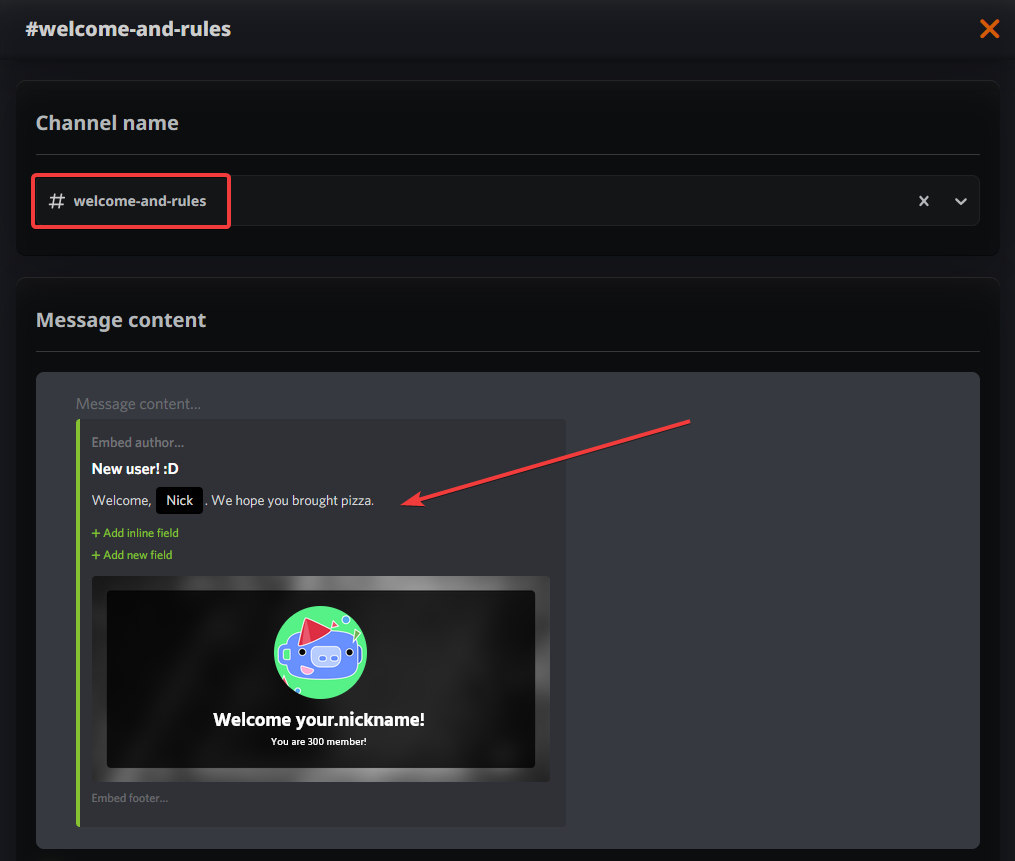
Draft Your Message: Write the content of your greeting. Keep it friendly and informative!
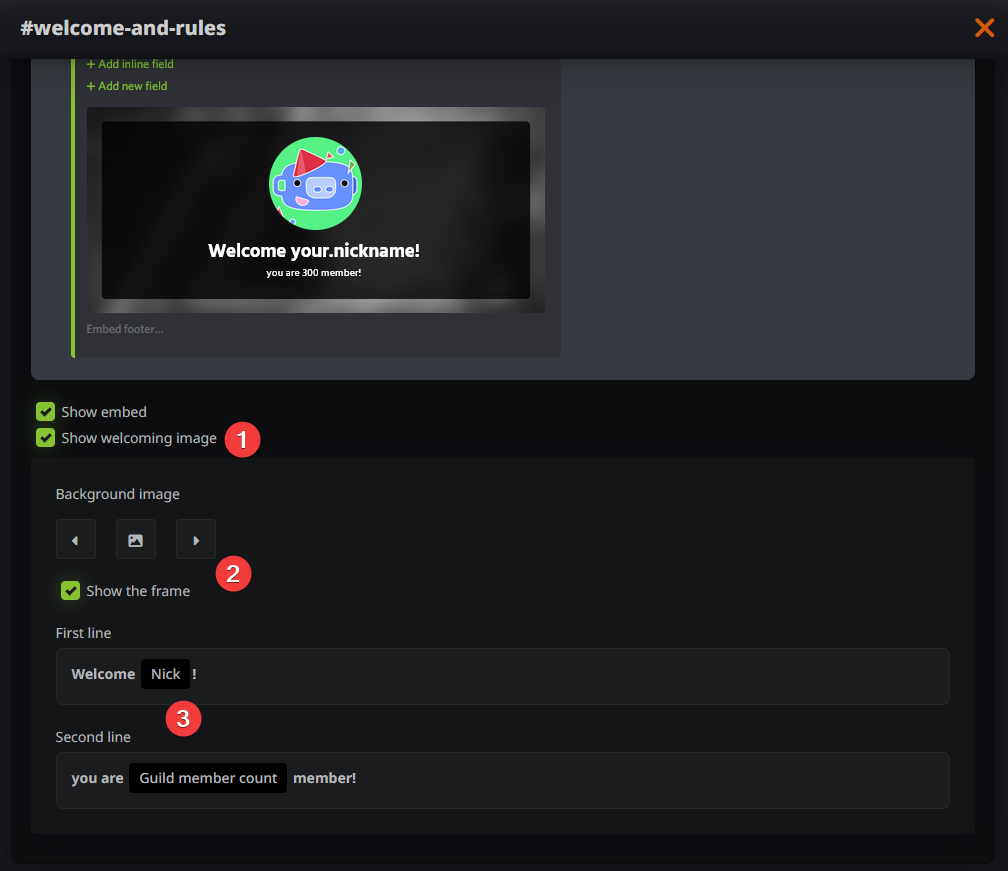
Customize the Visuals:
- Toggle the Image (1): Turn the background image on or off.
- Change the Image (2): Upload a custom background to match your server style.
- Custom Text (3): Add your own message to the image using dynamic arguments (like the user's name).
Save Your Changes: Don't forget to hit save!
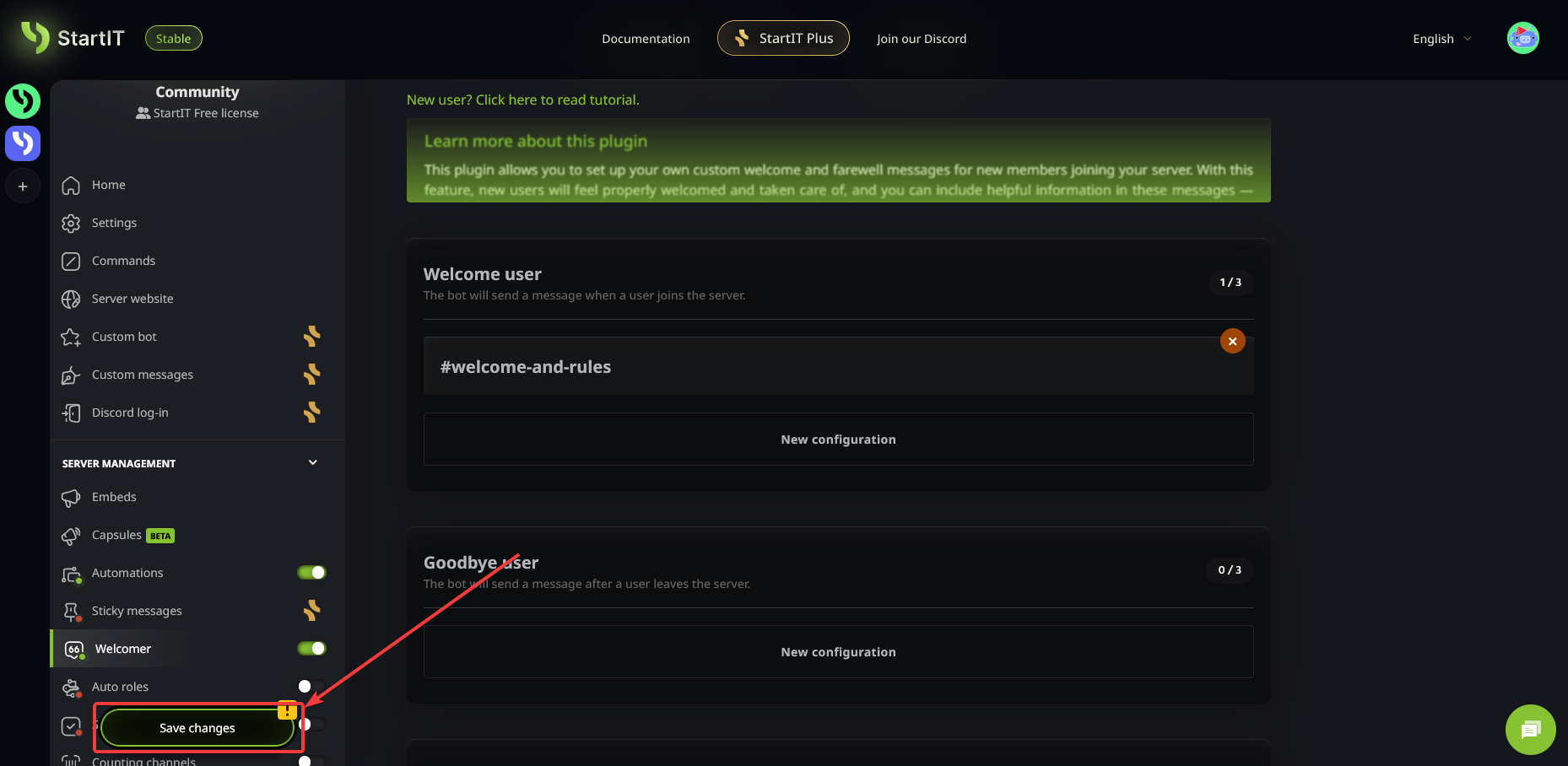
Creating Goodbye Messages
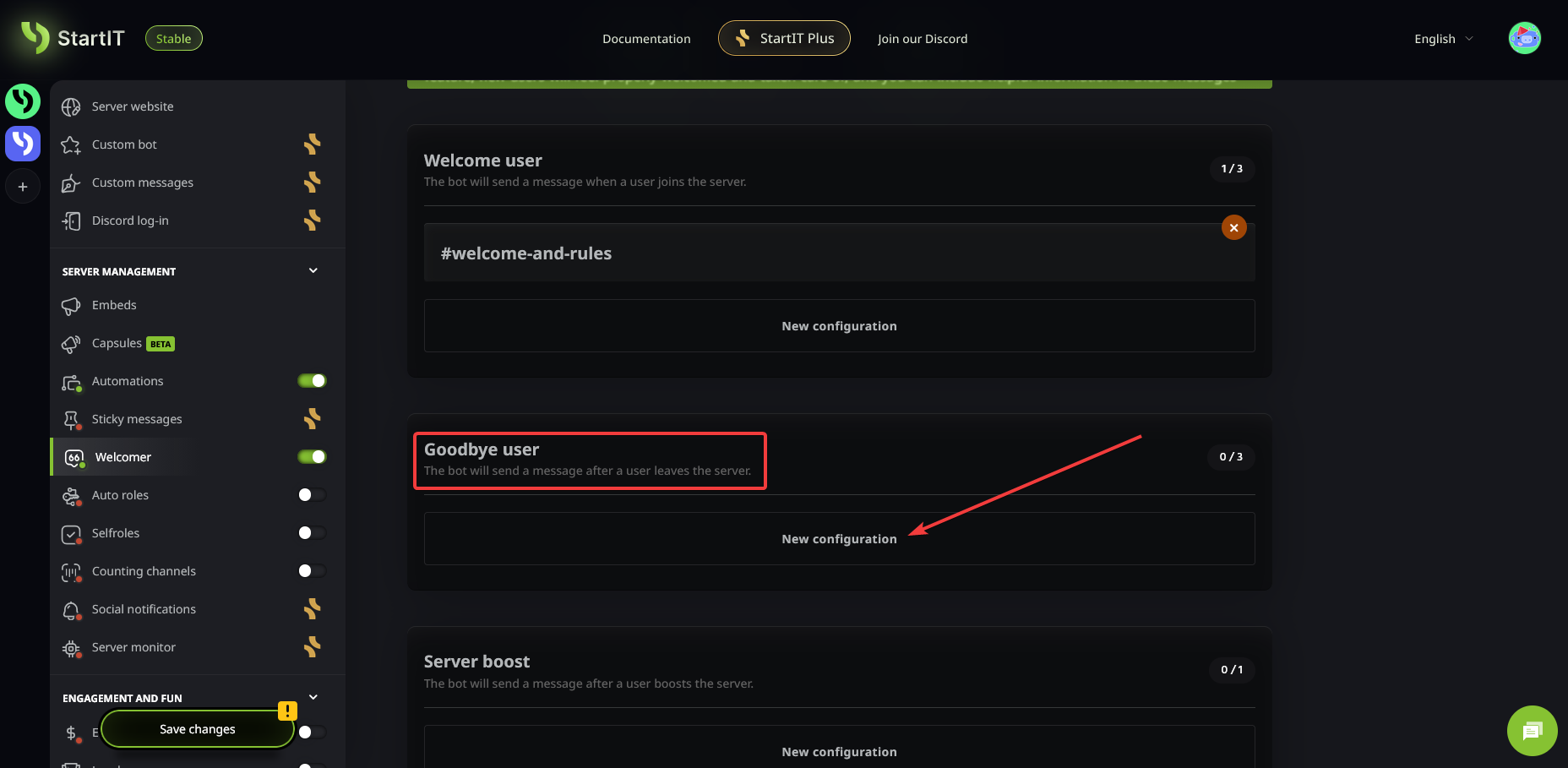
Goodbyes are just as important for keeping track of your community. The process is identical to the steps above — just make sure you select the appropriate field under the "New configuration" settings for departures.
Troubleshooting: "The message isn't sending!"
If you’ve set everything up but don't see any messages, check these common fixes:
- Trigger Event: Remember, the message only sends when someone actually joins or leaves the server.
- Check the Settings: Double-check that you selected the correct channel and that the "Welcome" plugin is actually toggled ON.
- Permissions Check: Ensure the StartIT bot has the necessary permissions. It needs to be able to View the Channel and Send Messages in the specific channel you selected.
Ready to give your members a 5-star welcome? Add StartIT bot and start building your community today!