How to Set Up Giveaway on Your Discord Server to keep users engaged
Giveaways are one of the most effective ways to reward your Discord community. However, running a fair and organized draw requires more than just a random message in a chat. This guide breaks down how to easily set up professional giveaways.
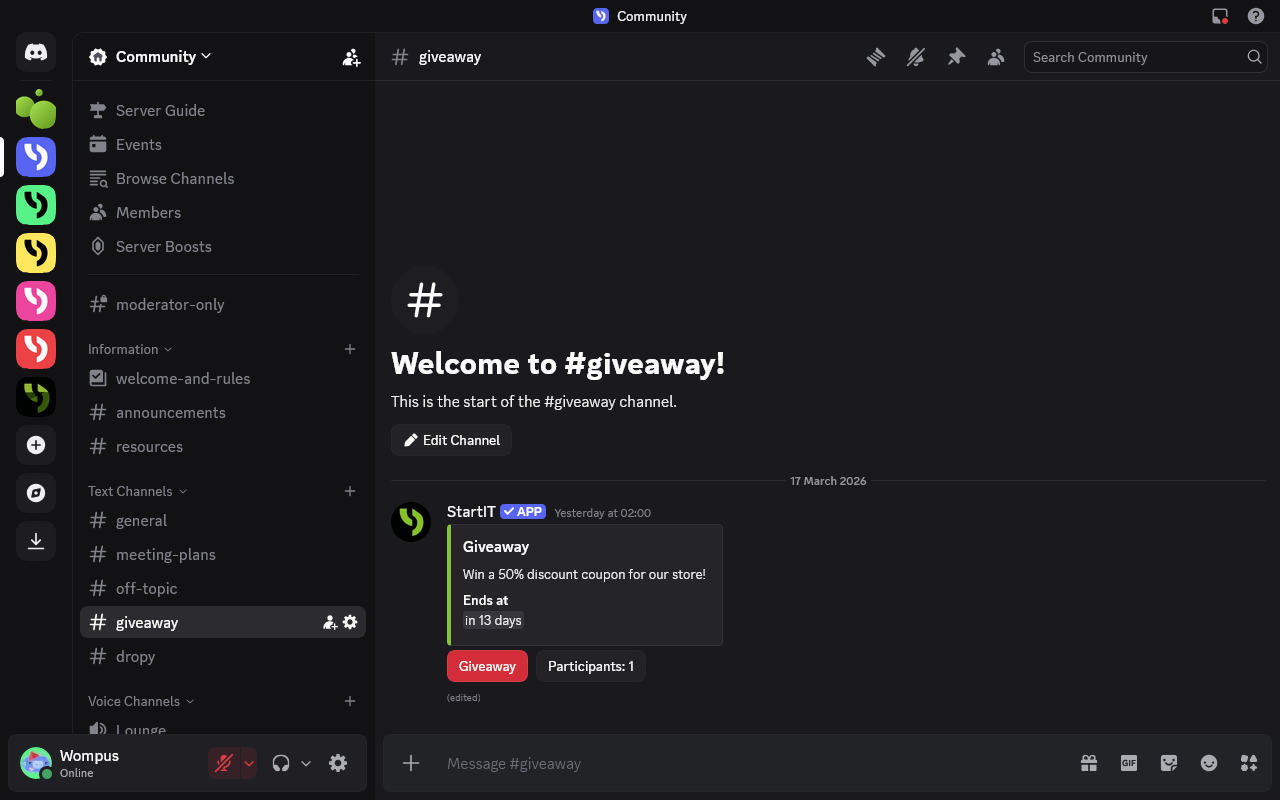
Giveaways are a fantastic way to energize your community and reward your members. Let’s be honest — everyone loves a chance to win, especially when entering is as simple as clicking a "Join" button!
While simple draws are great, you might want to create something more exclusive, like requiring a specific role to enter. With the StartIT bot, you can quickly set up everything from basic raffles to advanced competitions. Here is your step-by-step guide.
Add StartIT to Your Discord Server
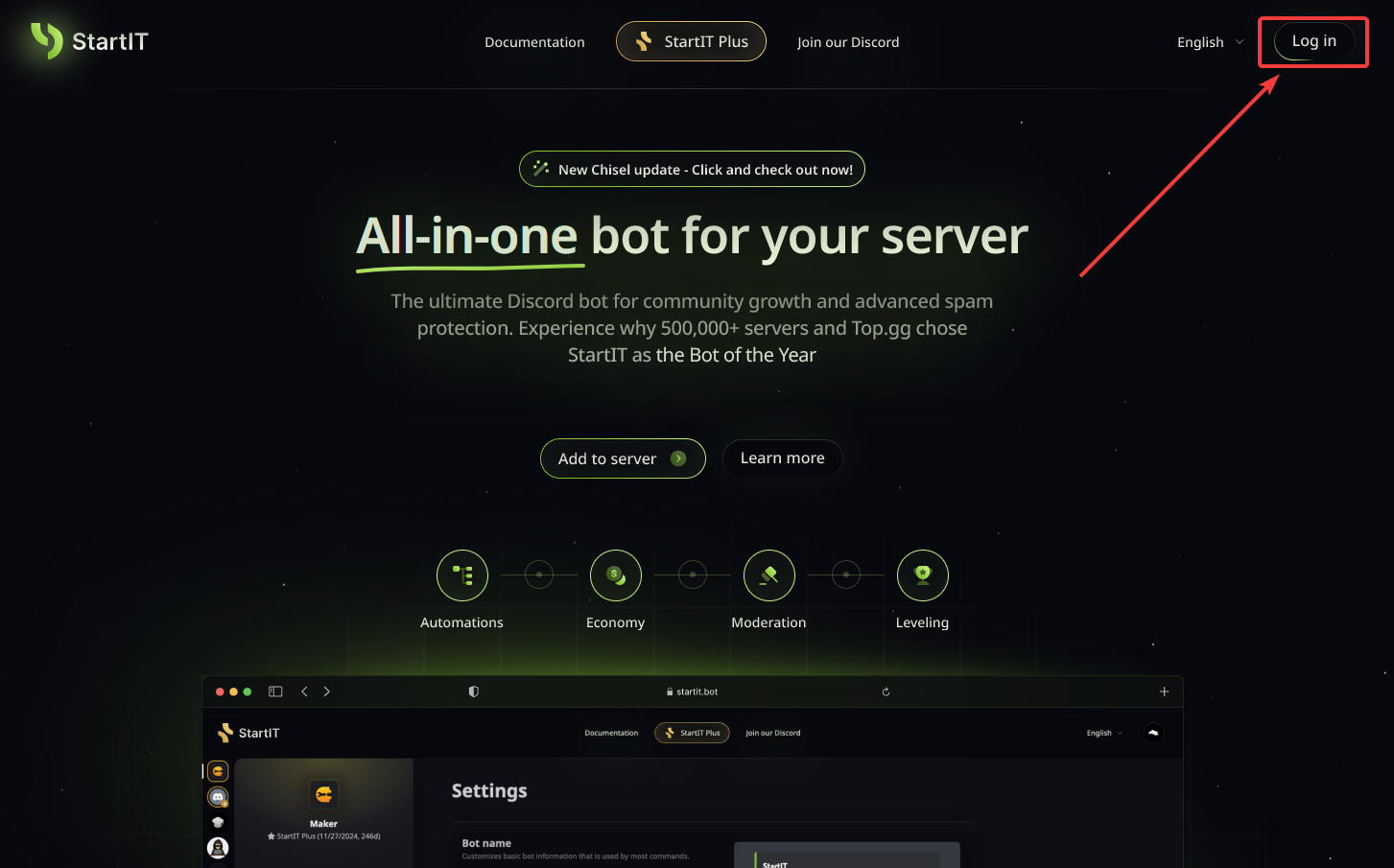
Head over to the website: Visit https://startit.bot/ and log in using your Discord account.

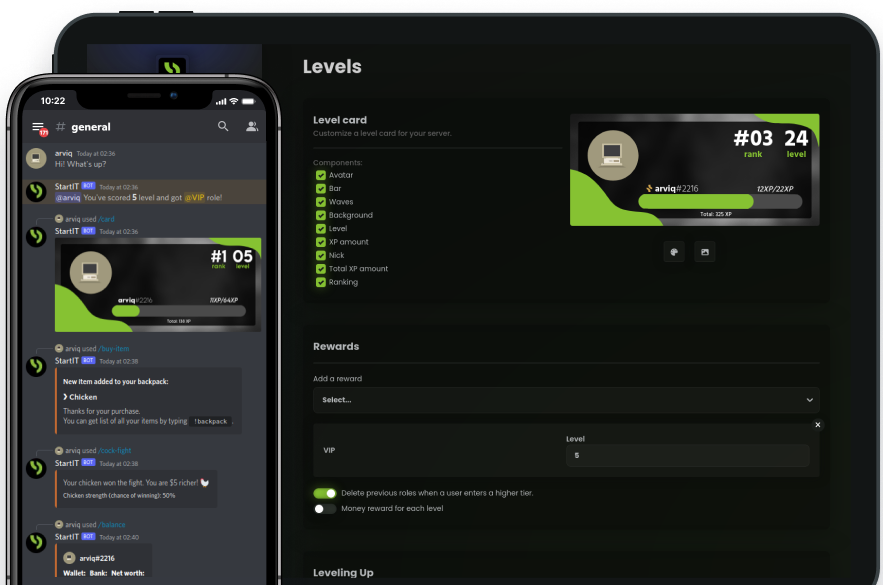
Invite the Bot: Select the server you want to enhance.
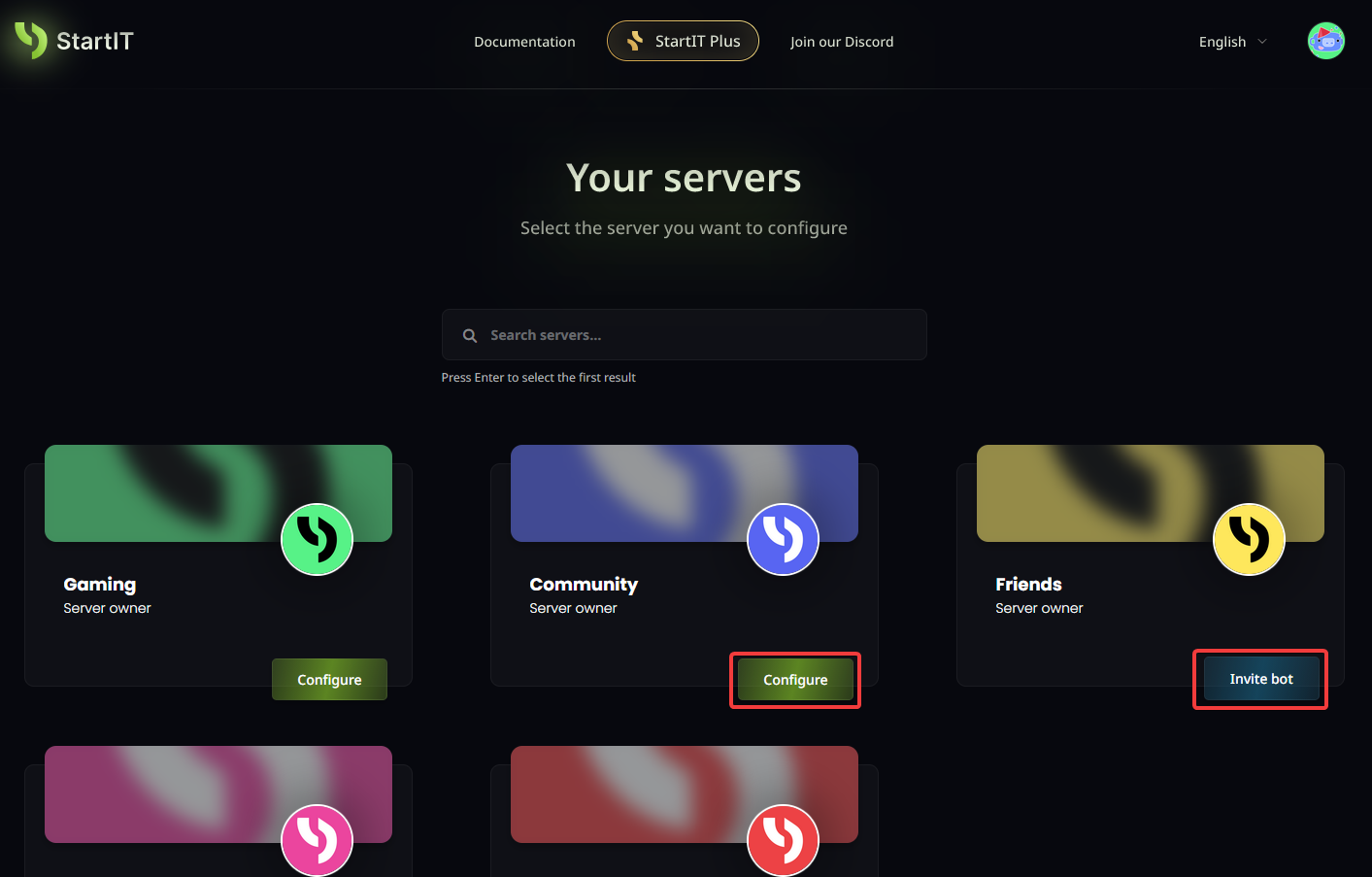
Note: You must have Administrator permissions for the server to appear in the selection list.
Configure the Giveaway Plugin
Once the bot is on your server, follow these steps to get your greetings up and running:
Open the Plugin: Navigate to the "Welcomer" plugin, enable it, and click on "New configuration"
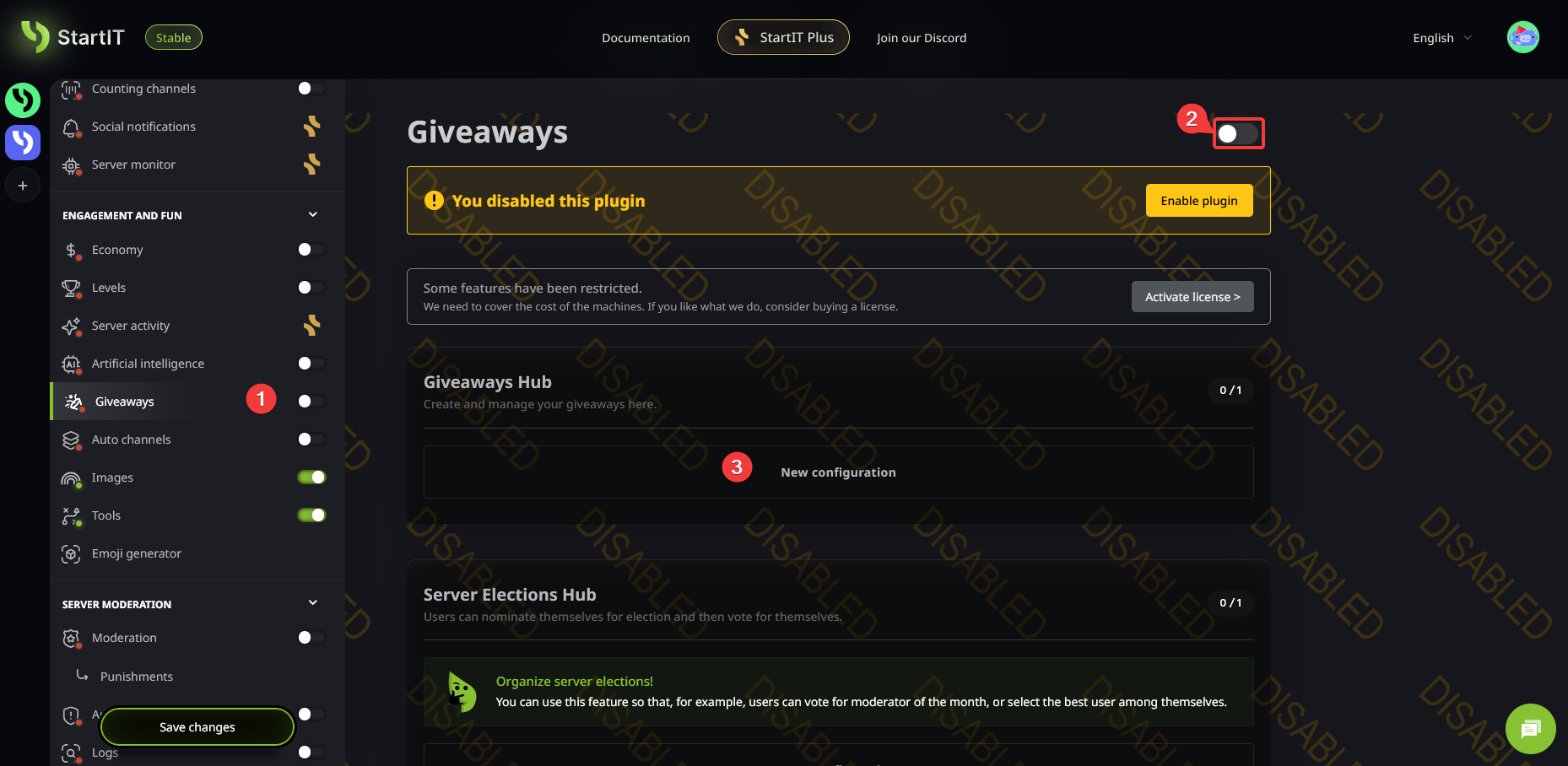
Configuring Your Giveaway
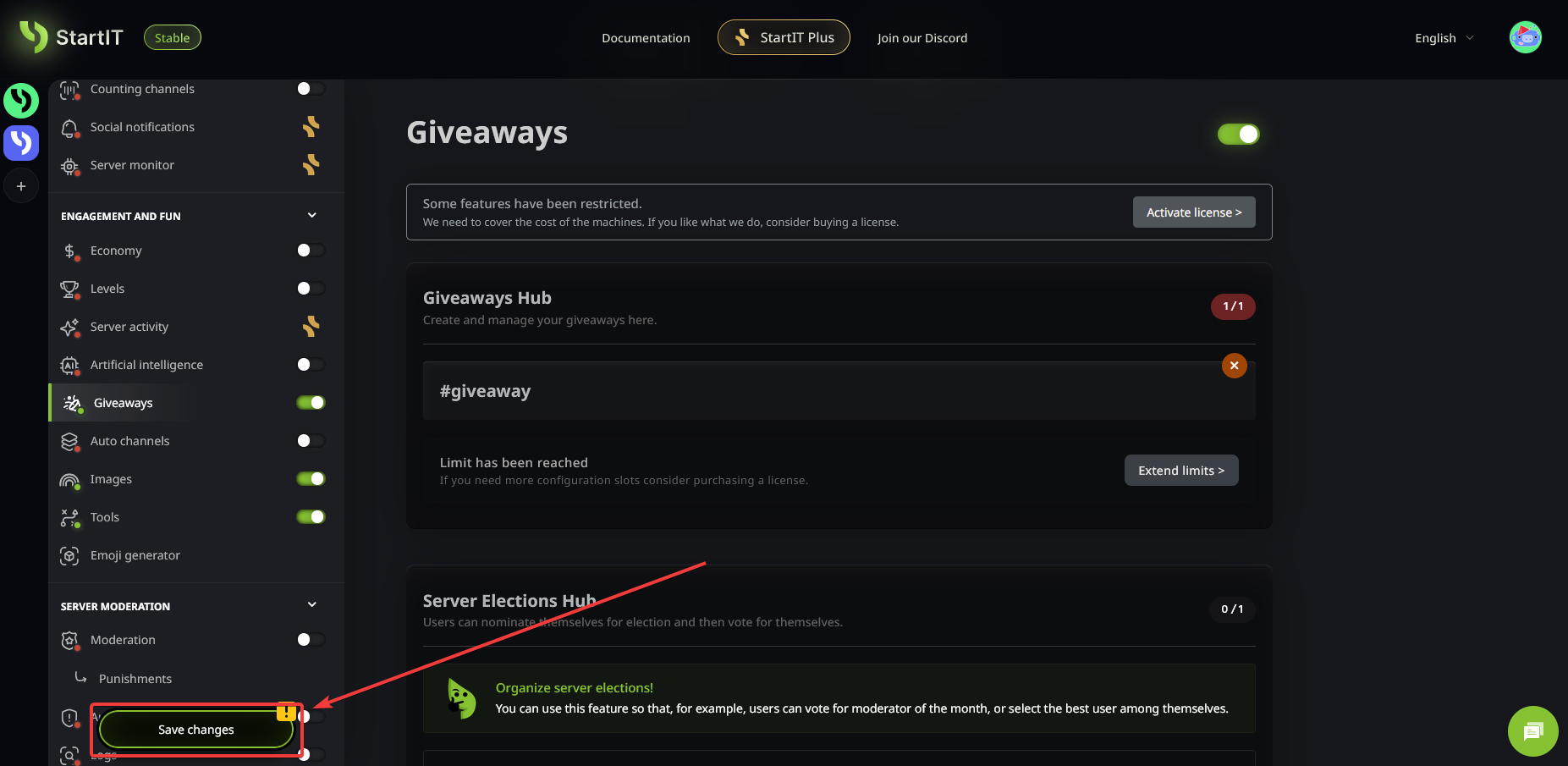
Now it’s time to define the rules of the game. You need to select the channel where the giveaway message will appear (1), the number of winners (2), and the specific start and end dates (3).
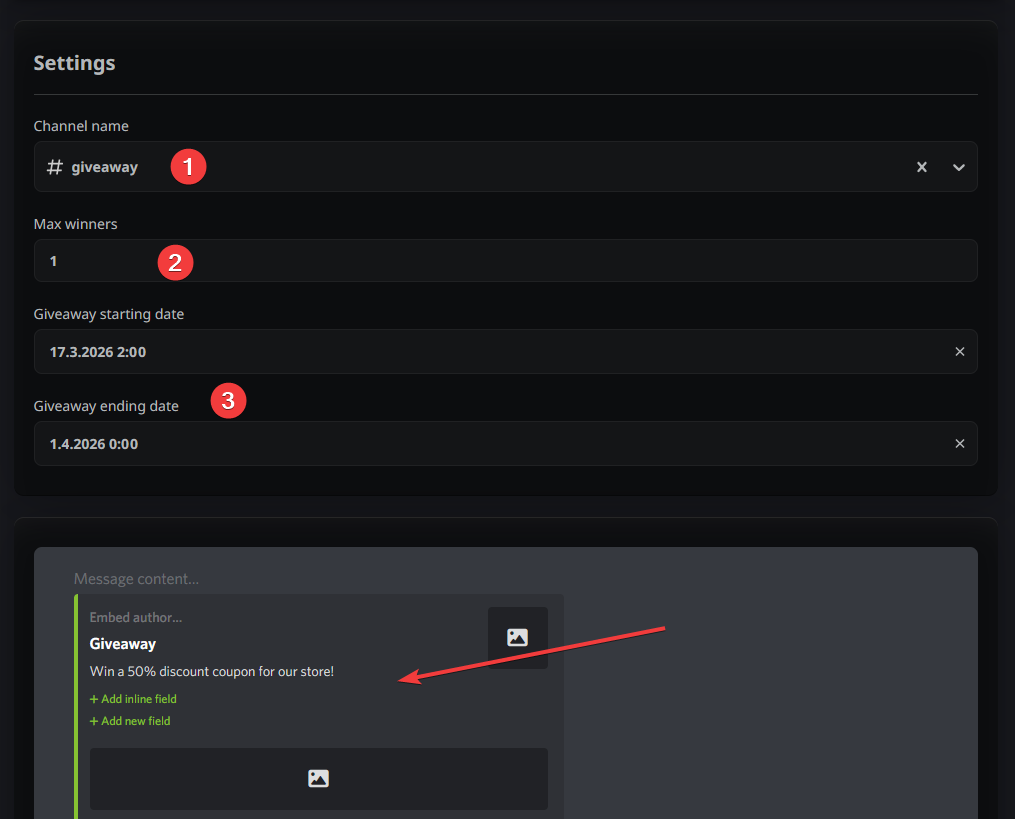
Make sure to craft a compelling message! Clearly state what is up for grabs and mention any additional entry requirements if you’ve set them.
Boosting Engagement and Requirements
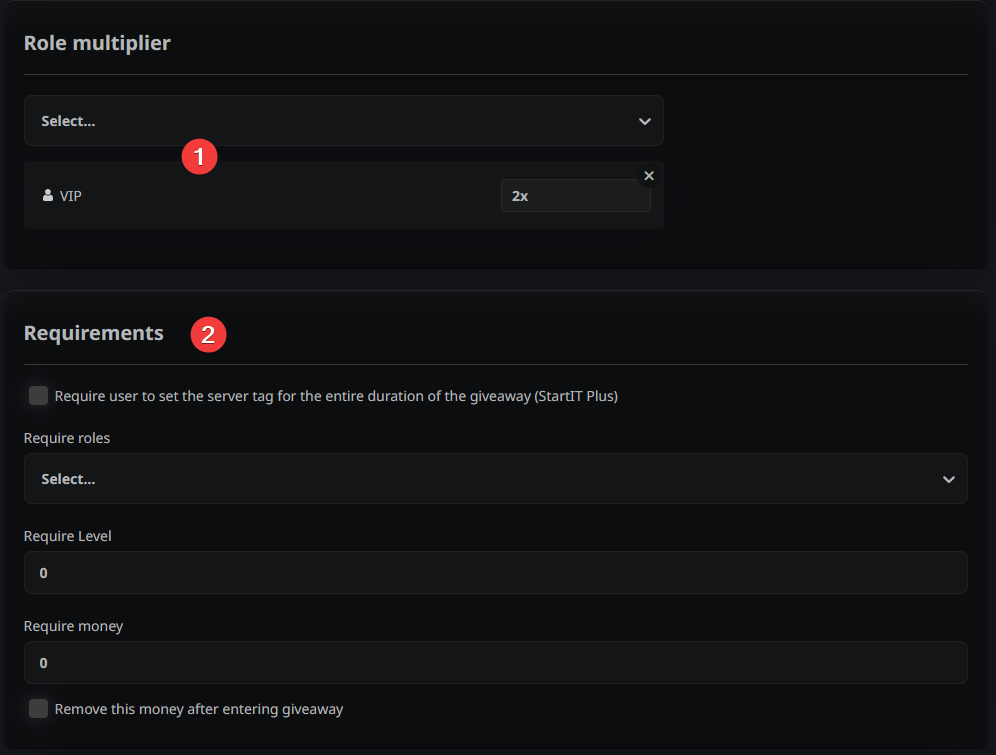
Want to reward your most active members? You can set increased winning chances for specific roles (1). Want to limit the audience of the giveaway? You can also add entry requirements (2) such as:
- Possessing a specific role (only VIPs can join giveaway).
- Wearing the server tag in their nickname (requires 3 Discord Nitro boosts).
- Reaching a certain level by being active in chat (integrates with StartIT Levels plugin).
- Paying an entry fee with virtual currency (integrates with StartIT Economy plugin).
Interested in creating your own virtual currency to reward people?
Finalizing the Prizes
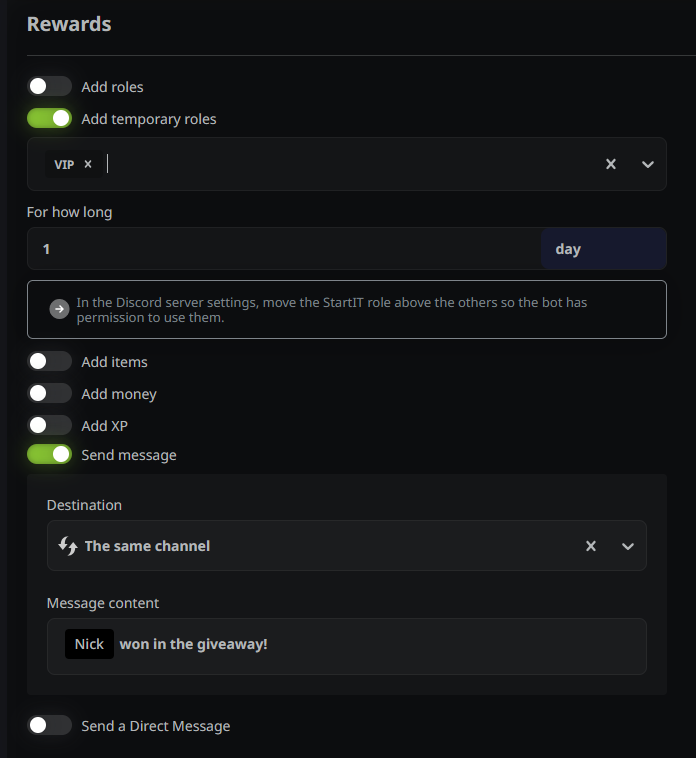
Finally, set the prize and the notification message for the lucky winners. If you use the StartIT Levels or Economy plugins, you can even automate the rewards by granting items or XP instantly upon winning.
Don’t forget to save your changes!
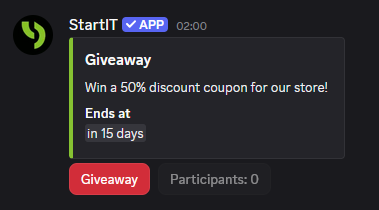
Your giveaway will be posted to the selected channel automatically at the scheduled time:
Are you ready to start your first giveaway? Add StartIT bot now and boost engagement in your community!
Ideas for Giveaway prices
For short giveaways (hosted every few days/weeks)
These work because they create habit loops - people keep coming back since the barrier is low.
- Discord Nitro (1 month)
- Custom server role (exclusive color + name)
- Highlight winner on members list — We wrote how to do it at the bottom of this article!
- Access to private channel
- Meme reaction pack / emoji pack
- Small gift cards (5-10 EUR: Steam, Google Play, Apple)
- StartIT virtual currency (integration with Economy plugin)
High-tier giveaways
These trigger real motivation but are still scalable.
- Discord Nitro (3-12 months)
- Game keys (popular titles, indie bundles)
- 20-50 EUR gift cards (Steam, Amazon, PlayStation)
- Spotify Premium / YouTube Premium subscriptions
- In-game currency (Robux, V-Bucks, etc.)
- Custom profile banner / avatar made by a designer
- Server merch if you have one (hoodies, stickers)
If your budget is $0
These build identity and loyalty, not just participation.
- "Design the next server emoji" contest with winner perks
- Permanent VIP role
- Ability to rename a channel for a week
- Staff-for-a-day experience
- Custom bot command named after the winner
Troubleshooting & FAQ
Why wasn't the giveaway message sent?
- Timing: Set the start time at least 5 minutes after saving the configuration.
- Channel Selection: Double-check that you’ve selected the correct channel and saved the settings.
- Plugin Status: Ensure the Giveaway plugin is toggled "On."
- Permissions: Verify that the bot has permission to view the channel and send messages there.
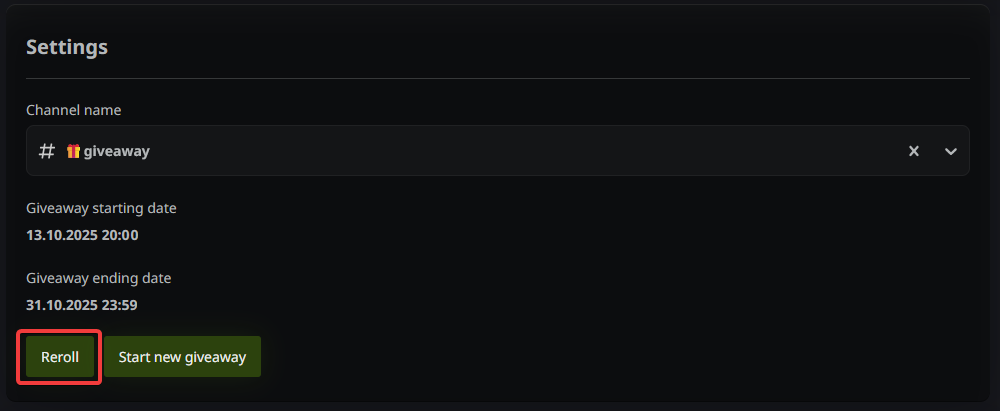
Can I reroll the winners?
Yes! Once a giveaway ends, simply go to its configuration in the bot dashboard and click the “Reroll” button. Remember to save your changes afterward.
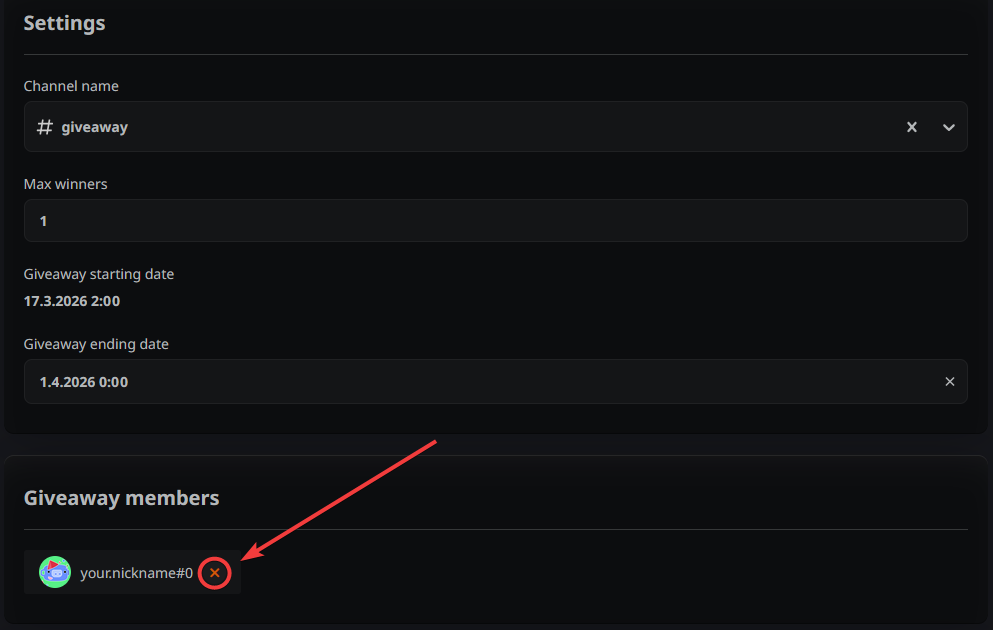
Can I remove participants while the giveaway is active?
Yes. Open the configuration of the ongoing giveaway and click the “X” icon next to the username of the participant you wish to remove. Don't forget to save.
I set a role as a prize, but the bot didn't assign it. Why?
This is usually a permission/hierarchy issue. The bot's own role (defaulted to “StartIT”) must be positioned higher in the server settings than the role you are giving away. If it's below the prize role, the bot won't have the permission to assign it.
How to feature winner in members list?
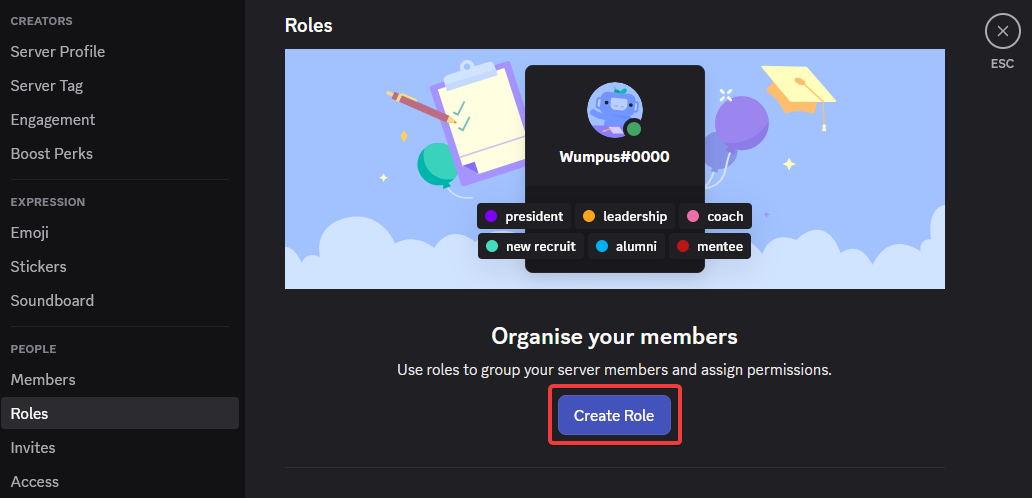
Go to Discord Server Settings -> Roles tab -> Create role.
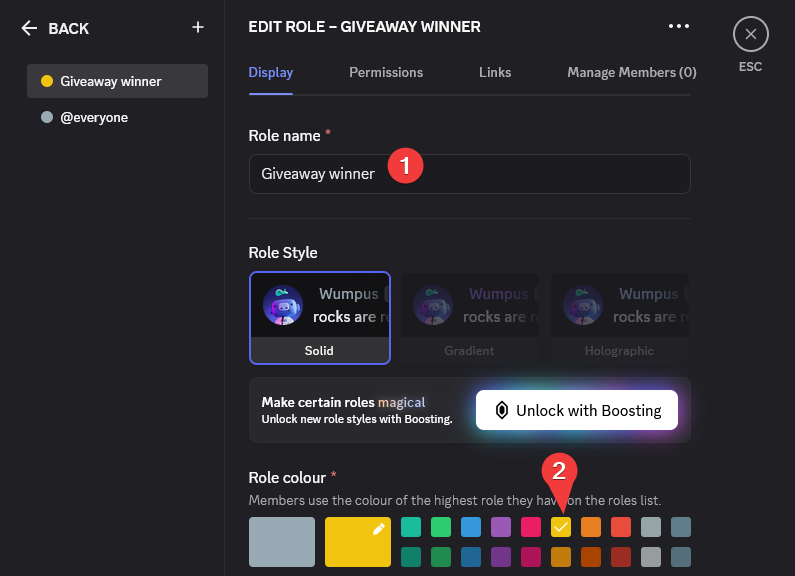
Create new role for Giveaway winner. You can name it (1) however you like, you can also set the color this role (2).
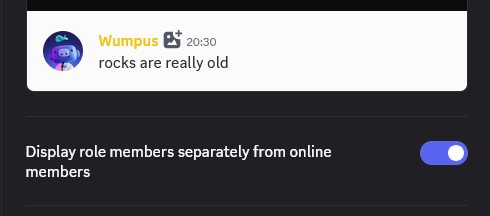
Next, scroll down and select "Display role members separately from online members"
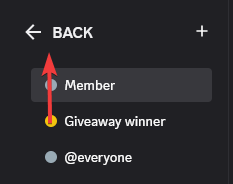
This step is really important! You have to reorder this role to be second-highest role in the server. The order of roles is equal to order in which members show up in member list.
Also! You have to make sure that StartIT role is higher than a Giveaway winner, only then StartIT will have permission to assign this role. The best scenario is when "StartIT" is highest in order and then Giveaway winner is just below it.
Last thing you have to do is instruct StartIT to assign the Giveaway winner role to winning users. You will do this in StartIT website (www.startit.bot):
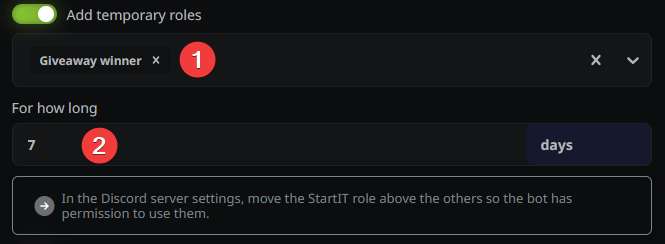
Turn on the "Add temporary roles" feature in StartIT, then select your Giveaway winner role (1) and choose how long (2) winners should have this highlight.
That's it!