How to manage Suggestions on Discord with Voting and Comments
Your server grows faster when members feel like they have a say. Instead of guessing what your community wants, use a structured feedback system to let them vote and comment on the best ideas.
No Discord server can truly thrive without a healthy community, and that community often has specific needs that aren't always obvious. As a server creator, it’s easy to miss the mark if you aren't tuned in to what your members actually want.
Users love to feel heard, and their active engagement is the secret sauce to helping your server grow. In this guide, we’ll walk you through how to set up a dedicated channel to manage user suggestions effectively.
Add StartIT to Your Discord Server
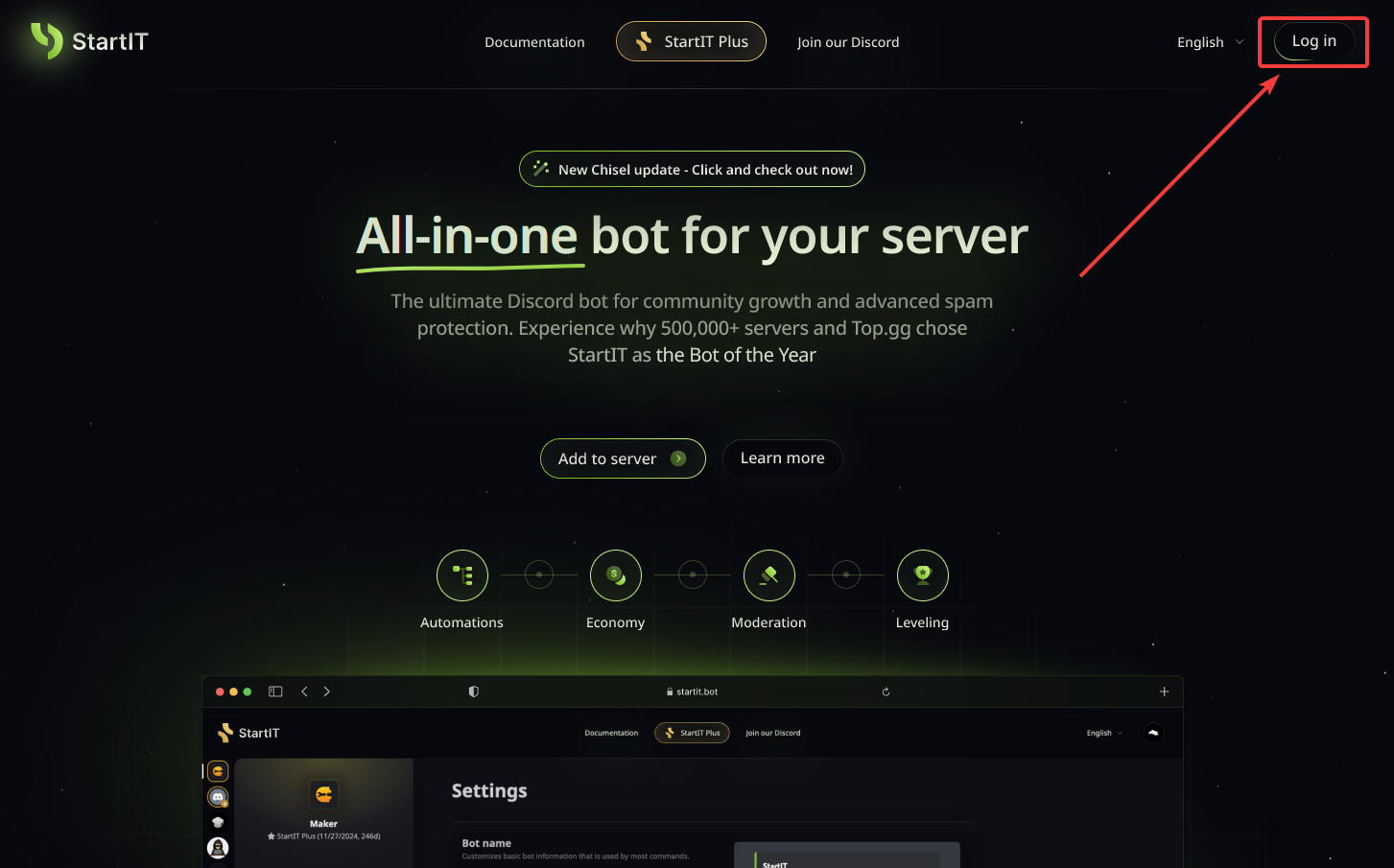
Head over to the website: Visit https://startit.bot/ and log in using your Discord account.

Invite the Bot: Select the server you want to enhance.
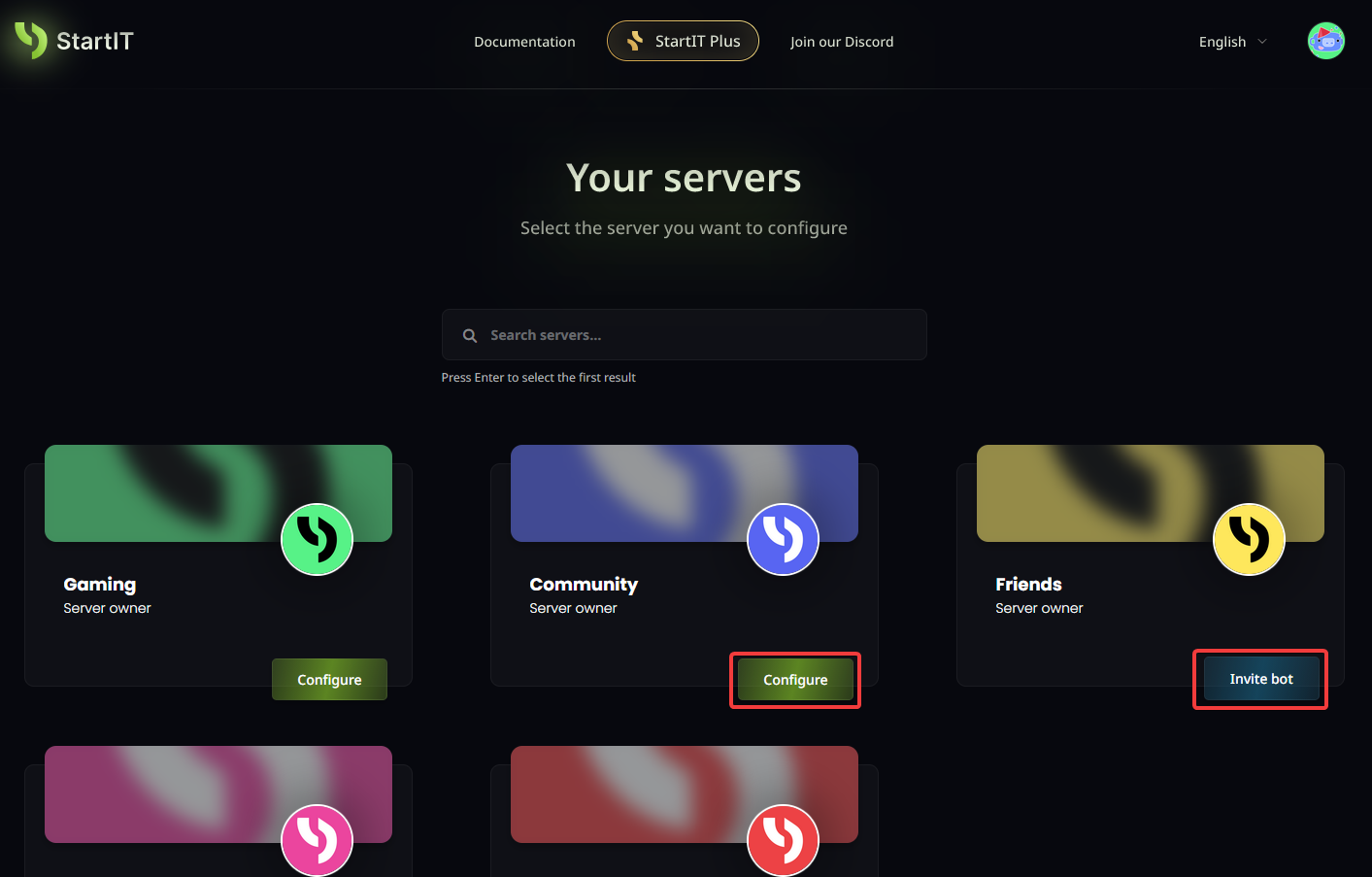
Note: You must have Administrator permissions for the server to appear in the selection list.
Configure Suggestions
Once the bot is ready, navigate to its dashboard. Find the "Moderated channels" plugin (1) and enable it (2). Look for the "Suggestions channel" section and click on "New configuration" (3).
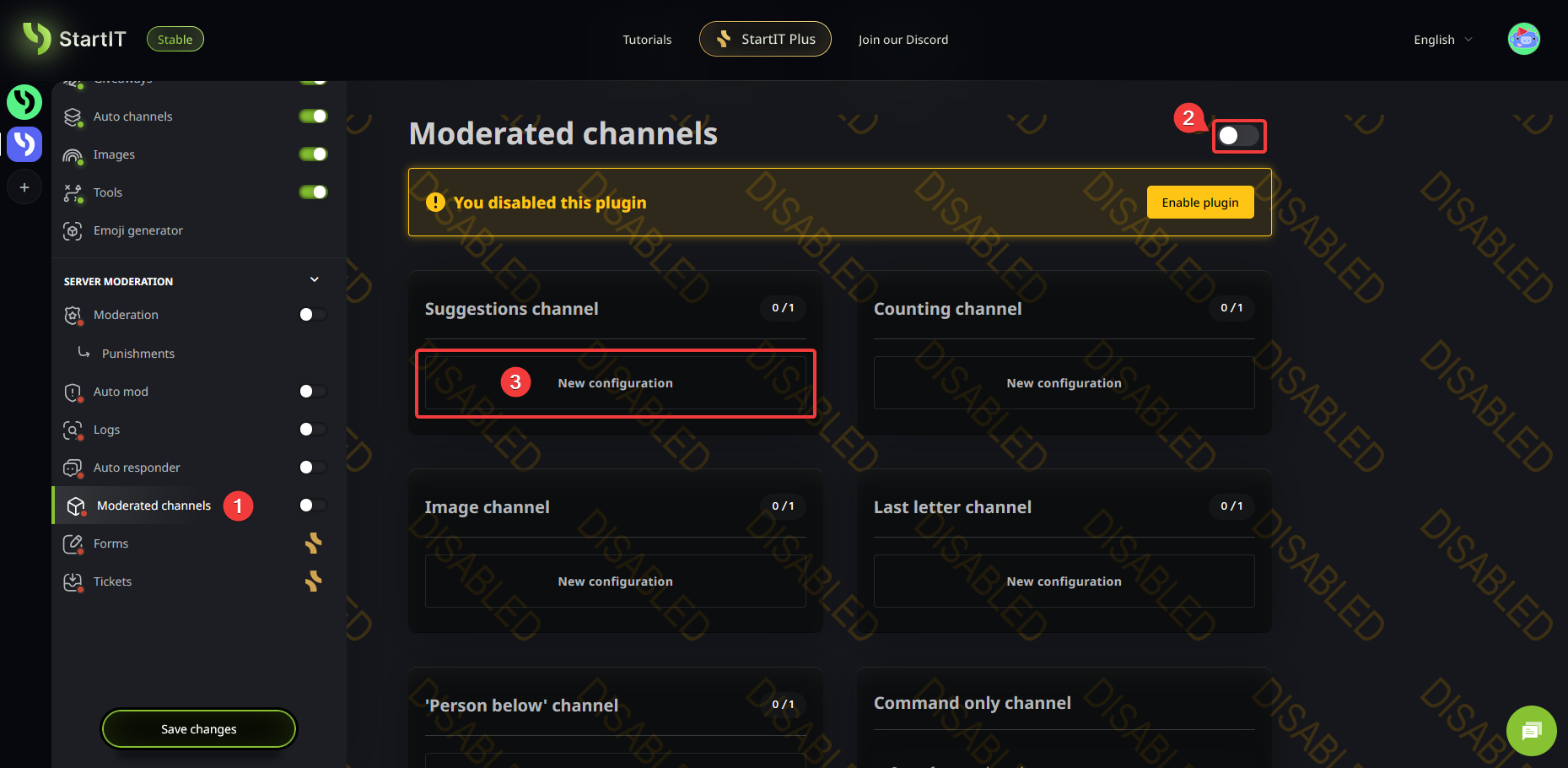
Step 3: Select Your Channel
Now, simply select the channel where you want the suggestions to be posted (make sure you’ve already created this channel in Discord). (1).
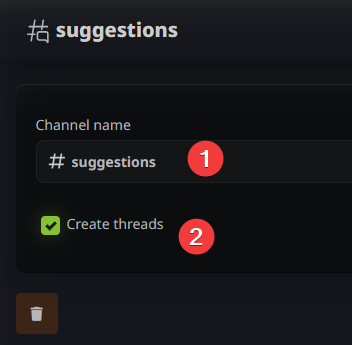
Pro Tip: We highly recommend checking the “Create threads” option. This allows members to discuss specific ideas in depth without cluttering the main channel.
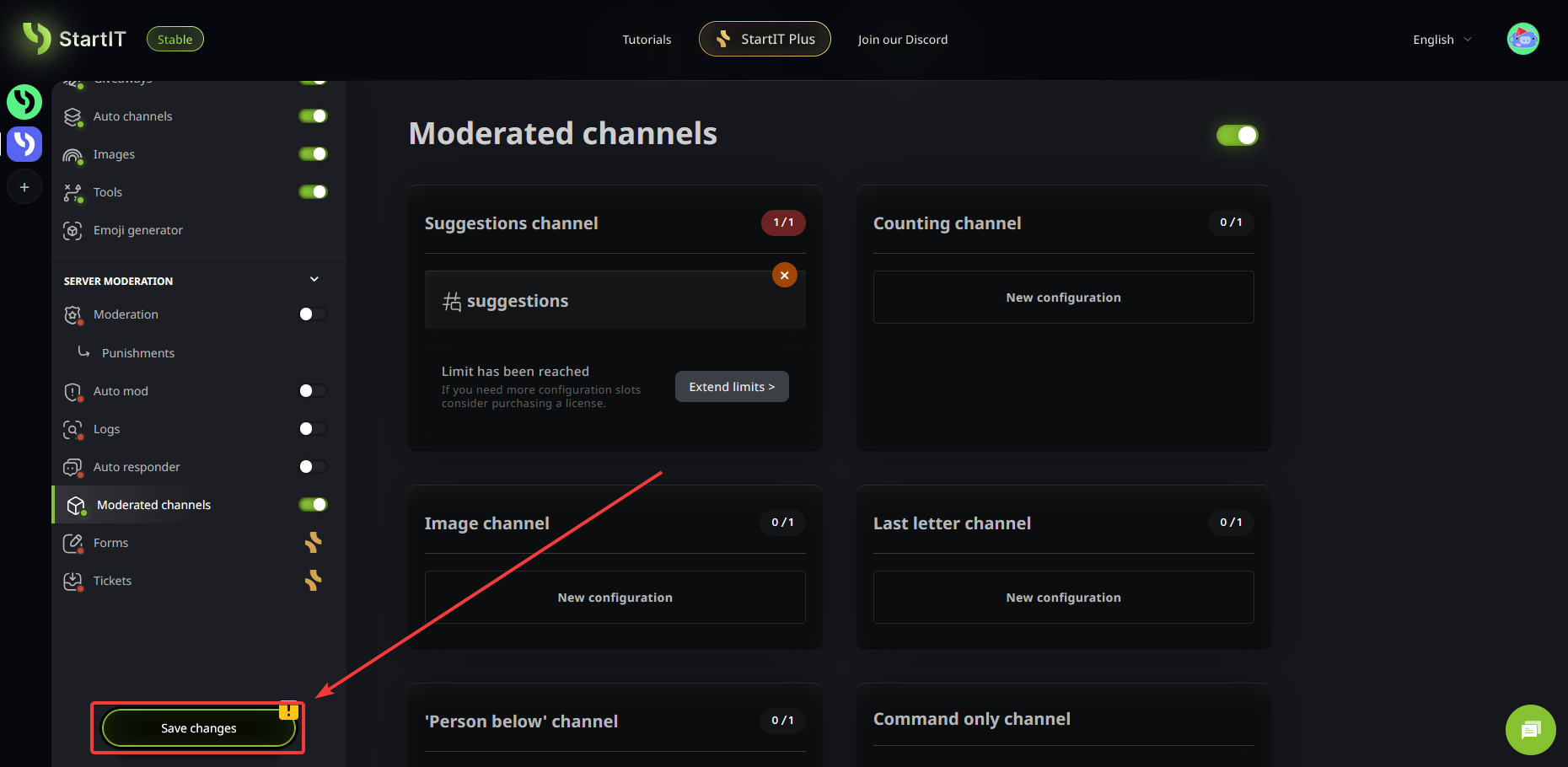
Step 4: Save Your Progress
Don't let your hard work go to waste—make sure to save your changes!
Building a great server is a marathon, not a sprint. By listening to your community, you’re already one step ahead!
How it Works in Practice
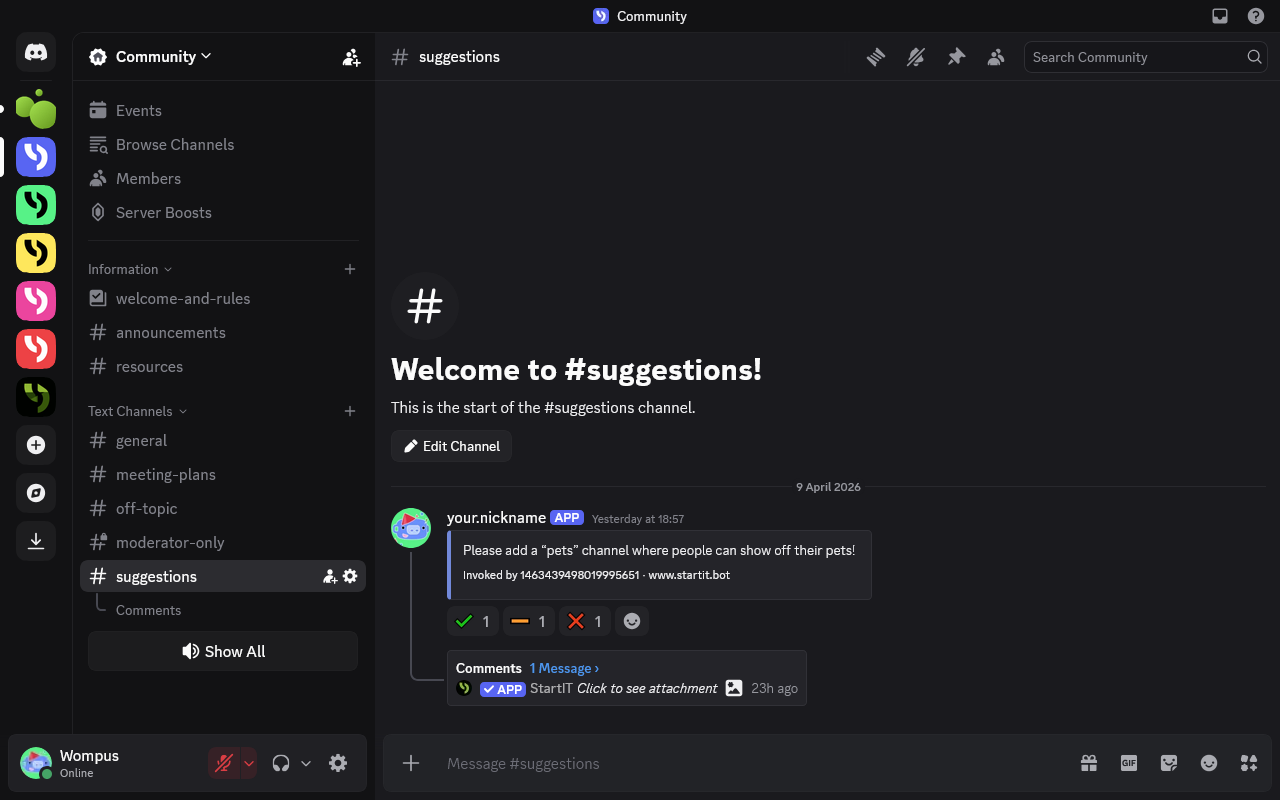
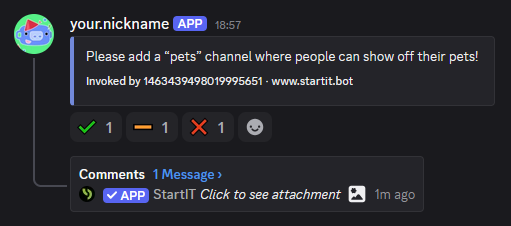
Once configured, whenever a user posts a message in that channel, the bot will automatically transform it. It will add voting reactions (like thumbs up/down) and start a discussion thread if you enabled that option.
Troubleshooting: Common Issues
The bot isn't replacing messages
If the bot seems inactive, double-check two things:
- Verify that you selected the correct channel and hit Save.
- Permissions: Ensure the bot has the "Manage Webhooks" permission. Without this, it cannot reformat the messages into the clean suggestion style.
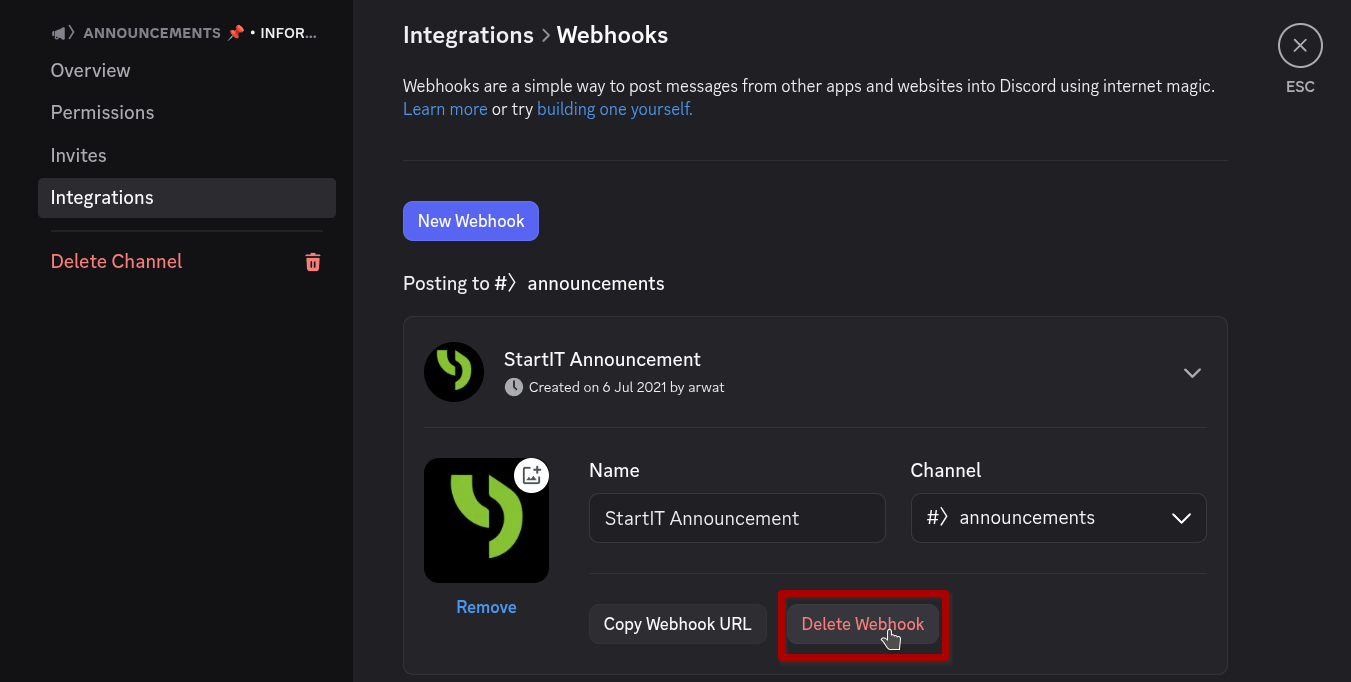
- Too many webhooks: Go to Channel Settings -> Integrations -> Webhooks and delete all of them.