How to add Counters and Statistics on Discord Voice Channels
Hidden stats make a server look empty. Moving your member count and live growth directly into the channel list makes your community look active and professional the second someone joins. Here’s how to automate that visibility so your server never looks like a ghost town.
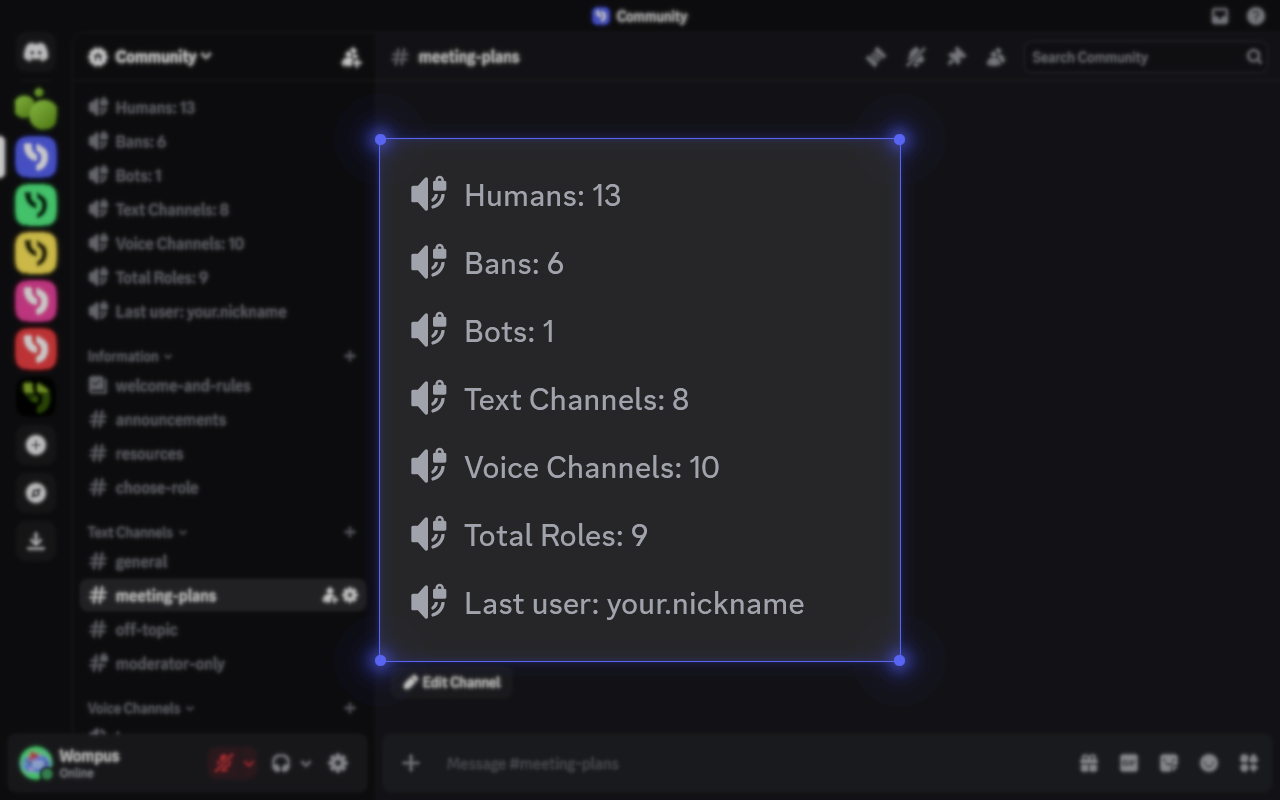
Discord is a powerhouse for community building, but by default, it keeps a lot of its most interesting data under the hood. Information like the exact number of human members versus bots, recent joins, or total bans isn't immediately visible to your users.
Today, we’re going to change that. We will show you how to pull back the curtain and showcase your growth using Server Statistics (Counting Channels). Displaying these metrics directly in your channel list is a fantastic way to show off your community's activity and progress.
Add StartIT to Your Discord Server
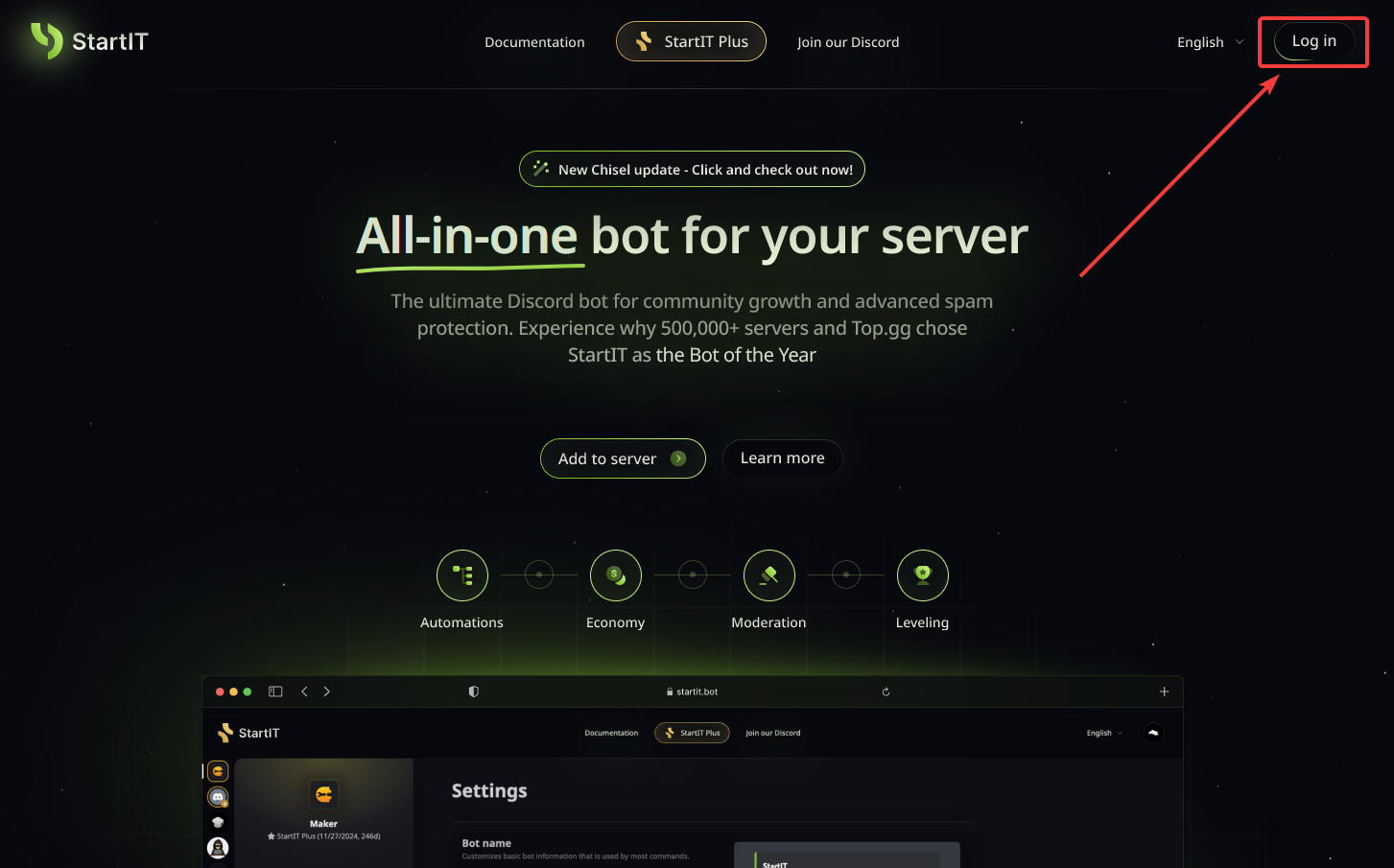
Head over to the website: Visit https://startit.bot/ and log in using your Discord account.

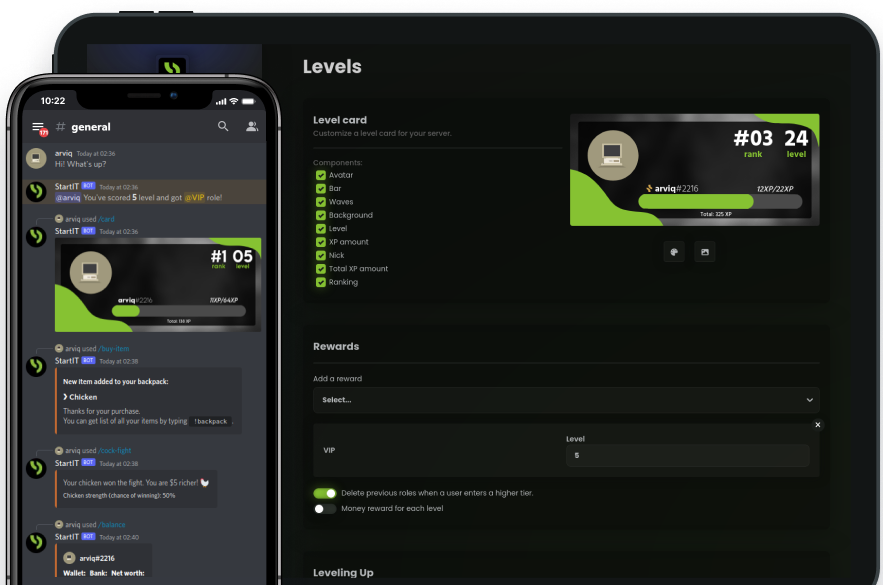
Invite the Bot: Select the server you want to enhance.
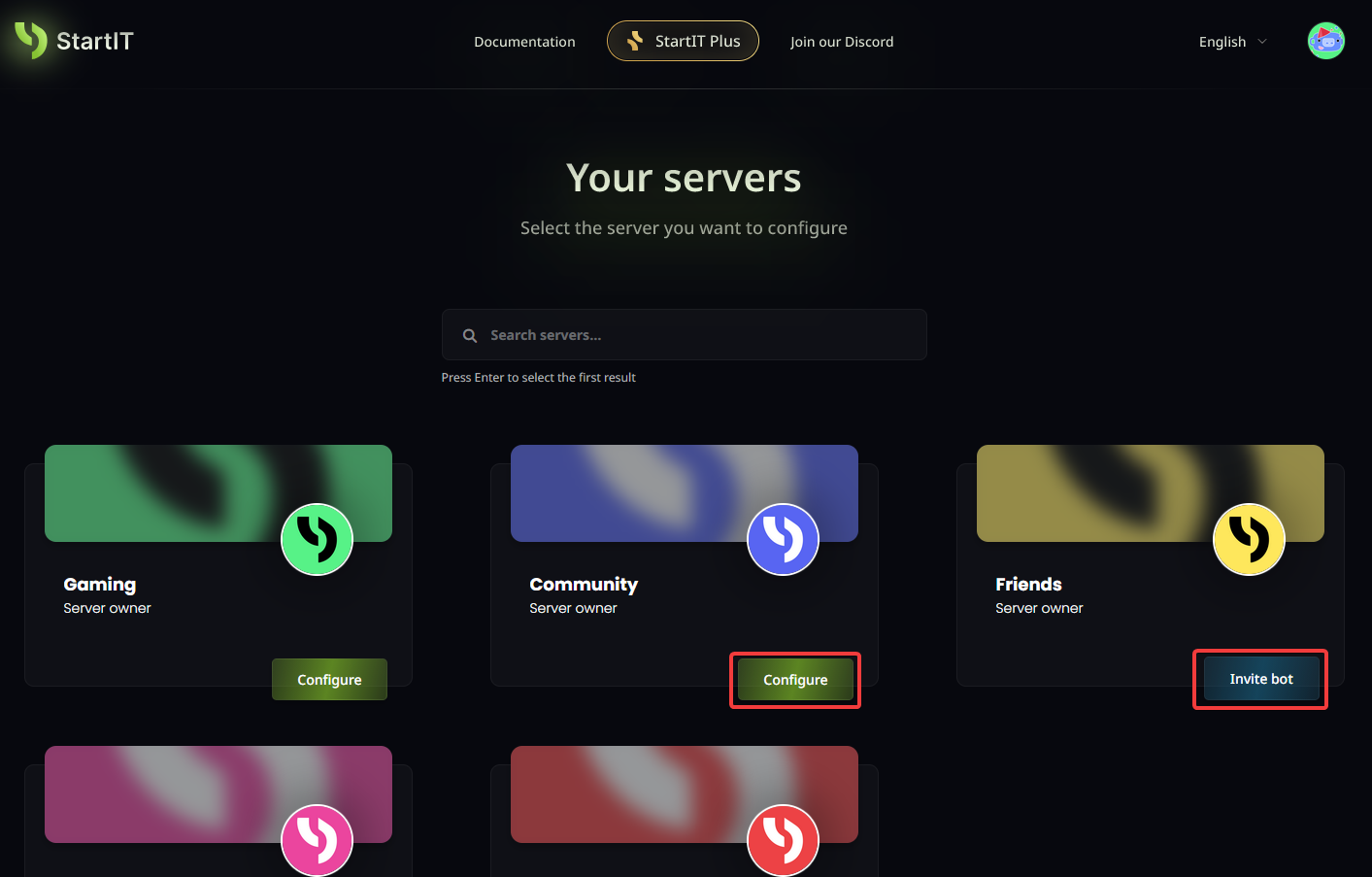
Note: You must have Administrator permissions for the server to appear in the selection list.
Configure the Counting Channels Plugin
Once the bot is settled in, head over to your dashboard. Find the "Counting channels" plugin (1) and toggle it to Enabled (2).
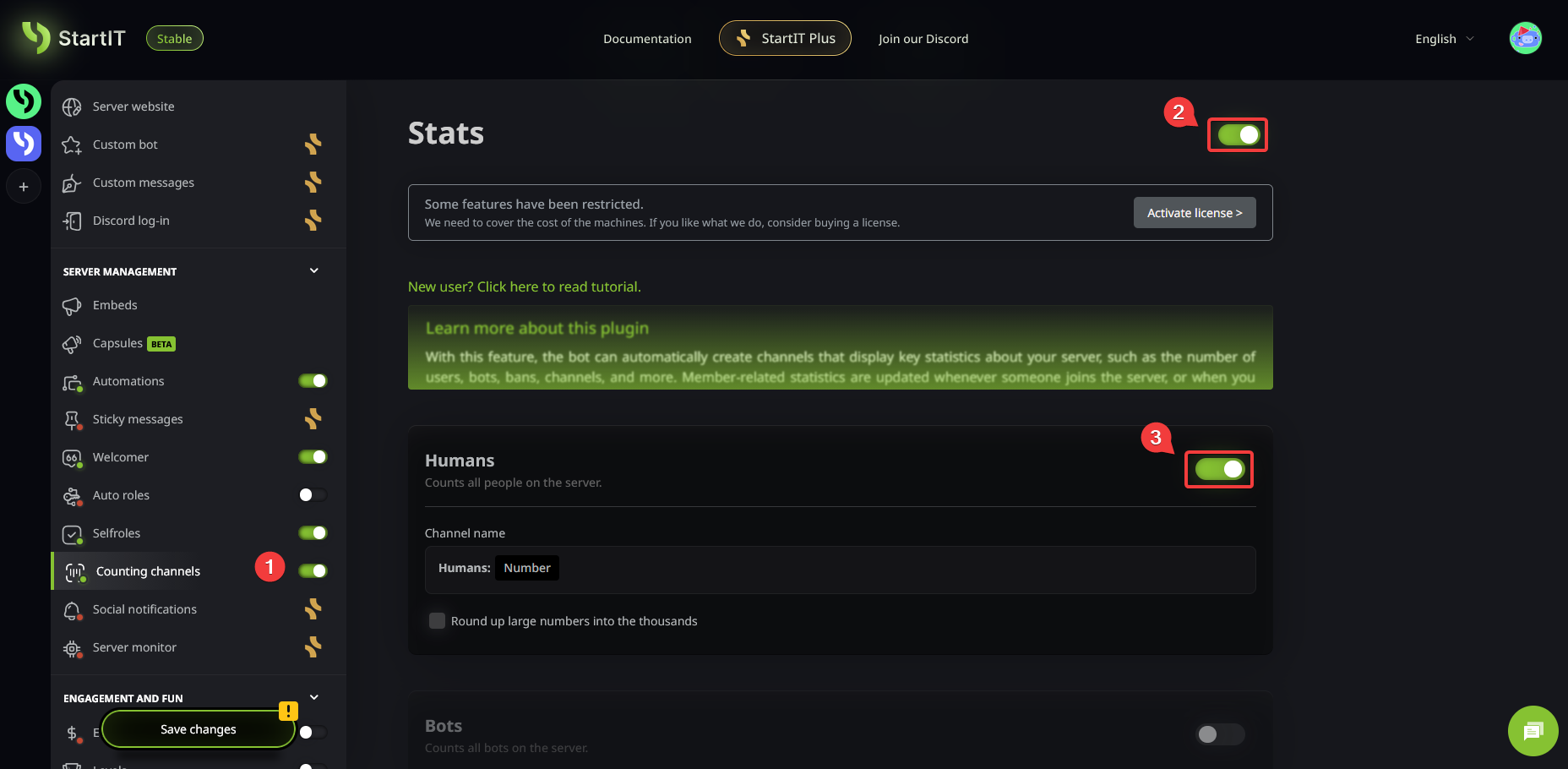
As you will notice, there are a variety of metrics available. Browse through the list and select the ones you want to display on your server by clicking the toggle switch (3) for each specific stat.
Customizing the Look (Optional)
You don't have to stick with the default settings. You have the freedom to:
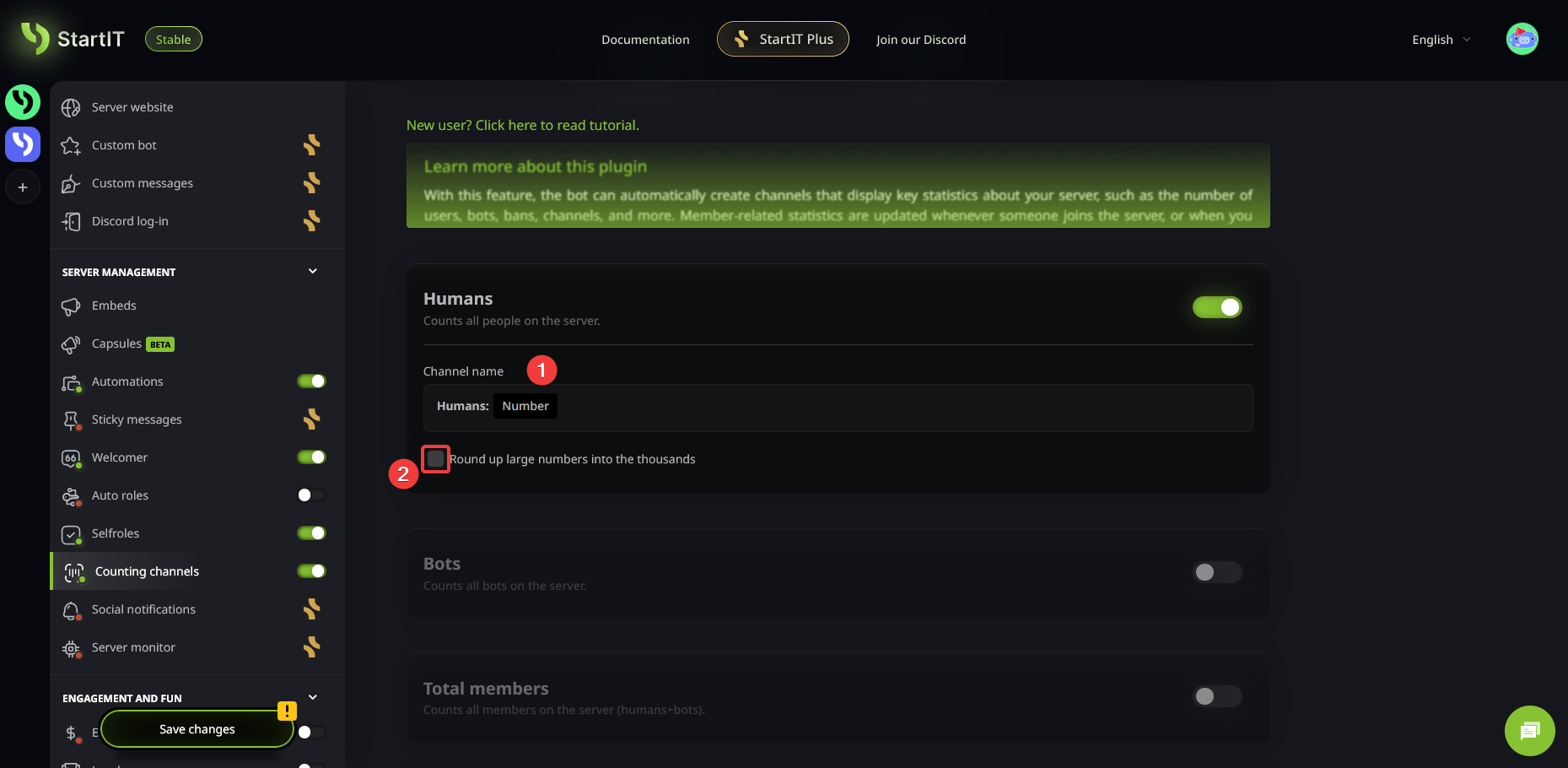
- Change the channel name (1) to match your server’s aesthetic.
- Enable number rounding (2) for larger servers to keep the sidebar looking clean (e.g., 1.2k instead of 1,243).
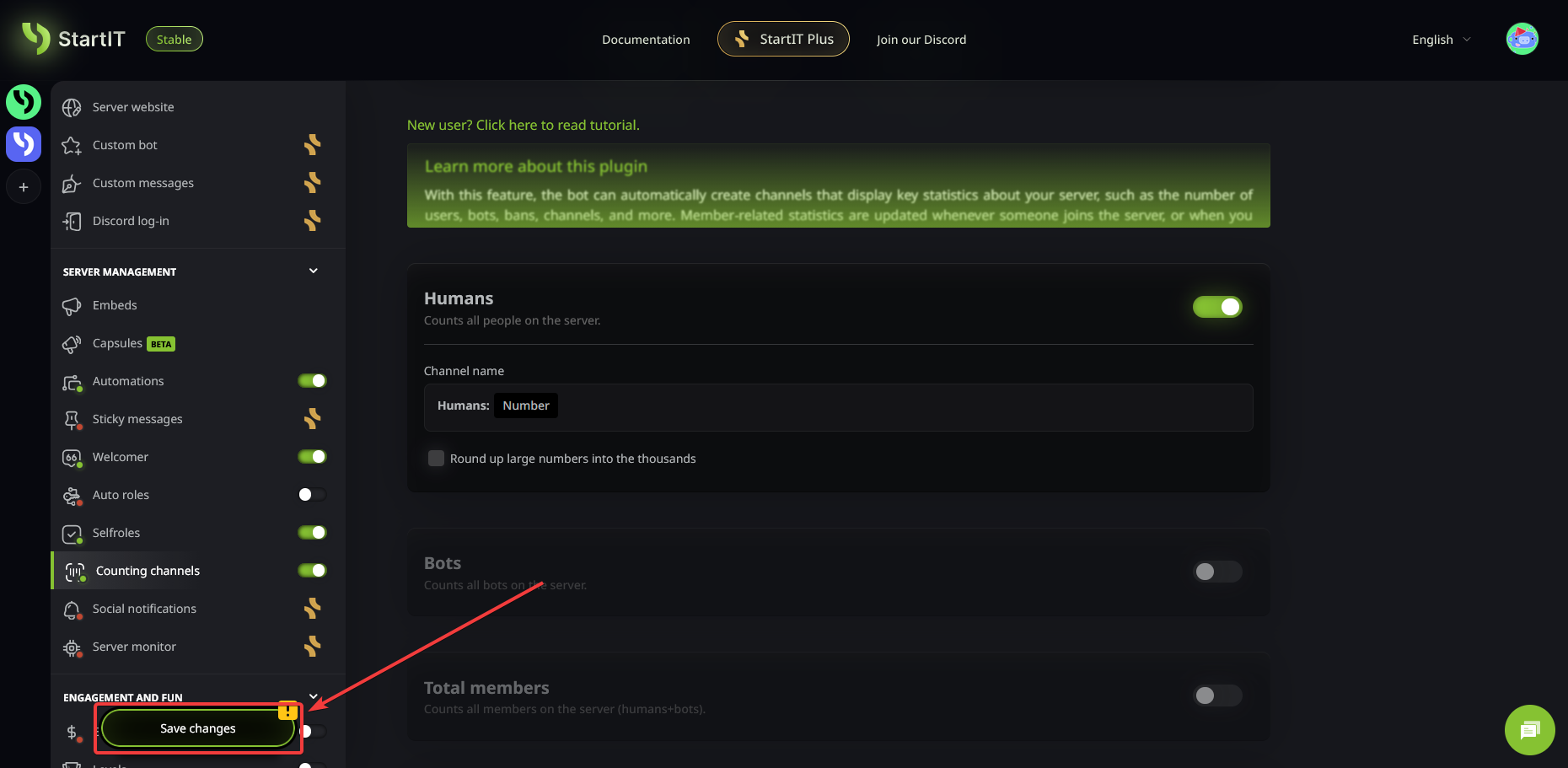
Save changes
Once you are happy with your selection, don’t forget to save your changes!
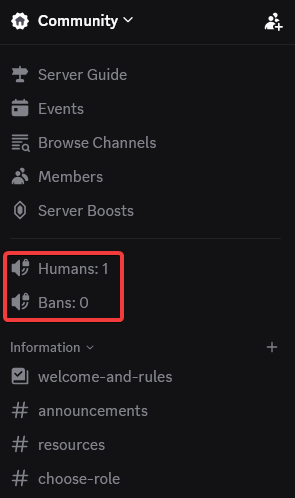
After saving, the statistics will appear at the very top of your channel list. These channels are automated and will refresh their data approximately every 10 minutes.
Are you ready to spruce up your server? Add StartIT bot now and create beautiful counters on your voice channels!
Troubleshooting Common Issues
Even the best setups can run into a hiccup. If things aren't looking right, check these common fixes:
The channels aren't appearing
- Double-check that the plugin is actually toggled ON and that you clicked Save.
- Verify that the bot has the "Manage Channels" permission in your server settings.
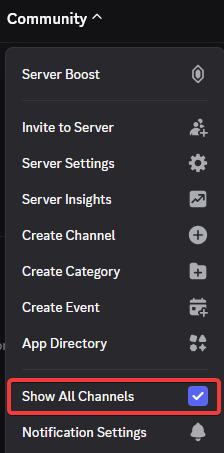
- Ensure you haven't hidden the category or that you are viewing all channels.
The stats stopped updating
- Confirm the bot still has "Manage Channels" or "Edit Channels" permissions.
- Patience is key! Channels update roughly every 10–20 minutes; they don't always sync at the exact same second.
- As a last resort, follow the steps written below for each channel that isn't working.
I accidentally deleted a channel and broke the plugin
- Don't panic! First, disable the problematic stat in the dashboard.
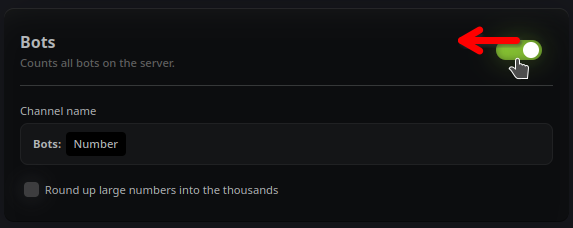
- Hit Save button (that's important)
- Re-enable the specific stat and hit the Save button again.
The bot will then recreate the channel from scratch.