Boost Engagement: How to Set Up a Leveling System on Your Discord Server
Discord servers thrive when participation feels like progress. Adding levels gives your members a reason to stay active and a stake in the community. Here is how to set it up.
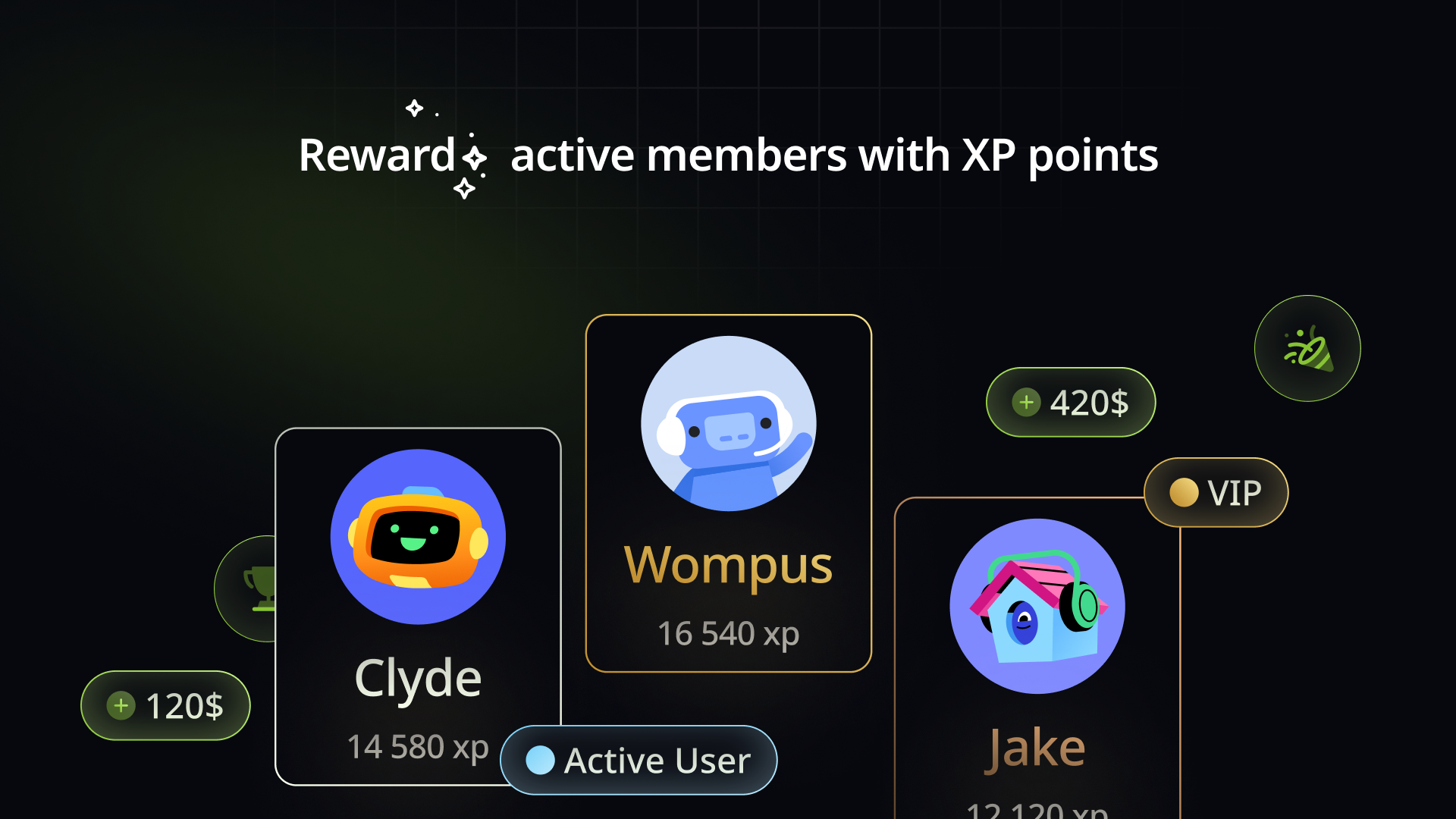
A leveling system is one of the most effective ways to motivate your Discord server members to stay active. By chatting in text channels or hanging out in voice channels, users earn XP (Experience Points), which allows them to climb through various levels.
The best part? Certain levels can grant special rewards, such as unique roles that unlock hidden channels or exclusive perks. Discover how easy it is to set up this system with us and watch your community come to life!
Add StartIT to Your Discord Server
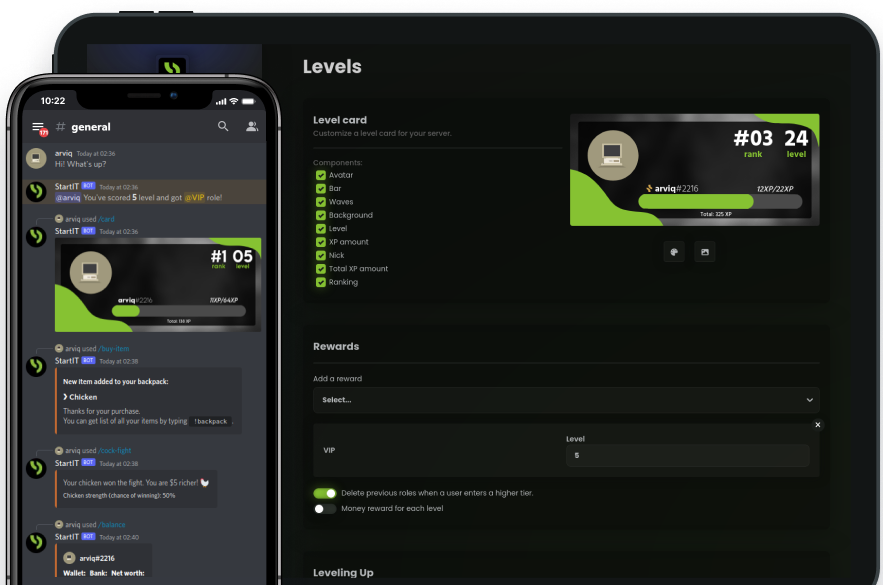
Head over to the website: Visit https://startit.bot/ and log in using your Discord account.

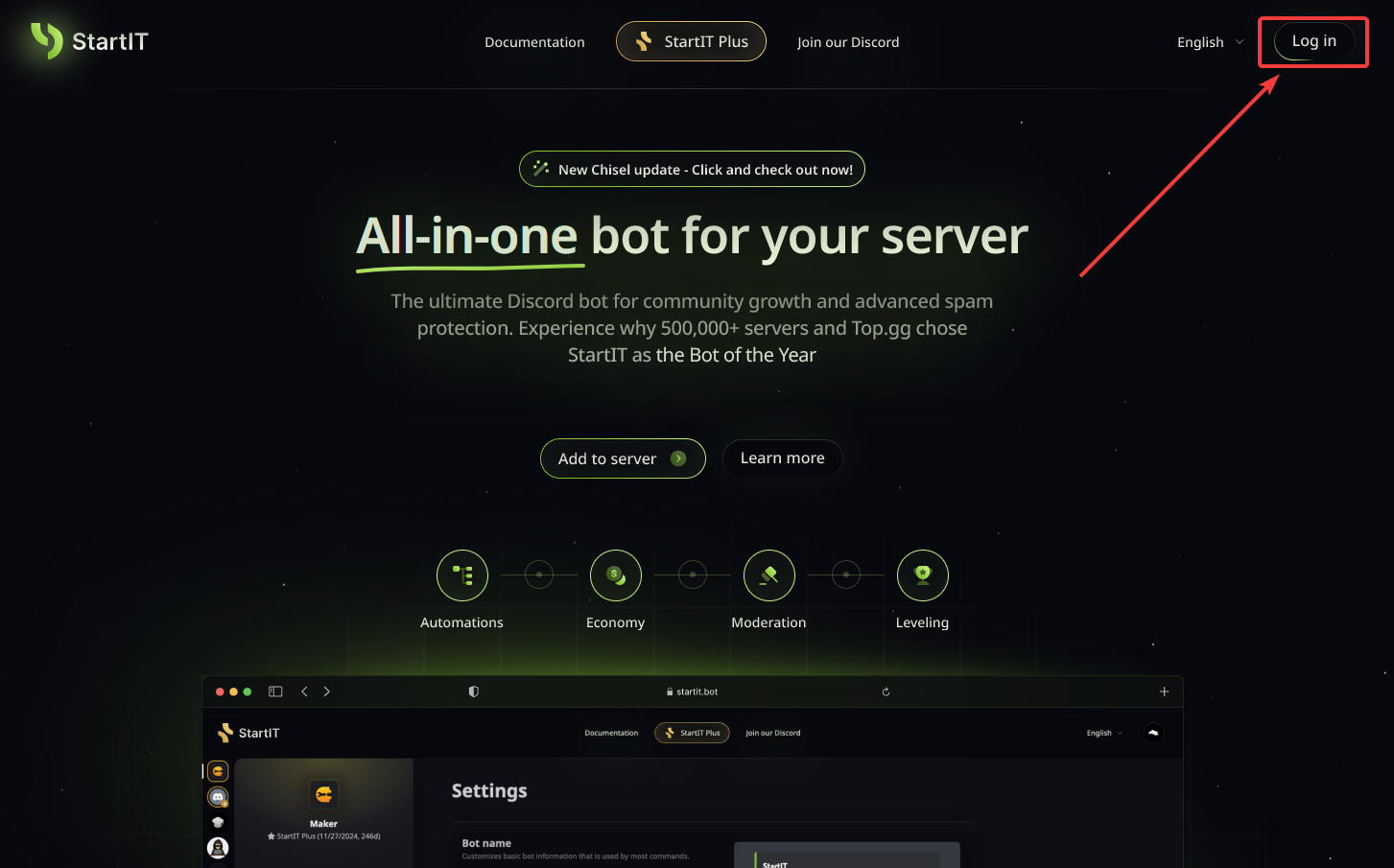
Invite the Bot: Select the server you want to enhance.
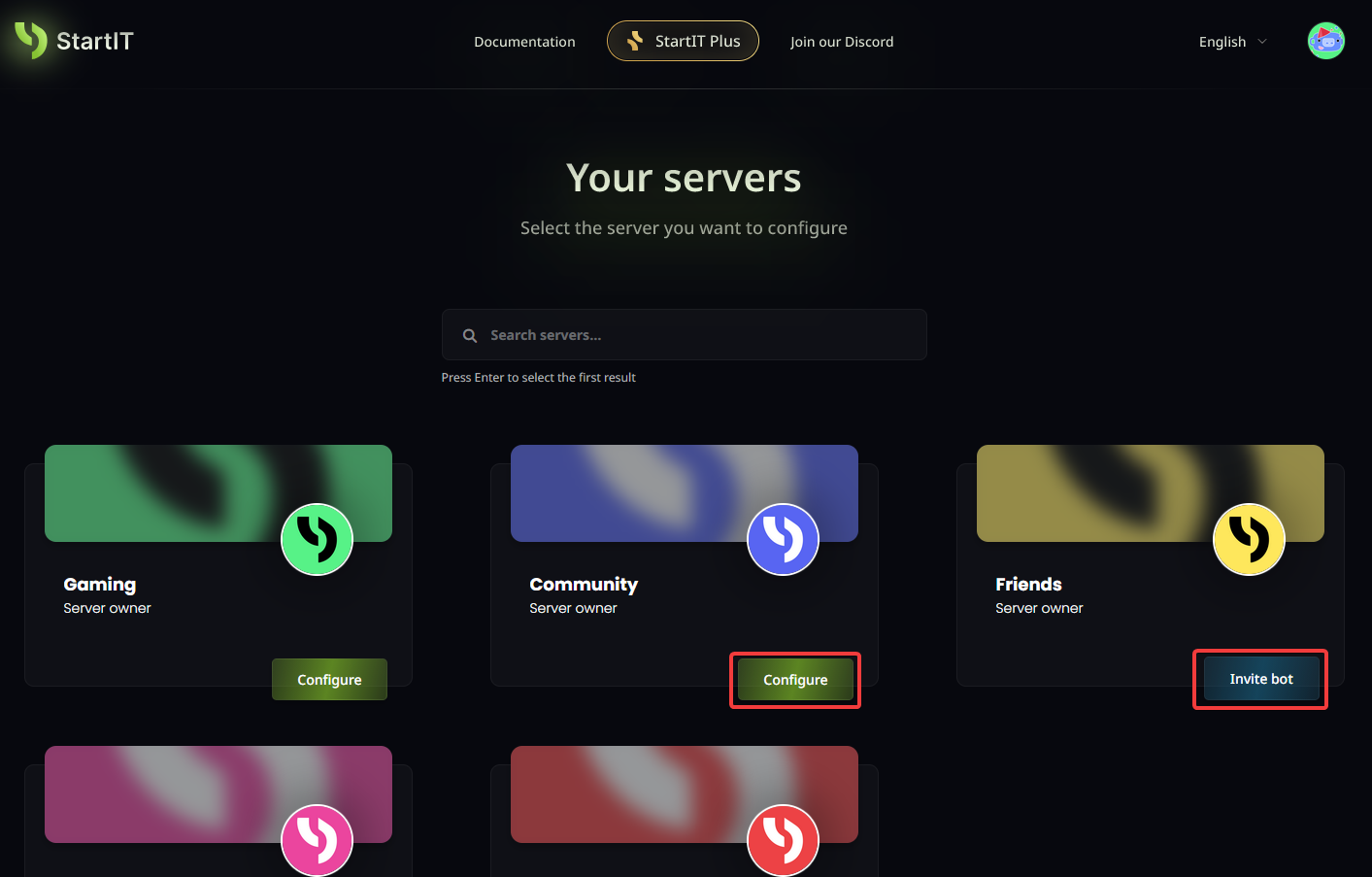
Note: You must have Administrator permissions for the server to appear in the selection list.
Getting Started: Enable the Plugin
First things first, make sure you have added the bot to your server. Once the bot is present:
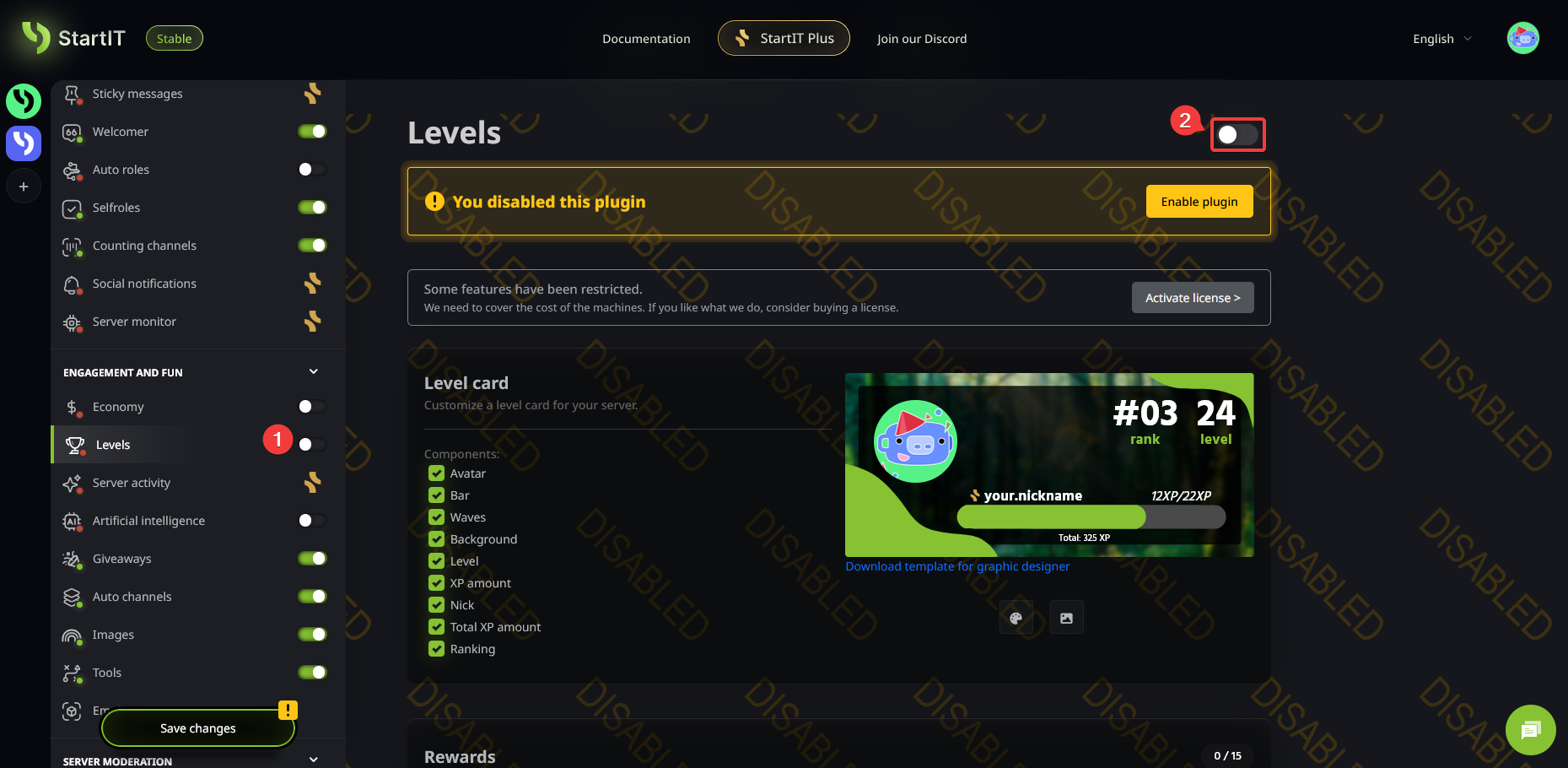
- Open the Levels plugin (1).
- Toggle the switch to Enable it (2).
Customize Your Rank Card (Optional)
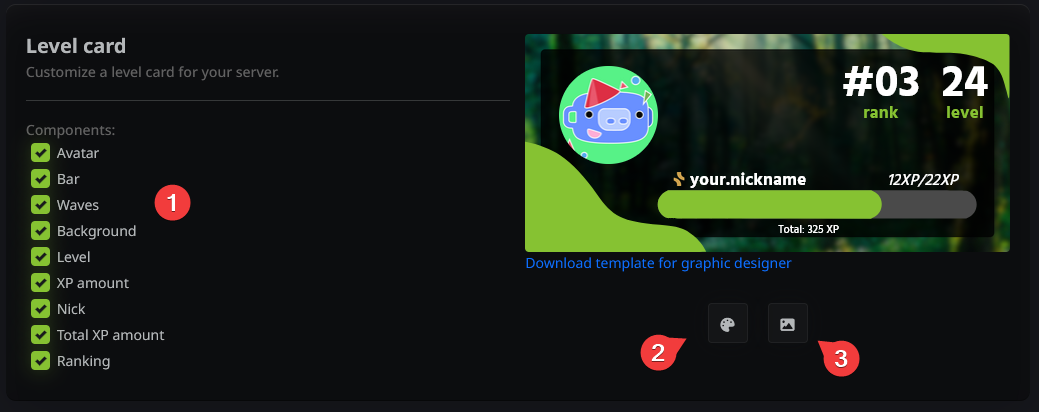
You can personalize how the level cards look on your server. Use ready-made components (1), choose a primary theme color (2), and upload a background image (3). All changes are displayed in real-time in the preview panel.
Setting Up Level Rewards
Now, let’s add rewards for reaching specific milestones.
- Step 1: Create the roles you want to give out within your Discord server settings.
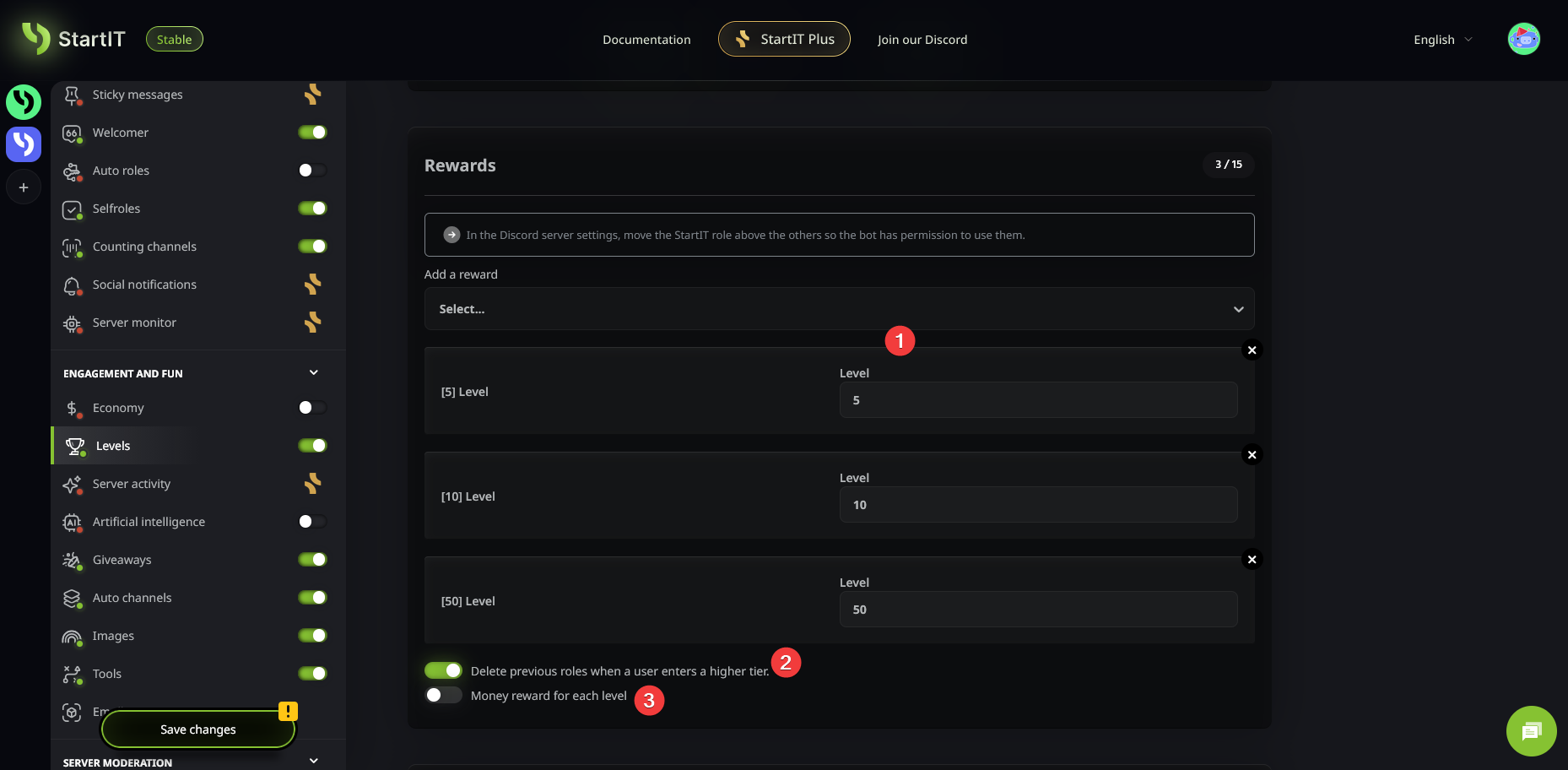
- Step 2: In our panel, select them from the dropdown list and add them (1).
The role name will appear on the left, and the required level on the right. You can also configure the bot to remove the previous, lower-tier role (2) when a new one is earned. If you have the Economy plugin enabled, you can even set up automated cash rewards (3).
Level-Up Notifications
It is important to let your users know when they’ve reached a new milestone!
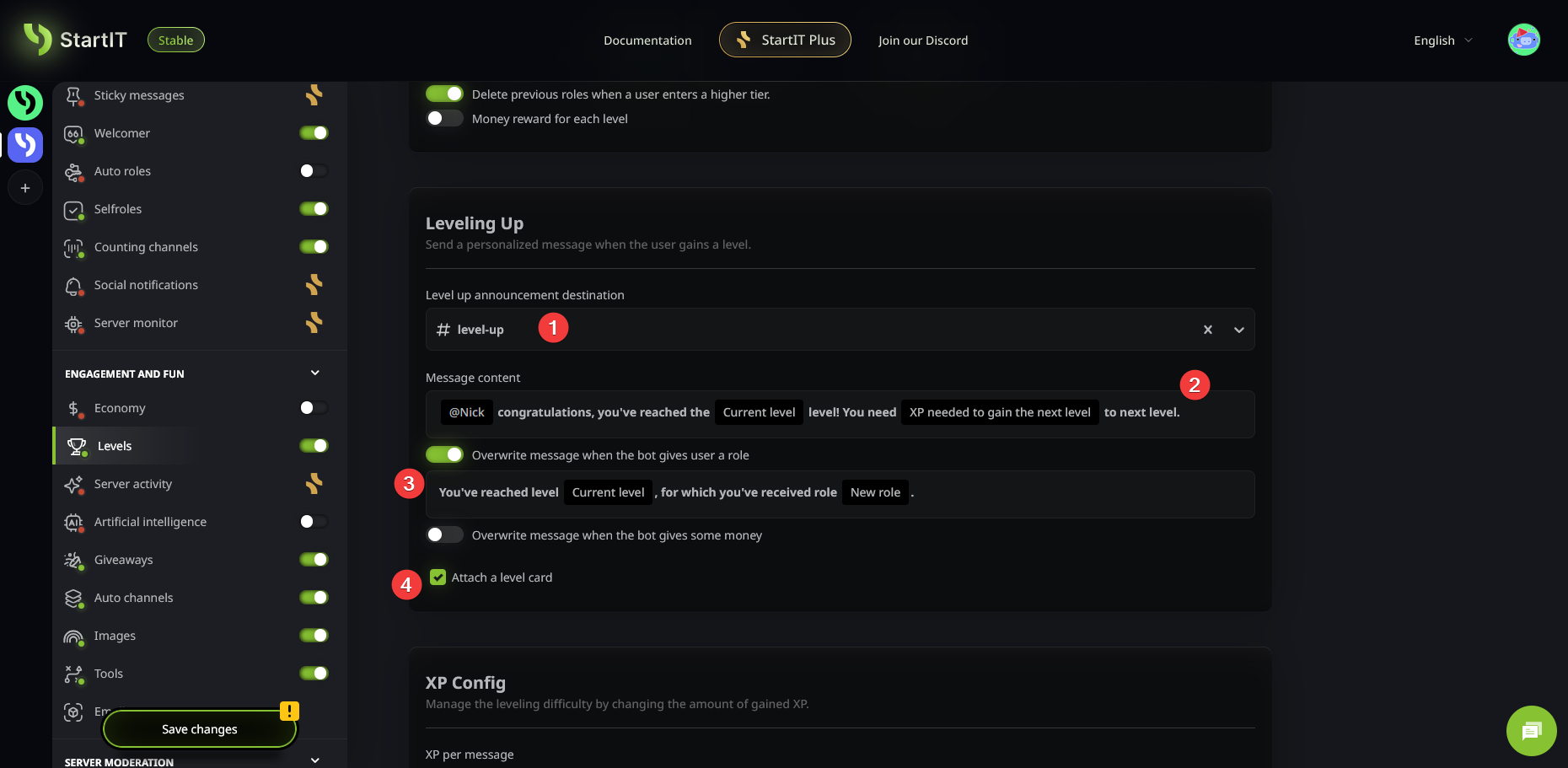
- Select the channel where notifications will be sent (1).
- Customize the message content (2).
- If a specific level grants a role, you can set a different message specifically for that event (3).
- You can also choose whether or not to attach the Level Card to the message (4).
Fine-Tuning XP Gain
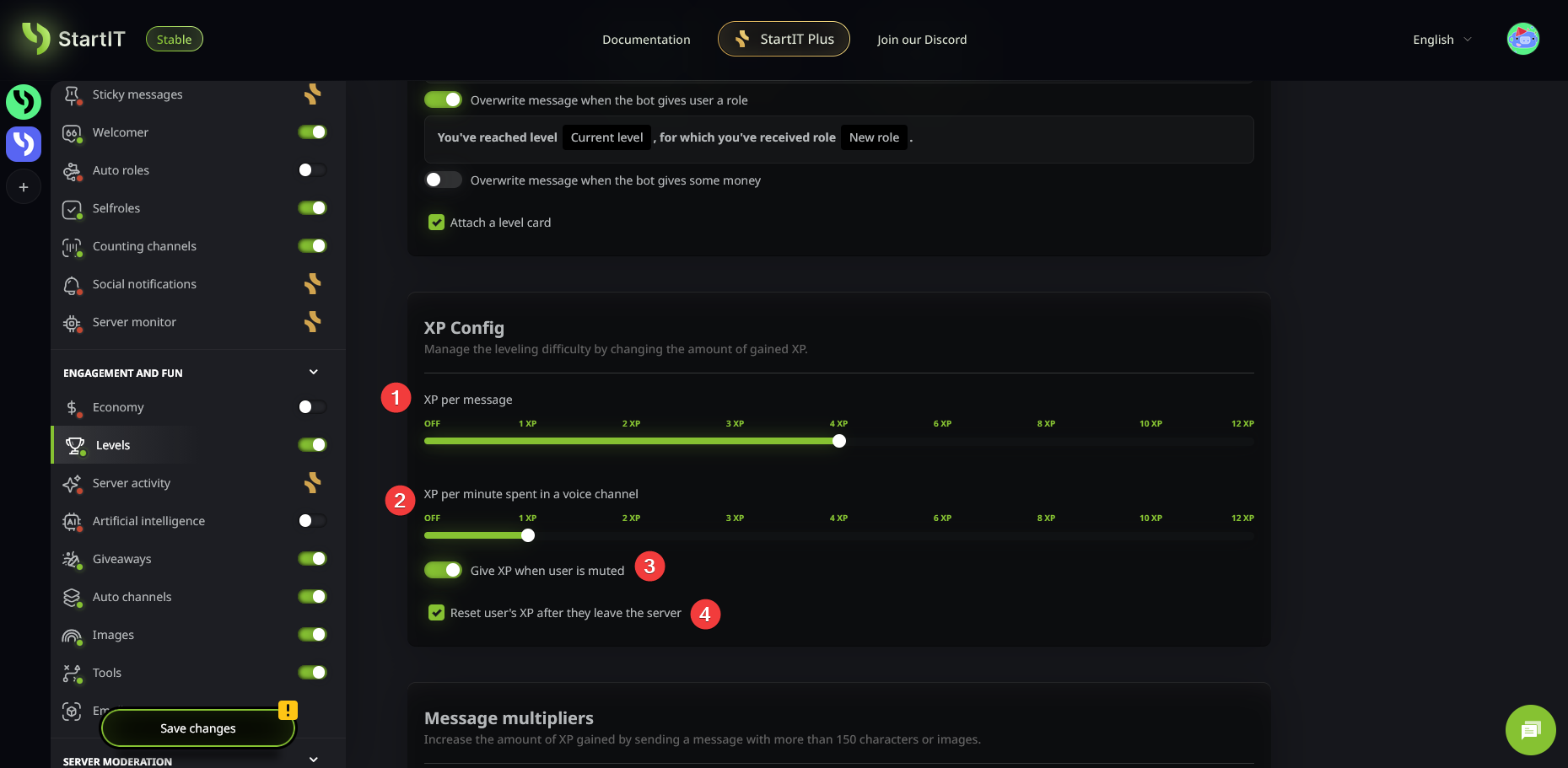
This is where you decide how fast your users progress. You can set the amount of XP earned for sending messages (1) or for spending time in voice channels (2).
Pro-tips for server health:
- Decide if muted users should still earn XP (3).
- Choose whether to completely wipe the XP of users who leave the server (4).
Reward Quality Content (Optional)
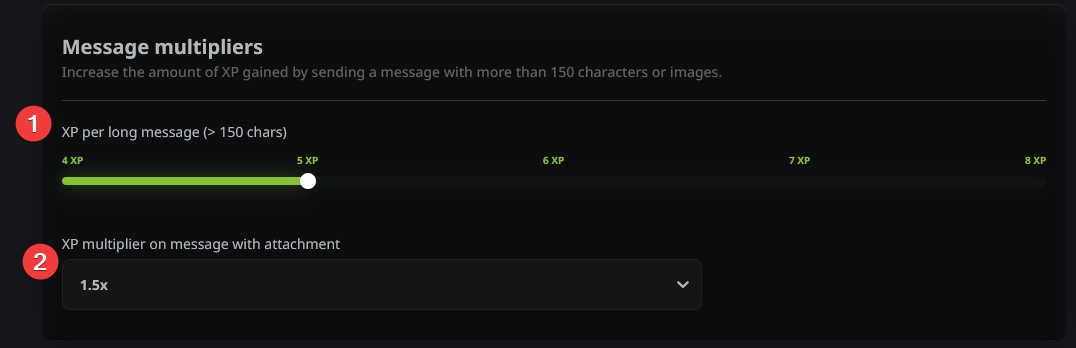
You can reward users who write less frequently but produce higher-quality posts. Set bonuses for longer messages (1) or for attaching images (2).
Level Thresholds & Math
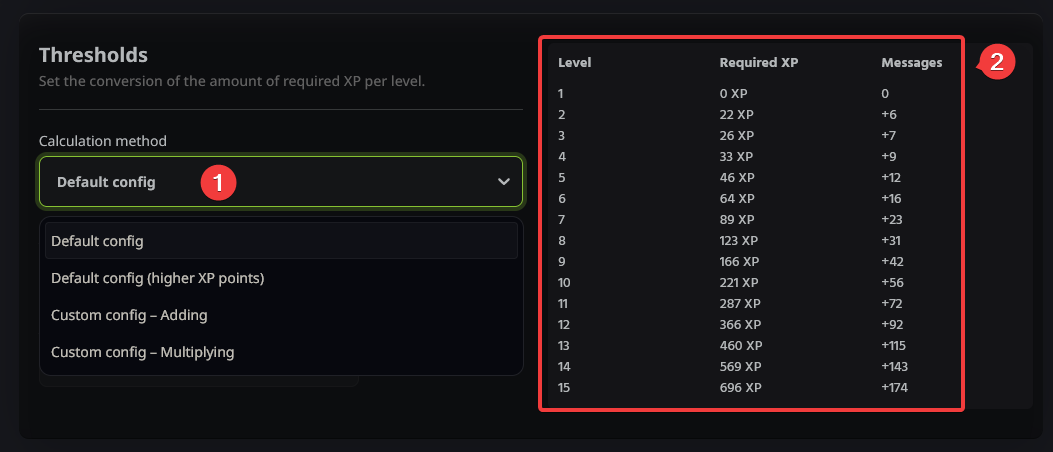
Setting the "XP curve" involves a bit of math, so our bot offers several pre-set configurations to save you time.
- We recommend staying with the Default setting (1).
- The table on the right (2) shows exactly how much XP and how many messages are required for each level. This table updates in real-time based on your plugin settings.
Boosts and Restrictions
Role Multipliers (Optional)
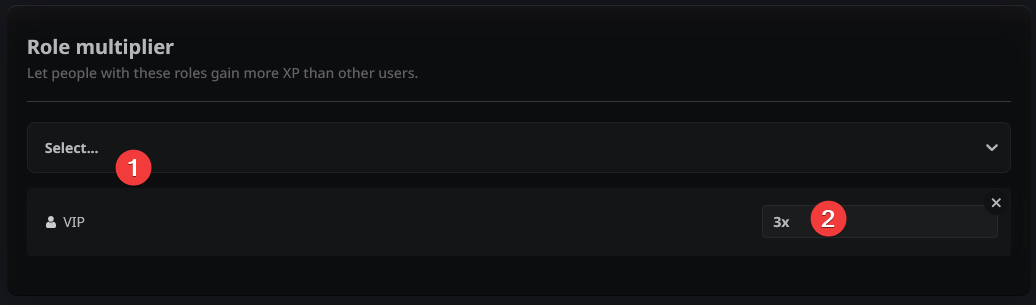
Want to reward your Nitro Boosters or loyal staff? Select a role (1) and set an XP multiplier (2) so they level up faster than others.
Channel Multipliers (Optional)
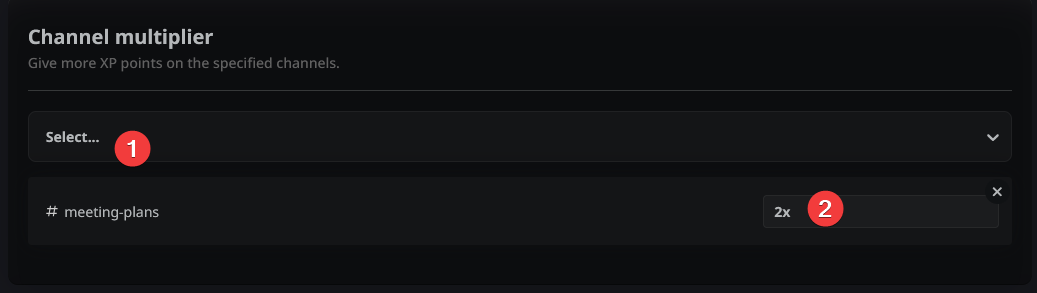
You can encourage activity in specific areas (like a #debate or #creative channel) by selecting the channel (1) and setting its multiplier (2).
Setting Exceptions (Optional)
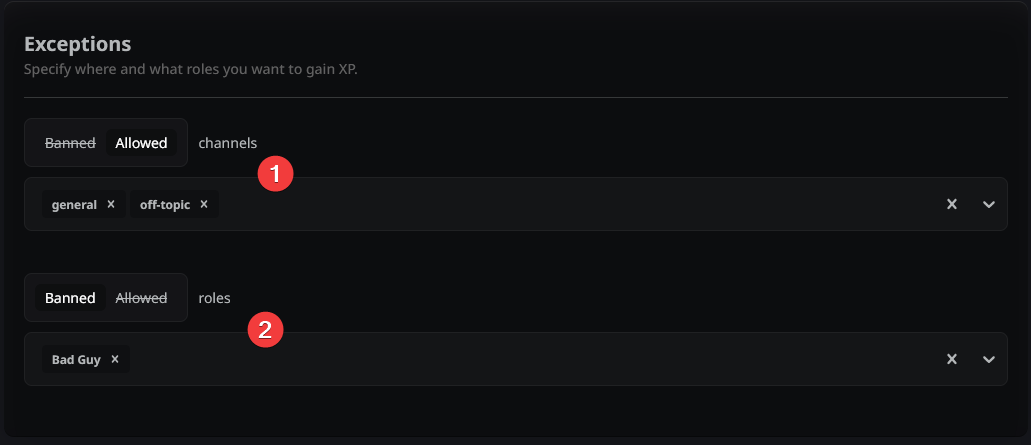
Click the Banned/Allowed labels to toggle how you want to manage XP. To decide which one to use, ask yourself: "Am I blocking a few things, or only allowing a few?"
- Banned (The "Everything Except" Mode): Best if you want XP active everywhere, but want to exclude a few things—like a "Muted" role or a "Spam" channel.
- Allowed (The "Only These" Mode): Best if you want XP disabled by default and only want it active in specific spots (e.g., only in
#general).
The final result
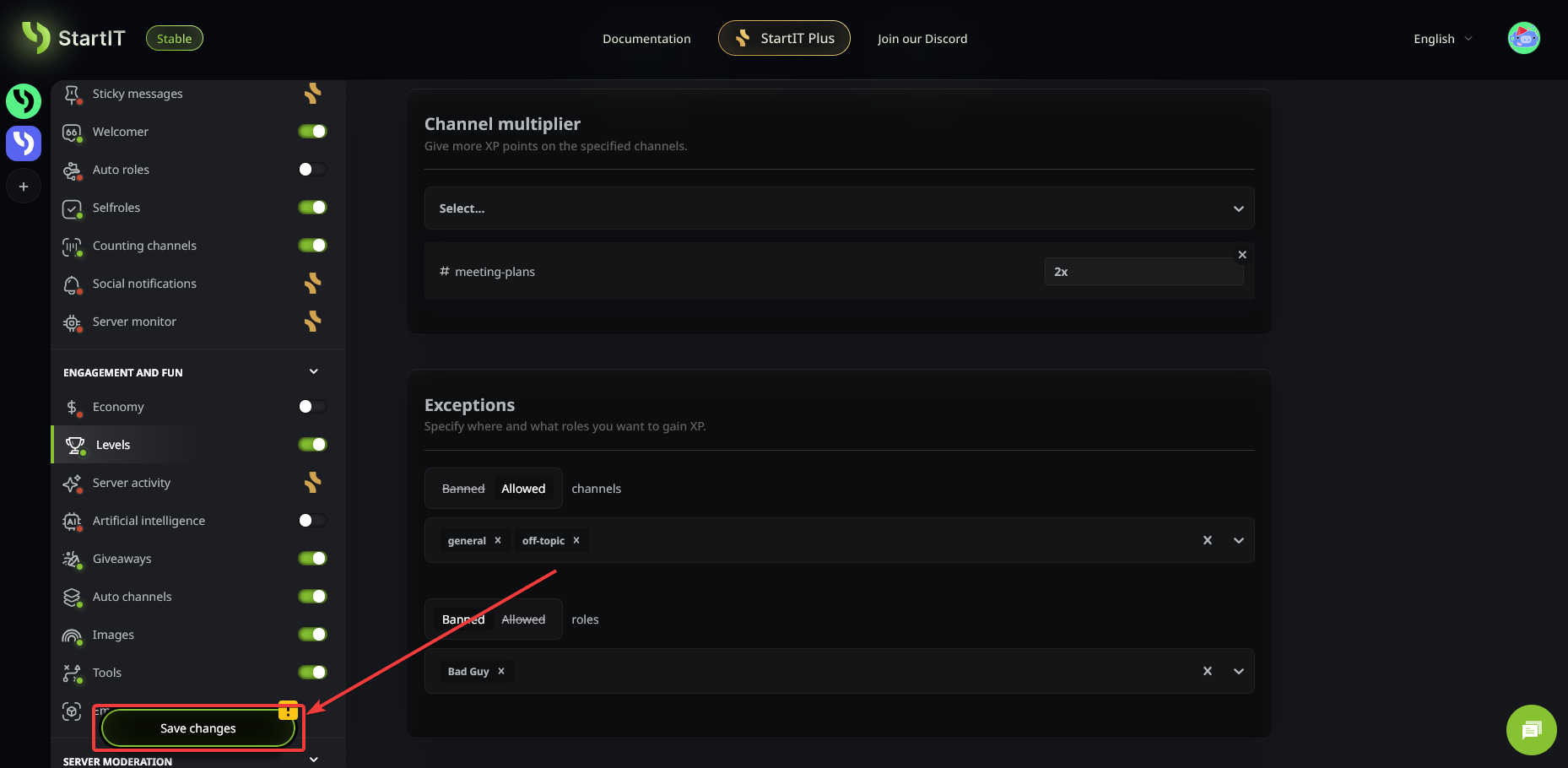
Important: Don't forget to Save Changes!
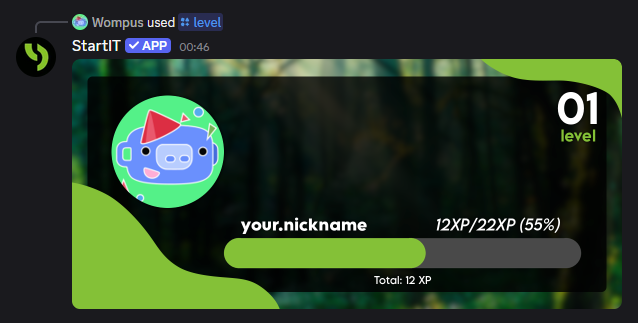
Once everything is set up, your users can use the following commands:
/levelor!rank– To check their current progress.
/toplvl– To see the server leaderboard.
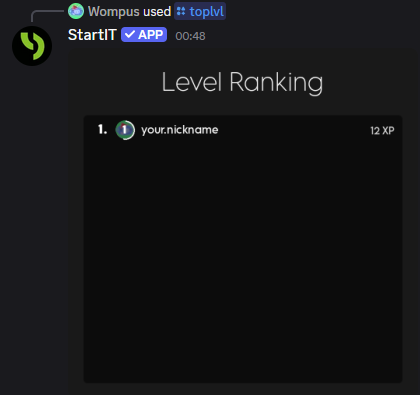
They will also receive beautiful notifications whenever they level up:
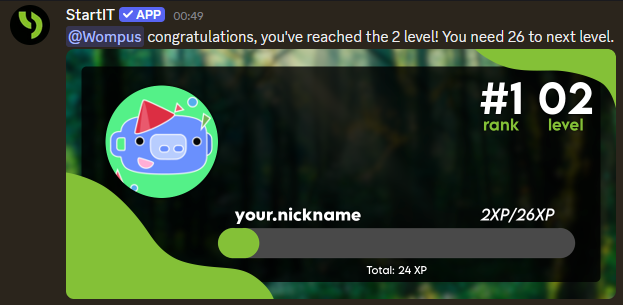
Ready to transform your server? Enable the Levels plugin today!
Troubleshooting & FAQ
The bot isn't sending level-up notifications
- Ensure you have selected a notification channel and saved your changes.
- Check if the Levels plugin is actually enabled.
- Verify the bot's permissions: Does it have access to the channel? Can it "Send Messages"?
The bot isn't counting XP
- Check if the Levels plugin is enabled.
- Make sure the specific channel or role isn't on the "Exceptions" list.
- Anti-spam protection: The bot only awards XP for one message every ~10 seconds per user.
- Check permissions: The bot must be able to "Read Messages" in that channel.
The bot isn't assigning roles
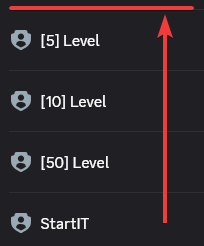
- The bot’s own role (usually named "StartIT") must be higher in the Discord Role Hierarchy than the role it is trying to assign.
Can staff manually add or remove XP?
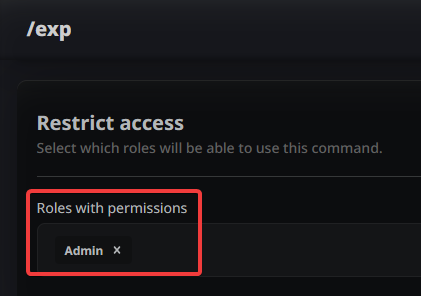
Yes! Use the /exp command. To grant access to this command, scroll to the very bottom of the Levels plugin and add the appropriate permissions.
Can I reset everyone's levels?
Yes. There is a red Reset button at the bottom of the Levels plugin. This action can only be performed by the Server Owner.

Can I import levels from another bot?
Currently, we support importing levels from MEE6. This option will appear at the top of the Levels plugin automatically if the bot detects MEE6 on the same server.
My Leaderboard (Rankings) is empty
The leaderboard updates every 24 hours. If you’ve just added the bot, please wait for the next sync. This prevents the bot from being overloaded.
I updated the XP requirements, but existing roles didn't change
The bot does not retroactively scan every member when settings change. It is best to finalize your leveling thresholds before your community starts earning XP to avoid inconsistencies.